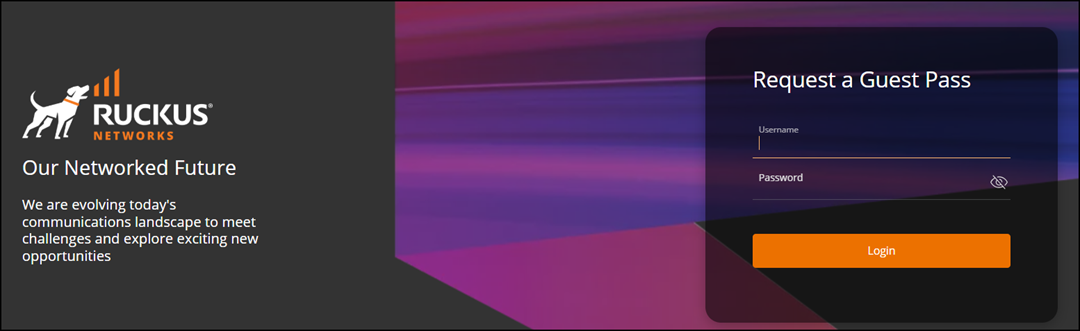
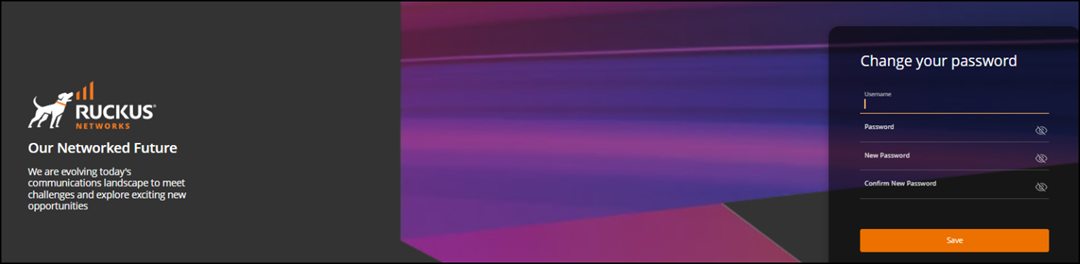
Configuring Guest Pass Manager Authentication
Authentication servers are used to
authenticate users assigned the Guest Pass Manager role when accessing the Guest
Pass
portal. The selected authentication server determines how user credentials are validated
before access to the portal is granted.
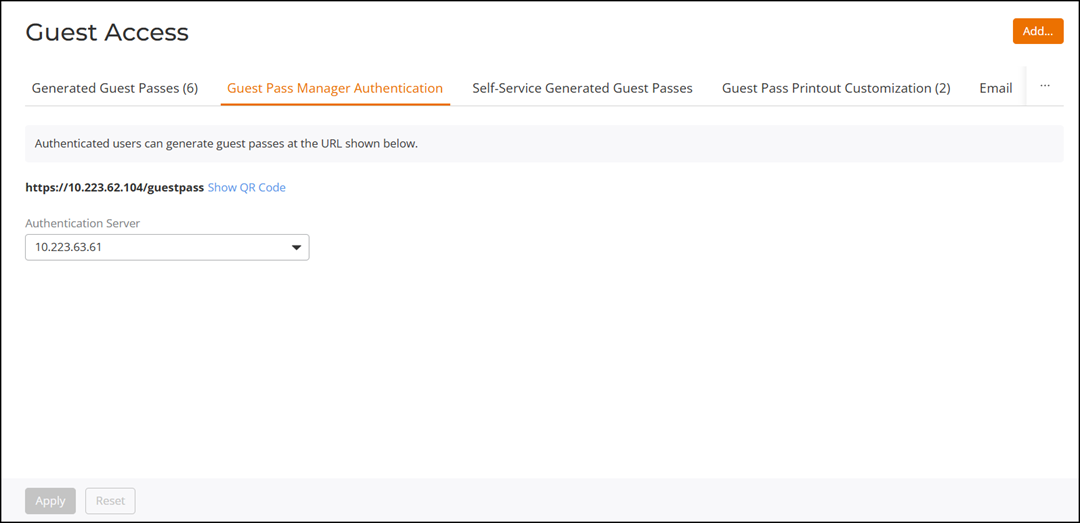
To configure the authentication server, complete the following steps:
- From the main menu, select . The Guest Access page is displayed.
- Select the Guest Access Manager Authentication tab.
- For Authentication Server, select the server from the dropdown list.
- Click Apply to save the selected authentication server configuration or click Reset to discard any unsaved changes and restore the previously applied configuration.
Accessing the Guest Pass Portal
Users with the Guest Pass Manager role can log in using their configured
authentication credentials to generate guest passes.
- Enter the URL of the Guest Pass request page in your web browser.
https://[host_ip_address]/guestpass
Users can also access the URL QR code from the Guest Access Manager Authentication page or Add Role page for fast and convenient access to the portal.
- Enter your username and password and click Login.