Adding and Managing AAA Servers
Complete the following steps to configure RUCKUS Unleashed and authenticate users against an external Active Directory, RADIUS, or RADIUS Accounting server.
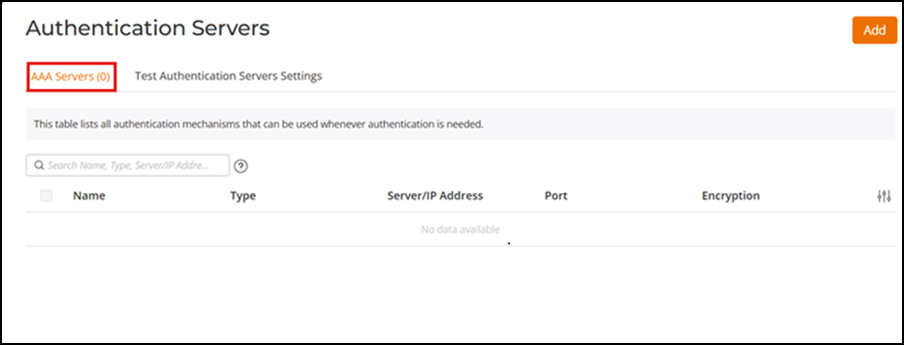
- Select Services > Authetication Servers > AAA Servers.
- Click Add.
- Enter the name for the AAA server.
- For Type, select one
of the below server types:
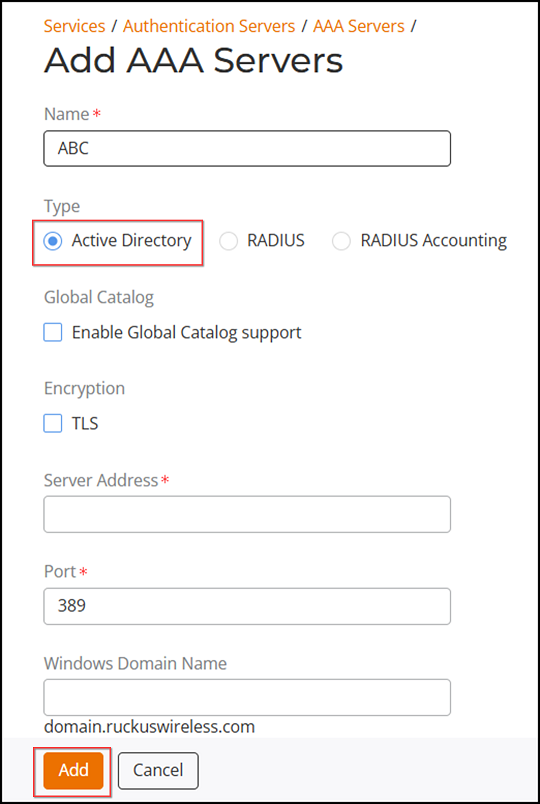
- Active
Directory: If you use a Microsoft AD server, configure the
following settings:
- Global Catalog: Select the Enable Global Catalog Support checkbox for multi-domain AD authentication. If this option is enabled, you must also enter an Admin DN and Password so that RUCKUS Unleashed can query the Global Catalog.
- Encryption: Enable TLS encryption if you want to encrypt all authentication traffic between the client and the Active Directory server. The AD server must support TLS1.0, TLS1.1, or TLS1.2.
- Server Address: Enter the IP address or the domain name of the AD server.
- Port: The default port number (389, or 636 if you have enabled TLS encryption) should not be changed unless you have configured your AD server to use a different port.
- Windows Domain Name: Enter a domain name for single domain authentication, or leave blank for multi-domain authentication.
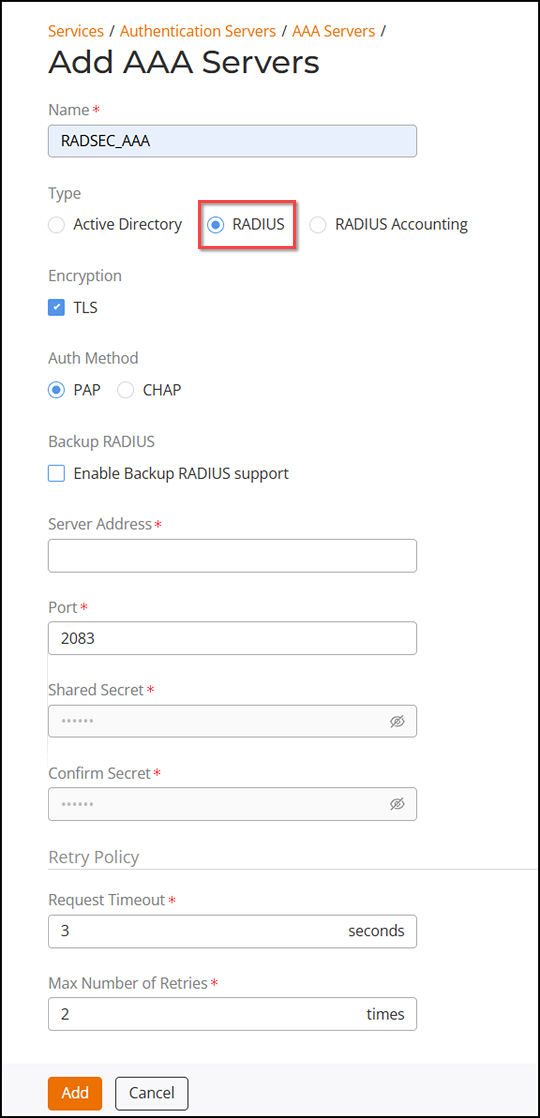
- RADIUS or
RADIUS
Accounting: If your authentication or accounting server is a
RADIUS or RADIUS accounting server, configure the following settings:
- Encryption: To enable encryption of RADIUS packets using Transport Layer Security (TLS), select the TLS checkbox. This ensures that RADIUS authentication and accounting data are securely transmitted across potentially untrusted networks, such as the Internet.
- Auth Method: Choose PAP or CHAP according to the authentication protocol used by your RADIUS server. This option is available only if you select the RADIUS server.
- Backup RADIUS: If a backup RADIUS or RADIUS Accounting server is available, you can select the Enable Backup RADIUS support and additional fields appear. Enter the relevant information for the backup server and click Add. When you have configured both the primary and backup RADIUS servers, an additional option is available in the Test Authentication Servers Settings tab to choose to test against the primary or the backup RADIUS (or RADIUS Accounting) server.
- Server Address: Enter the IP address or the domain name of the RADIUS or RADIUS Accounting server (and backup RADIUS or RADIUS Accounting server, if enabled).
- Port: The default port (1812) should not be changed unless you have configured your RADIUS server to use a different port.
- Shared Secret: Enter a password for communication between RUCKUS Unleashed and the RADIUS (or RADIUS Accounting) server.
- Confirm Secret: Re-enter the shared secret.
- Under Retry
Policy, complete the following steps:
- Request Timeout: The maximum time the system will wait for a response from the RADIUS (or RADIUS Accounting) server before considering the request failed. Enter a value (in seconds).
- Max Number of Retries: The maximum number of times the system will retry sending a request to the RADIUS (or RADIUS Accounting) server if no response is received. Enter a retry value.
- The following
fields appear only if the Backup
RADIUS option is enabled:
- Max Number of Consecutive Drop Packets: The maximum number of consecutive packets that can be dropped before switching to the backup RADIUS (or RADIUS Accounting) server.
- Reconnect Primary: The time interval after which the system will attempt to reconnect to the primary RADIUS (or RADIUS Accounting) server if it had previously switched to the backup server.
- Active
Directory: If you use a Microsoft AD server, configure the
following settings:
- Click Add to save your
AAA server entry. The page refreshes and the AAA server you created appears in the AAA Servers list.
Optionally, you can clone, edit, or delete any AAA server by selecting a specific Hotspot service checkbox and clicking the Clone, Edit, or Delete options.