Configuring User Roles
RUCKUS Unleashed provides a Default role that is automatically applied to all new user accounts.
The Default role links all users to the internal WLAN and permits access to all WLANs by default. As an alternative, you can create additional roles that you can assign to selected wireless network users, to limit their access to certain WLANs, to allow them to log in with non-standard client devices, or to grant permission to generate Guest Passes.
Complete the following steps to create a new user role.
-
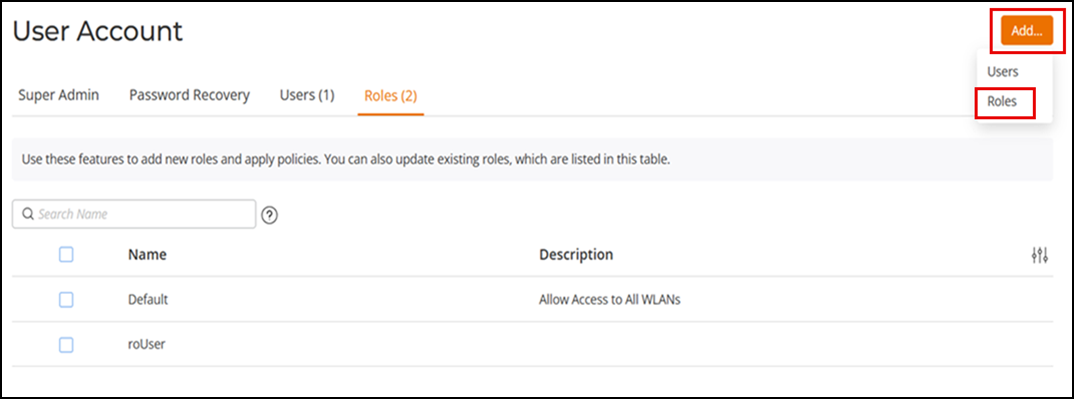
UI path for UnleashedFrom the main menu, select . The Roles sub-tab appears, displaying a Default role with description in the Roles table.
- Click . The Add Role page is displayed.
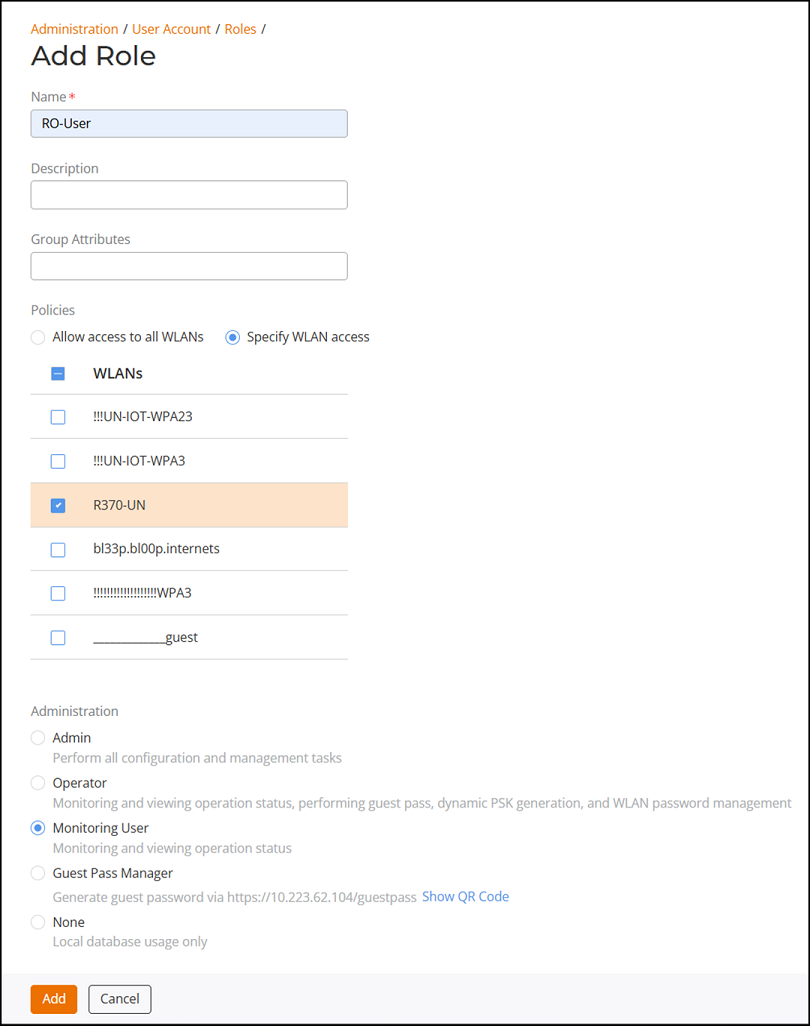
- Enter a name and optionally enter a short description for this role.
- Complete the following options
for this role:
- Group Attributes: Enter the user group name here only if you are creating a user role based on group attributes, which are extracted from an Active Directory server. Active Directory/LDAP users with the same group attributes are mapped to this user role automatically.
- Policies: Select one of the two options: Allow access to all WLANs or Specify WLAN access. If you select Specify WLAN access, you must specify the WLANs by selecting the checkbox next to each WLAN.
- Administration: Define the administrative access level
and operational privileges assigned to each role. The options under this
section determine what actions users assigned to each role can perform.
- Admin: Grants administrative access, allowing users to perform all configuration, management, and monitoring tasks.
- Operator: Allows the user to monitor and view operational status, generate Guest Passes, create Dynamic PSKs (DPSKs), and manage WLAN passwords, without full administrative privileges.
- Monitoring User: Provides read-only access for monitoring and viewing the system’s operational status. Users cannot perform configuration or management actions.
- Guest Pass Manager: Allows the user to generate Guest Passes for guest network access. Users with the Guest Pass Manager role can generate guest credentials either by accessing the Guest Pass portal directly or by scanning the URL QR code for fast and convenient access to the portal.
- None: This option is intended for local database usage only and does not provide any administrative or monitoring privileges.
- Click Add to save your
settings.This role is ready for assignment to authorized users. If you want to create additional roles with different policies, repeat the procedure to create a new user role.