Generating a Guest Pass
Difference in UI lables for Unleashed and
RUCKUS Blue
- From the RUCKUS Unleashed main menu, select .
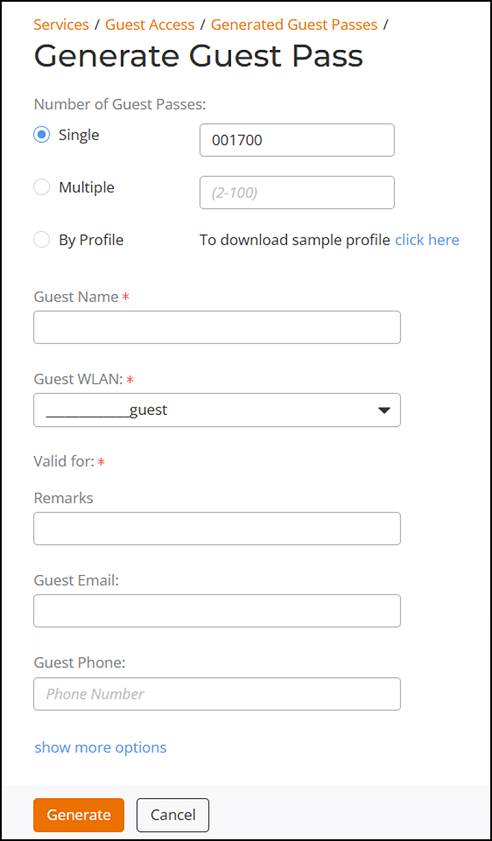
- In the Guest Access page, select to create a Guest Pass. The Generate Guest Pass page is displayed.
- For Number of Guest
Passes, select one of the following options:
- Single: Generate a single Guest Pass. Refer to Generating and Delivering a Single Guest Pass.
- Multiple: Generate multiple Guest Passes. Refer to Generating and Printing Multiple Guest Passes at Once.
- By Profile: Import a Guest Pass profile. Refer to Creating a Guest Pass Profile. To download a sample profile, click the click here link.
- Enter the guest name.
- For Guest WLAN, select the WLAN for which the Guest Pass will be issued. To create a guest WLAN, refer to Deploying a Guest WLAN.
- In Valid For, enter a number (positive integer) and select a time interval (Hours, Days, or Weeks, not exceeding 10 years) for which the Guest Pass will remain valid.
- (Optional) Enter a guest email
address and guest phone number. If these options are entered, and the email
server and SMS delivery method have been configured (from the
Services menu), you can deliver the Guest Pass to the
guest using email or SMS.
Unleashed
- (Optional) Click show more options
and configure the following:
- Enable Session Timeout: Select the checkbox and select a time interval (Minutes, Hours, or Days) after which guests are required to log in again. If the Session Timeout is disabled, the connected users are not required to log in again until the Guest Pass expires.
- Enable Shared Pass: Allows multiple users to share a single Guest Pass. Select the number of guests from the drop-down list.
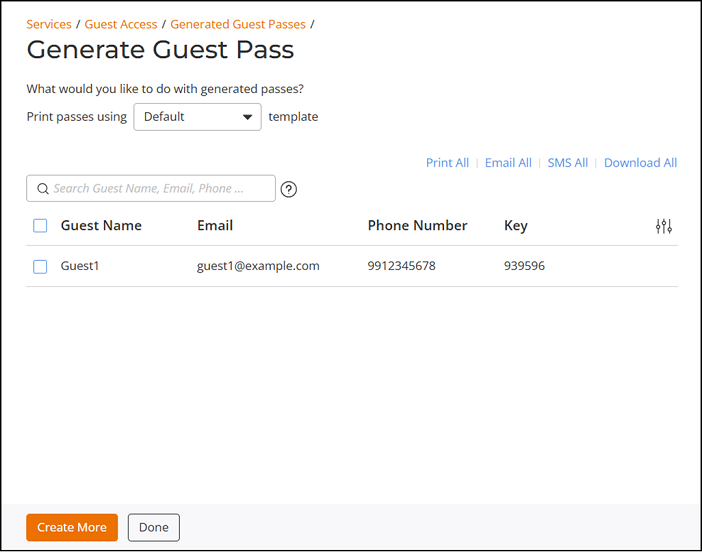
- Click Generate to create the Guest Pass and the page displays the generated guest passes and allows you to select the delivery method for sharing the passes with guests.
- On the Generate Guest
Pass page, the following options are available:
- Print passes using template: Allows you to select the template used when printing guest passes.
- Print All: Prints all generated guest passes using the selected template.
- Email All: Sends all generated guest passes to the guests’ email addresses specified during pass creation.
- SMS All: Sends all generated guest passes to the guests’ phone numbers via SMS.
- Download All: Downloads all generated guest passes as files for offline sharing or printing.
You can also select individual guest passes and choose to print, email, or send via SMS only the selected passes.
- Click Create More to generate additional guest passes or click Done to complete the guest pass generation process.