Zero Touch Deployment Setup Example
- Back up the Unleashed configuration via the Unleashed UI or you can register the Unleashed network to remote management services and back up the Unleashed configuration via the remote management services backup task and download it to your laptop.
- Provision the Zero Touch
Deployment rule on remote management services Domain portal.
- Log in to remote management services WebUI and go to the Unleashed Zero Touch page.
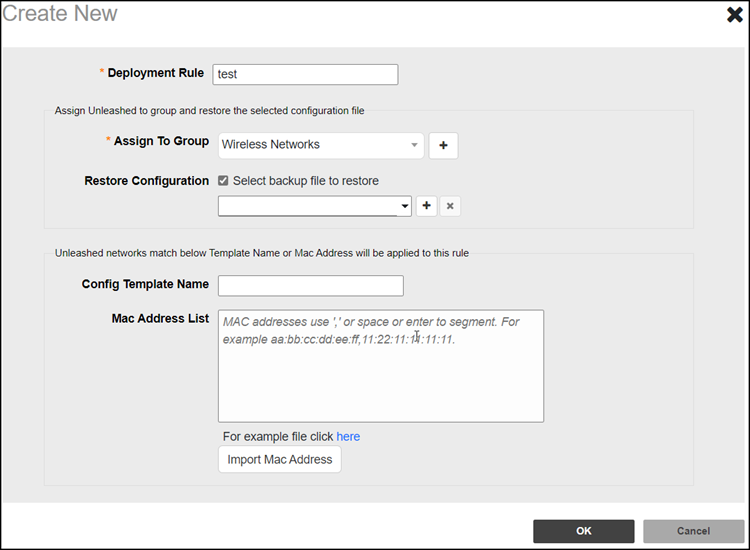
- Click the Create button to create a new Zero Touch Deployment rule.
- Enter the Deployment Rule name and select the Network Group from the Assign To Group drop-down menu.
- Enable the Restore
Configuration option and select the configuration file
from the drop-down menu, or click
 to upload a new Restore
configuration file.
to upload a new Restore
configuration file. - Match the Config Template Name with the 'Config Template Name' received from Unleashed, and make sure to provision the same 'Config Template Name' on both remote management services and Unleashed.
- Use the Mac Address List to match the rule against Unleashed Master AP and click OK to save the rule.
- Initiate Unleashed, either
manually or by DHCP.
- Power up the AP.
- In the Setup Wizard, click on UMM Install and enter the following parameters:
- Click Next to connect the Unleashed to the remote management services Domain server. The configuration file will download automatically.
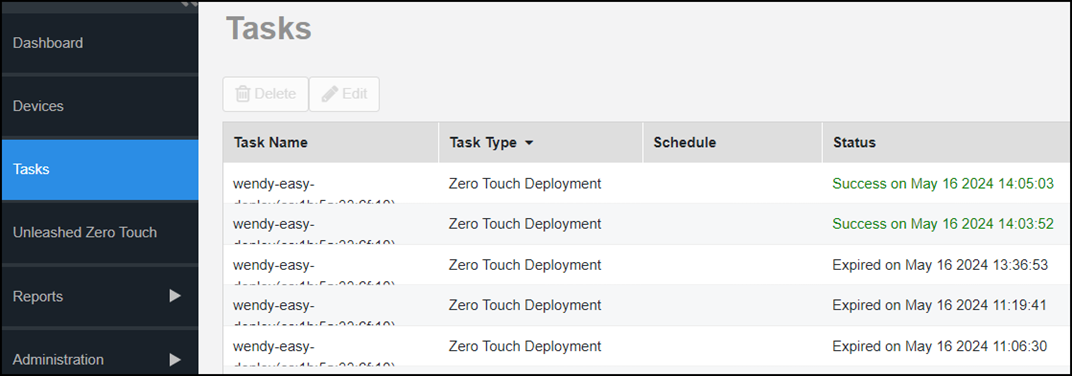
- Check the status of Zero Touch Deployment on the task page.