Backing Up Network Configuration Files
You can create configuration backup
files, for all the networks managed by the remote management services, to recover
configuration settings in the event of a network failure. The backup files can be
created
for single or multiple networks.
RUCKUS strongly recommends that you periodically back up the settings of your Unleashed networks to make sure that you can easily recover the configuration settings if they ever become corrupted.
Note: The system supports a maximum of
three configuration backup files for each network.
- After you to log in to the
remote management services web interface, select Networks from the main menu. The Networks page appears, listing all the networks managed by the remote management services for Unleashed.
- From the list of networks, select the network for which you want to back up the configuration values and then click Backup & Restore.
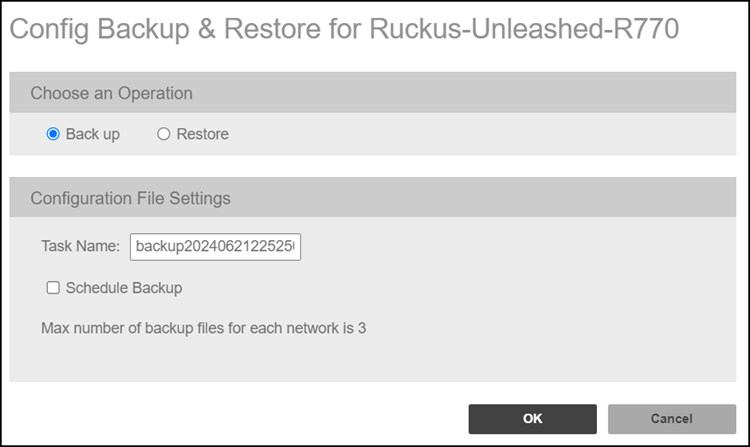
- In Choose an Operation, select Back up.
- In Configuration File Settings, enter the following:
- Task Name: This field is prefilled with a task name using the syntax backupYYYYMMDDHHMMSS, but you can change the name of the task, if desired. Use a descriptive name that helps you identify this backup configuration.
- Schedule Backup: Select
the checkbox to schedule when you want to back up of the configuration.
After you select the checkbox, the Frequency and Time of Day options are displayed. Select the options from the drop-down menus as appropriate. In Frequency, if you select Weekly or Monthly, the corresponding Day of the Week or Day of the Month options are displayed, respectively.
- Click OK.