Restoring Network Configuration Files
Restoring network settings from a backup file overwrites the current settings with those contained in the backup file. When performing the restore procedure, make sure that you are restoring the correct backup file.
Also, ensure that you are selecting the appropriate restore type. For example, when you only want to restore the wireless, access control, and user settings, make sure you select Policy Restore. Selecting Full Restore overwrites all existing network settings, including the IP address, system name, username, and password.
An ‘Unleashed ID’ is automatically generated by the system for each Unleashed network. This ID is reset when the network is set to factory default and may be overwritten when network configuration is restored (depending on which restore option is selected).
- After you log in to the remote
management services web interface, select Networks from the main menu. The Networks page appears, listing all the networks managed by the remote management services for Unleashed.
- From the list of networks, select the network for which you want to restore the configuration values and then click Backup & Restore.
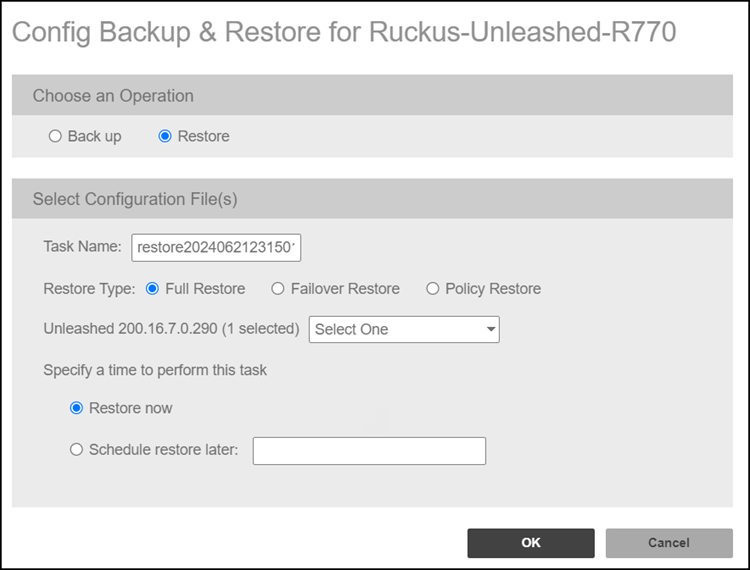
- In Choose an Operation, select Restore.
- In Select
Configuration File(s), enter the following:
- Task Name: This field is prefilled with a task name using the syntax restoreYYYYMMDDHHMMSS, but you can change the name of the task, if desired. Use a descriptive name that helps you identify this task.
- Restore Type: Choose one
of the following:
- Full
Restore: Restores all settings from the backup file,
including the IP address, system name, username, and password.
Use this restore type to overwrite all current settings of a
network with those from the backup file. For example, if the
configuration file of a network becomes corrupted, then you can
use Full Restore to recover the network.
The Unleashed ID will be overwritten during Full Restore.
- Failover Restore: Restores all settings from the backup file, except the system name, IP address, username, and password. Use this restore type when you want to configure a secondary network as a failover unit. After configuring the secondary network, deploy it to the same network as the primary network. If the primary network fails for any reason, then all APs managed by the primary network are able to report to the secondary network automatically. If you choose this restore type, then you need to manually configure the IP address, system name, username and password of the secondary network.
- Policy Restore: Restores only the wireless, access control, role, and user settings from the backup file. Use this restore type when you want to apply the same set of common settings to multiple networks. You need to first configure one network with your preferred wireless, access control, role, and user settings, back up these settings, and then restore them onto the target networks.
- Full
Restore: Restores all settings from the backup file,
including the IP address, system name, username, and password.
Use this restore type to overwrite all current settings of a
network with those from the backup file. For example, if the
configuration file of a network becomes corrupted, then you can
use Full Restore to recover the network.
- Network Selection: From the drop-down menu, choose the target configuration file to restore.
- In Specify a time to perform this task, specify when you want the task to run. To run the task immediately, click Restore now. To schedule the task, click Schedule restore later and then select the date and time.
- Click OK.