Creating a New Rule
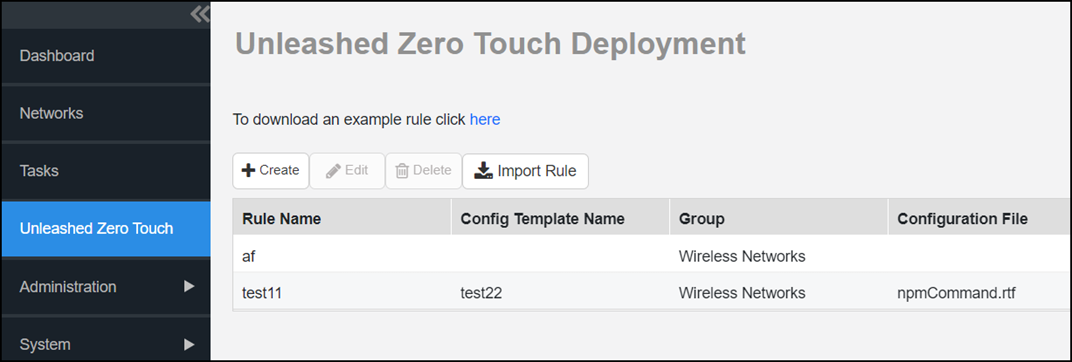
The Unleashed Zero Touch Deployment
page allows you to create, edit, import, and download an example rule.
- After you log in to the remote management services web interface, select Unleashed Zero Touch from the main menu.
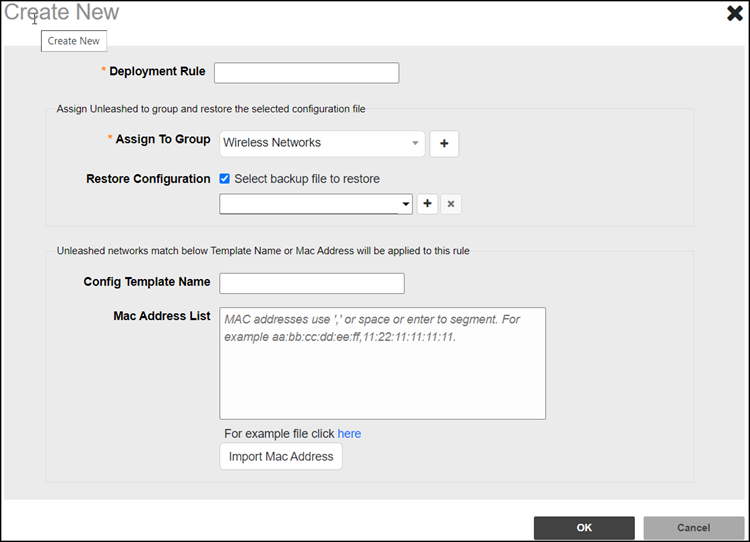
- Click the Create button; the Create New page appears.
- In the Deployment Rule field, enter the rule name.
- In the Assign To Group field, select the group name from the drop-down. When the network registers to remote management services for the first time, remote management services assigns the network to the predefined group automatically.
- In the Restore Configuration field, if you click the Select backup file to restore checkbox, then do the following:
- The Config Template Name is a code that will be filled automatically in the Unleashed network.
- In the Mac Address List field, enter the MAC address of the Unleashed network or click Import Mac Address to import a list of MAC addresses..
 icon and
 As an alternative to using the Create wizard, on the Unleashed–Zero Touch Deployment page, you can click the Import Rule button to import a rule that you have defined locally.
Note: Supported file formats are .CSV
or .TXT.
On the Unleashed–Zero Touch Deployment page, you can also edit or delete an existing rule by selecting the required rule and clicking Edit or Delete, respectively.