Upgrading Network Firmware
You can initiate the upgrade of
Unleased networks from the remote management services web interface.
- After you log in to the remote
management services web interface, select Networks from the main menu. The Networks page appears, listing all the networks managed by the remote management services for Unleashed.
- From the list of networks, select the network for which you want to upgrade the firmware and click Upgrade.
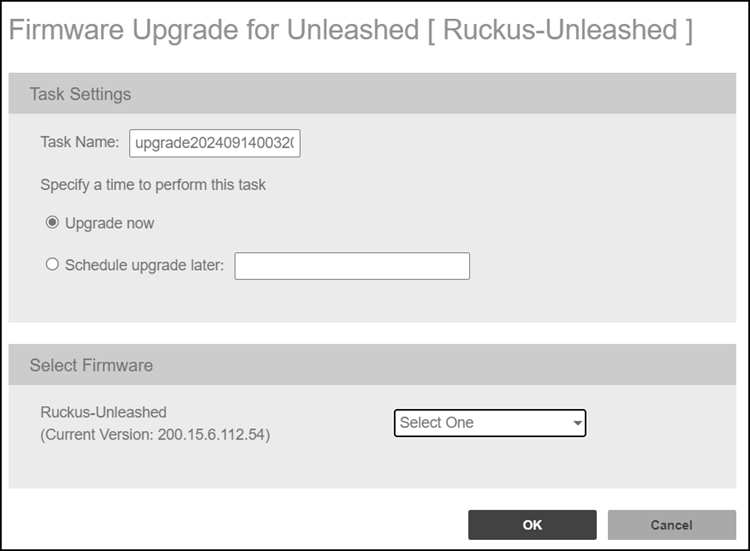
- Configure the following:
- Task Name: This field is prefilled with a task name using the syntax upgradeYYYYMMDDHHMMSS, but you can change the name of the task, if desired. Use a descriptive name that helps you identify this task.
- In Specify a time to perform this task, specify when you want the task to run. To run the task immediately, click Upgrade now. To schedule the task, click Schedule upgrade later and then select the date and time.
- In Select Firmware, select the firmware version for the Unleashed network from the drop-down menu.
- Click OK to upgrade the network firmware.