Viewing Networks Managed by Remote management services for Unleashed

The Networks page of the remote management services web interface displays information about networks managed by remote management services for Unleashed. These networks include Unleashed APs and ICX switches managed by Unleashed.
  1. After you to log in to the remote management services web interface, select Networks from the main menu.

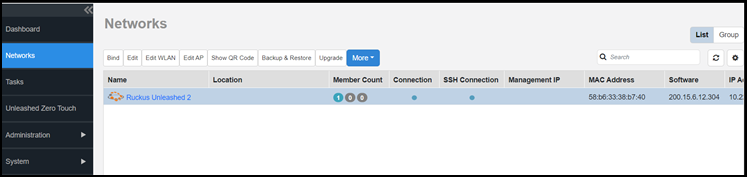
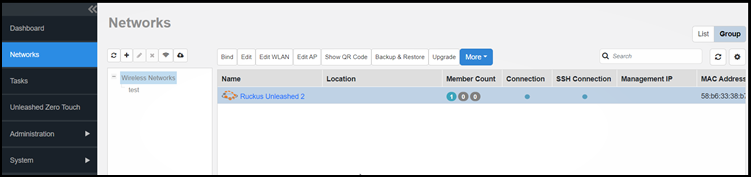
    You can use the view mode options to to select how you want the network information to be presented:

    • List: Displays the list of all networks in alphanumeric order by network name.
    • Group: Displays the list of networks in a hierarchical format.

    Networks Managed by Remote management services for Unleashed: List View

    Networks Managed by Remote management services for Unleashed: Group View

    Located above the right side of the table are two icons:

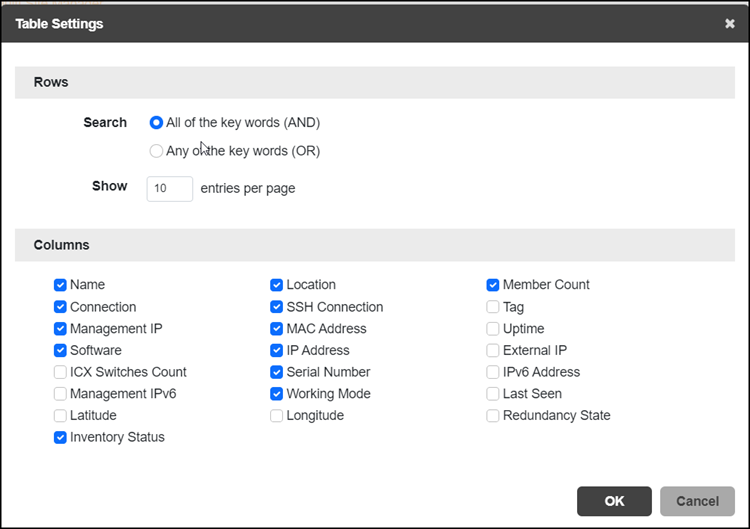
    • Click the icon to select and deselect the contents of the table, select the number of rows to show, and manage the Search function criteria.
    • Click the icon to refresh the contents of the table.

    The following table lists some of the fields and table columns that appear by default.

    Managed Networks

    Field/Column Description
    Name Displays the name of the network (may be an Unleashed network or an ICX Switch).

    Clicking the device name hyperlink opens the dashboard of the network in a new page.

    Member Count Displays the number of connected, disconnected, or pending APs that are managed by the Unleashed network.
    Connection Indicates whether the device is currently online (blue) or offline (red).
    SSH Connection Indicates the status of the SSH tunnel between remote management services and the Unleashed network and whether it is online (blue) or offline (red).
    Management IP Displays the Management IP address of Unleashed networks.
    Management IPv6 Displays the Management IPv6 address of Unleashed networks.
    MAC Address Displays the MAC address of the master AP for Unleashed networks.
    Software Displays the software version that is installed on the Unleashed networks.
    IP Address Displays the IP address assigned to the Unleashed networks.
    Note: The port number after the IP address indicates the protocol that you can use to gain access to the web interface of the network. For example, if :443 is displayed after the IP address, you can access the web interface using:
    https://device-IP-address:433
    Serial Number Displays the serial number of the Unleashed networks.
    ICX Switches Count Displays the number of connected, disconnected, or pending ICX switches managed by remote management services for Unleashed.
    External IP Displays the IP address of the networks when it is behind the NAT server. The remote management services for Unleashed uses this IP address to manage the network. For Unleashed networks that are behind NAT, include port 443 for port forwarding.
    Tag When configured, this column shows a generic attribute (Device Tag) that can be used to identify the network. For example, when this AP device is located in a main office, you can assign the tag “Main” to it.
    IPv6 Address Displays the IPv6 address of the Unleashed network.
    Working Mode Shows the master AP working mode as Bridge or Gateway.
    Last Seen Displays the time stamp of the Unleashed network when it was last online.
    Uptime Displays how long since the Unleashed network was last rebooted.
    Latitude Displays the latitude (global North-South position) of the Unleashed network.
    Longitude Displays the longitude (global East-West position) of the Unleashed network.
    Location Displays the location of the Unleashed network (if provided).
    Inventory Status Displays the permission that is assigned to the Unleashed network.
    Redundancy State Indicates the status of Dedicated master.

    By clicking the icon, you can customize the table settings that are displayed. You must select the checkboxes to display the columns in the table and enter the number of rows you want to display in the table, in addition to specifying the search criteria.

    Customizing the Table Settings

    To search for information in the table, enter a word or phrase in the Search field. The page refreshes and displays devices with attributes that matched your search keyword or keyphrase. The matching attributes are highlighted and remote management services for Unleashed displays up to ten search results on each page by default. The number of rows is customizable. When your search generates more results than the number of rows set, use the left arrow and right arrow buttons after the Search box to display the previous page or next page, respectively.