Creating a Site Admin Account
- After you log in to the remote
management services web interface, select Site
Admins from the main menu. The Site Admins page appears, listing all the Site Admin accounts managed by the Domain Admin.
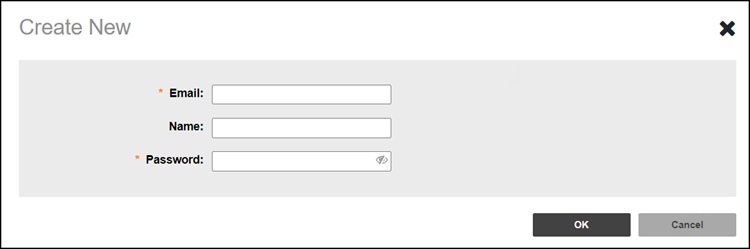
- Click Create. The Create New page appears.
- In the Email field, type the email address of the Site Admin.
- In the Name field, type a name that you want to assign to this Site
Admin account. For example, you can type
johnorjohn doe. The user name is not case-sensitive and can contain up to 50 alphanumeric characters and spaces. - In the Password fiels, type a password for the account. The password is case-sensitive and can contain up to 20 alphanumeric characters which includes special characters also.
- Click OK to create the Site Admin account.
After clicking OK, the page will refresh, and the new Site Admin account will appear in the Site Admins list. A user can log in to the Site Admin portal using this email and password. The Site Admin can access remote management services for Unleashed at https://partners.rms.ruckus.cloud:10443. Refer to the Logging In to the RUCKUS Remote management services for Unleashed Site Admin Portal for more information.