Navigating the RUCKUS Network Director Web Interface
You can use the RUCKUS Network Director web interface to accomplish the following tasks:
- Add and manage clusters
- Add and manage APs
- Redirect APs to specific clusters and change the zones
- Monitor the network and sync the status of the AP with respect to SZ configurations
- Perform administrative tasks, including adding users, backing up and restoring system configurations, logging administrative activities, managing alarms and notifications, and managing system settings
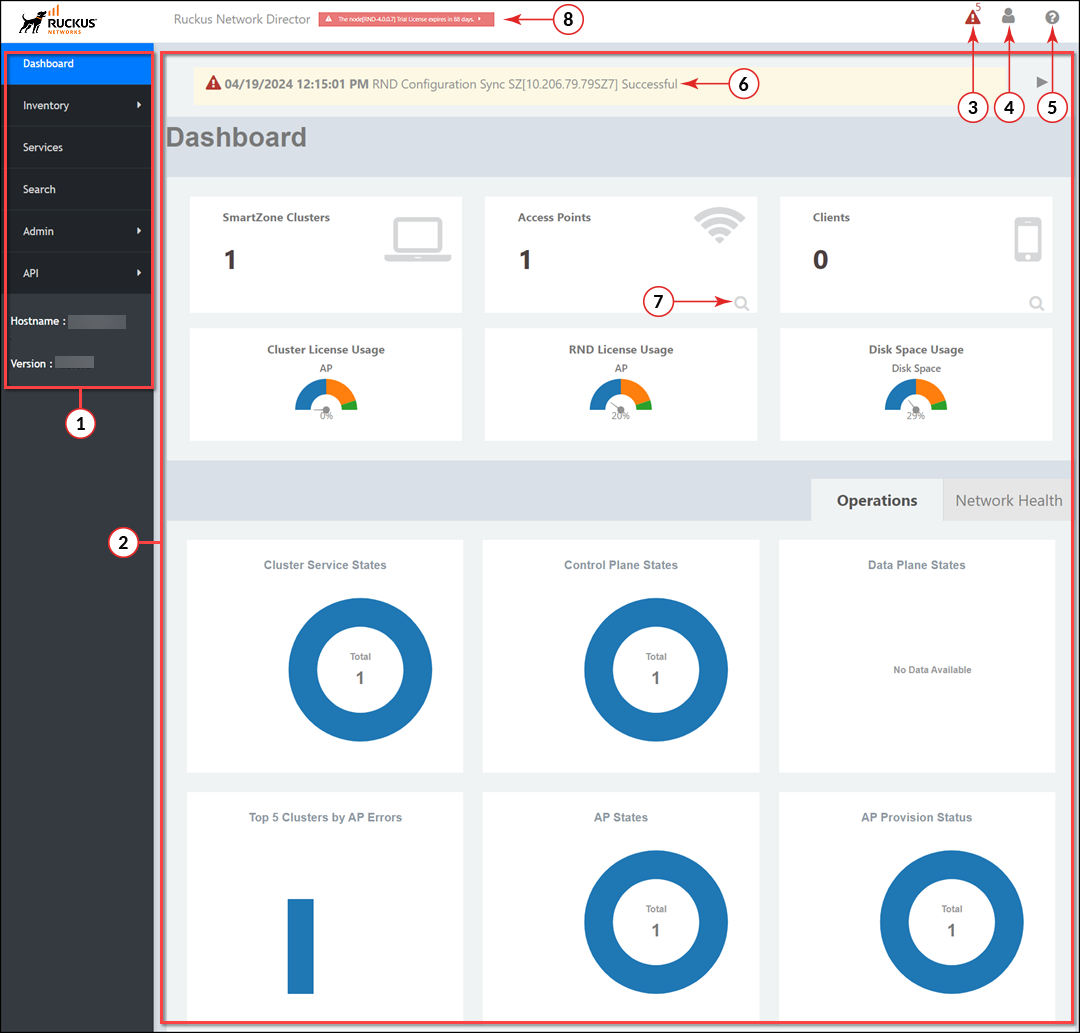
Web Interface Elements
| Number | Name | Description |
|---|---|---|
| 1 | Main menu | Lists the menu for administrative tasks. |
| 2 | Content area |
Displays charts, configuration details, configuration options, lists, and miscellaneous information specific to the selected menu item. |
| 3 |
 (Alarm) (Alarm) |
Indicates alarm notification along with alarm count. Click the icon to view more details of the alarms in the Alarms & Settings window. |
| 4 |  (Account) (Account) |
Allows you to log out of the RUCKUS Network Director Admin portal. |
| 5 |  (Help) (Help) |
Displays the help information that is specific to the current page. |
| 6 | Alarm description | Displays the description of the most recent event that triggered the alarm. |
| 7 |
 Search Client Search Client |
Allows you to search the clients associated with APs based on the MAC address. Click the icon to search for a client and get a report related to the client. For more information, refer to Searching the Clients. |
| 8 | License - Warning message | The following warning messages are displayed:
For more details about the installed licenses, refer to License Information and Synchronization. |
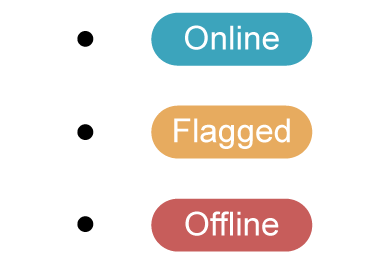
The charts and graphs for SmartZone clusters and APs have a color-coded scheme to indicate the status (Online, Flagged, and Offline) and other chart details. The color of the charts and the status can be customized as per your preferences. For more details on color theme customization, refer to Managing System Settings.
The color-coded legends represent the operational status and statistics of clusters and APs in the network. You can double-click the legend to isolate one trace.
By default, RUCKUS Network Director has the following color theme (customizable) for charts and status: