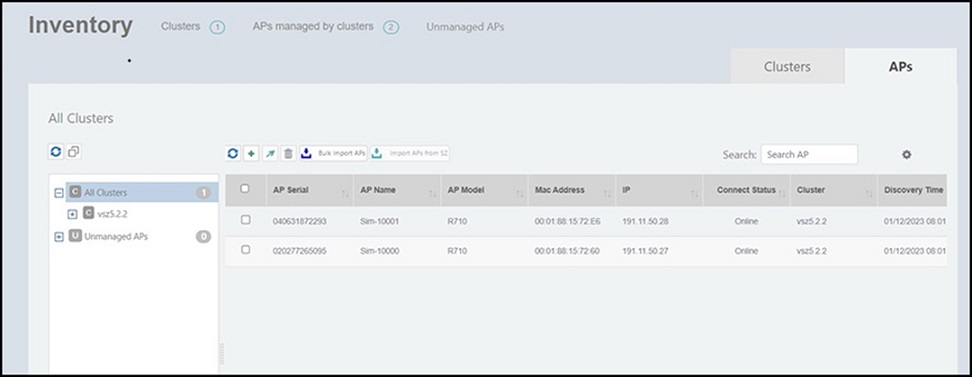
Importing APs in Bulk from the Inventory Window
Complete the following steps to add APs in bulk.
- On the menu, go to Inventory and select the APs tab.
- In the APs tab, click
the
 icon. The Bulk Import APs dialog box is displayed.
 - Upload the CSV file in one of the following methods:
- Click
Upload.
An information dialog box is displayed indicating the number of APs that are added and the number of APs that failed.