Migrating RUCKUS Network Director Node from VMware vMotion
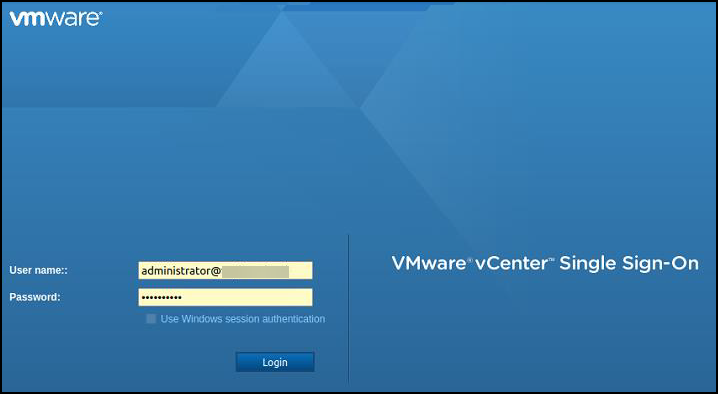
- Launch the VMware vCenter web browser and browse to the VMware vCenter webpage.
- In the login fields, enter the login credentials.
- Click Login.The VMware vCenter dashboard window is displayed.
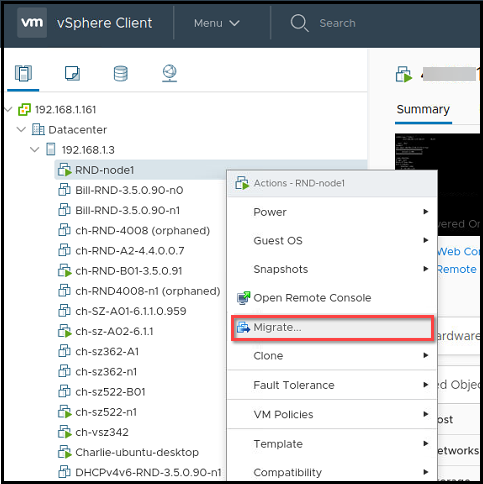
- Expand the original vSphere server list, select the RND Virtual
Machine, right click on the
RND Virtual Machine, and click
Migrate.The Migrate dialog box is displayed.
- Complete the following fields:
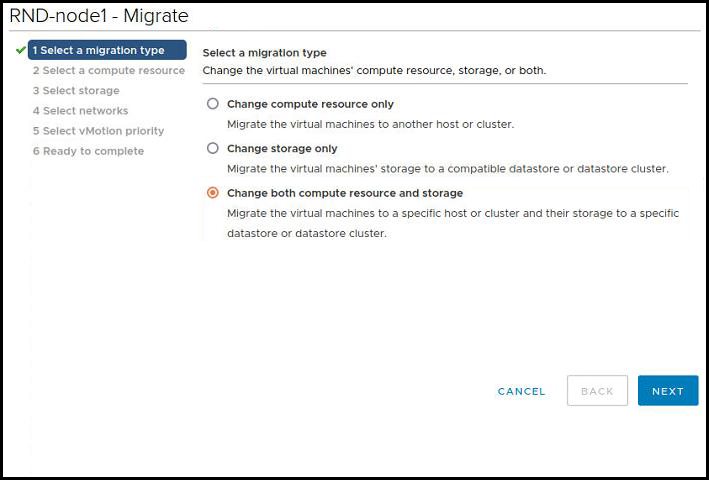
- Select a migration type: From the list, select
Change both compute resource and storage and
click NEXT.
Note: This option is used to migrate the virtual machine to a specific host or cluster and their storage to a specific datastore or datastore cluster.
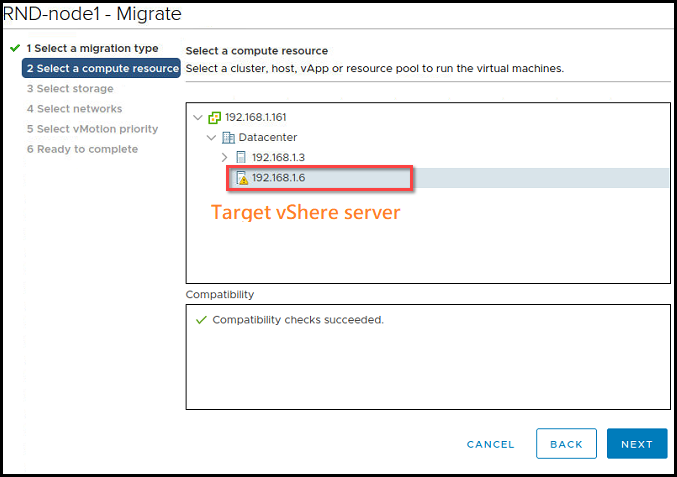
- Select a compute resource: From the list, select the target vSphere server and click NEXT.
- Select storage: Select the default configuration and click NEXT.
- Select networks: Select the default configuration and click NEXT.
- Select vMotion priority: Select the default configuration and click NEXT.
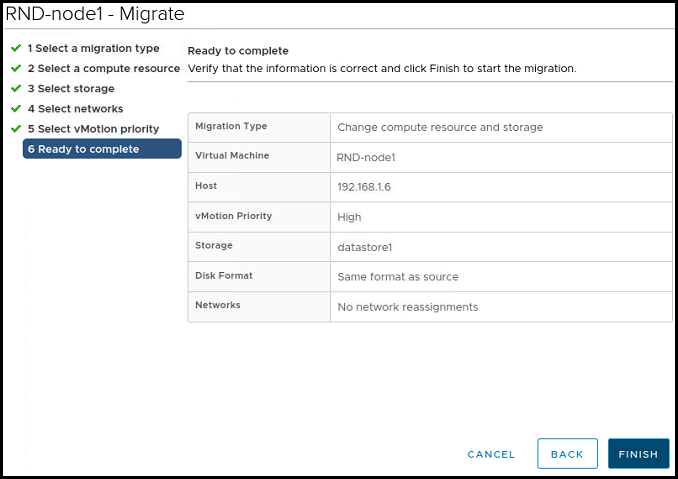
- Ready to complete: Review the configuration and click FINISH to begin the migration.
- Select a migration type: From the list, select
Change both compute resource and storage and
click NEXT.
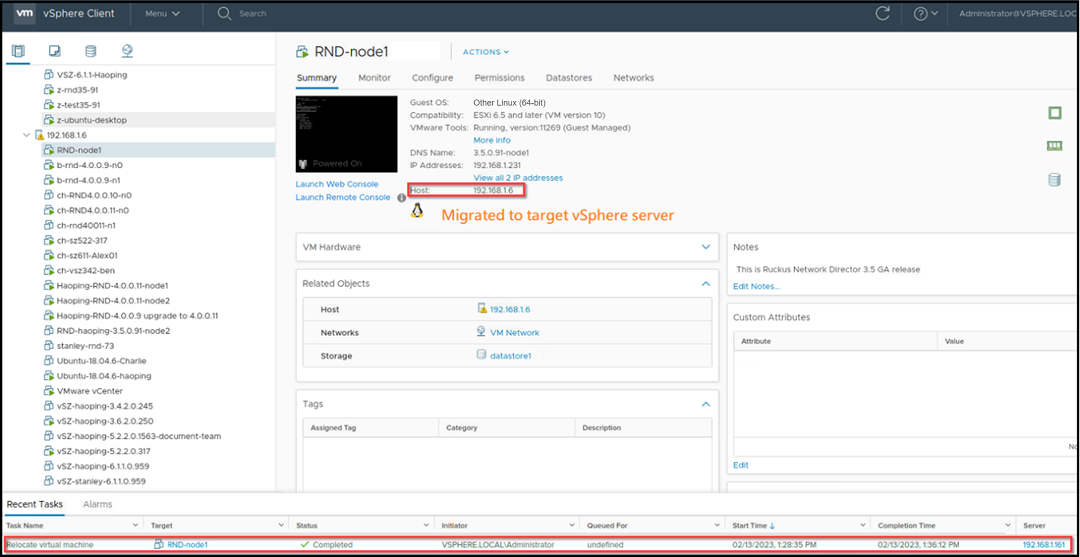
- Once the migration is completed, go to VMware vCenter dashboard and expand the target vSphere server list.