Deleting an AP from the Inventory Window

Complete the following steps to delete an AP.
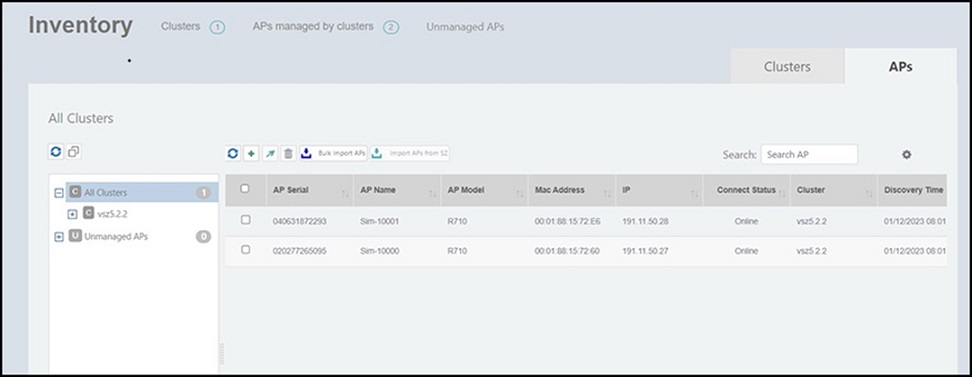
  1. On the menu, go to Inventory and select the APs tab.
    The Inventory window is displayed.

    Inventory Window

  2. In the APs tab, select an AP that you want to delete.
  3. Click the icon. The Delete Access Point confirmation dialog box is displayed to confirm the action.

    Select the check box if you want to delete the AP from the controller. If the option is not selected, the AP is deleted only from RUCKUS Network Director.

  4. Click Yes! Delete to complete the action.