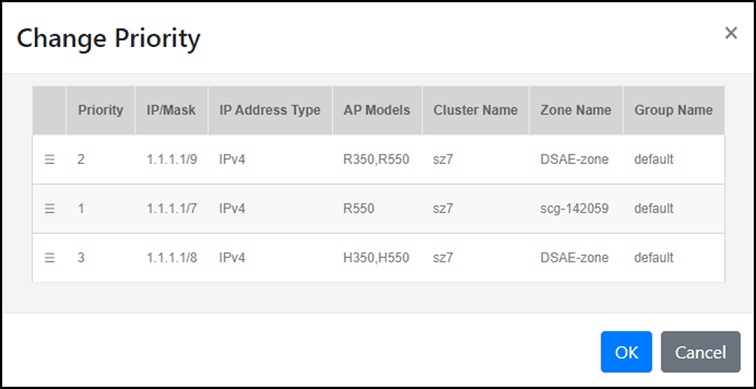
Changing the Rule Priority Order
You can adjust the priority order of
configured default registration rules to determine the sequence in which they are
applied.
This allows you to prioritize certain rules over others when multiple rules could
potentially match an AP's registration criteria.
- On the menu, go to
Inventory >
AP Reg. Rules.
The AP Registration Rules window is displayed.
- In the Default Reg.
Rules tab, click the
 icon. The Change Priority window is displayed.
- Drag and drop the
 icon to adjust the priority order of the configured rules.
 - Click OK to update the default registration rule priority.