Monitoring AP Details and Diagnostic Information
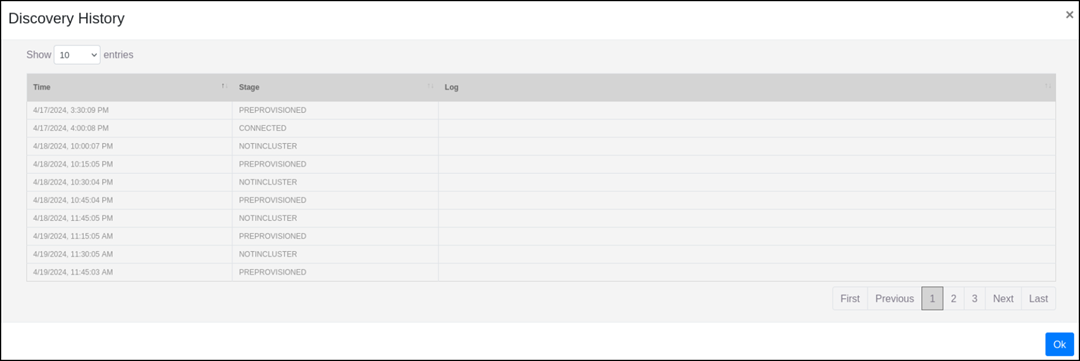
The diagnostics capability of RND provides extensive visibility into AP discovery and redirection processes within RND, including detailed error messages associated with failed redirection attempts to designated clusters, AP Zones, and AP Groups. This enhanced transparency empowers administrators to promptly identify and resolve issues or delays encountered during AP discovery and redirection. Furthermore, administrators can identify the current stage of the AP redirection process, assess time delays between redirection stages, and access logs for detailed analysis.
Complete the following steps to view AP details and diagnostic information:
- On the menu, go to Inventory >
AP Reg.
Rules. The AP Registration Rules window is displayed.
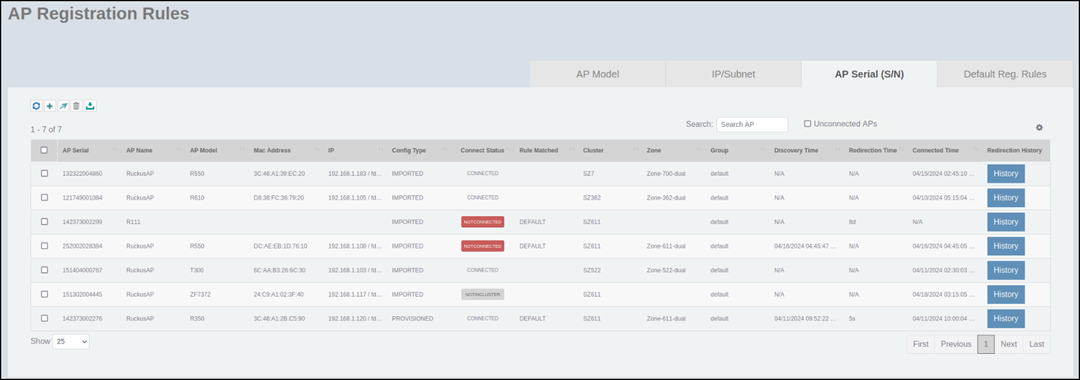
- Select the AP Serial (S/N) tab to view the AP details.
- Select the Unconnected APs
checkbox to filter and display only the APs that are not connected in SZ.
The AP Serial (S/N) tab displays the following AP details:
- AP Serial: Displays the serial number of the AP.
- AP Name: Displays the name of the AP.
- AP Model: Displays the model of the AP.
- MAC Address: Displays the MAC address of the AP.
- IP: Displays the IP address of the AP.
- Config
Type: Displays one of the following configuration methods
by which APs may be added:
- Provisioned: If the AP is added to a cluster based on the preconfigured AP details and SZ cluster and zone mapping in RND.
- Default provisioned: If a non-configured AP is discovered and added to default cluster.
- Imported: If the AP is imported to the cluster.
- Unprovisioned: If the AP is present in the network but not configured in RND.
- Connect
Status: Displays the following AP connection status:
- Provisioned: AP is redirected to the designated zone based on the data configured in SZ.
- Pre Provisioned: RND has established an AP data in SZ and specified which zone the AP should be directed to.
- Rejected: If the default cluster is not configured and the AP without cluster details (or which is not configured in RND) contacts the RUCKUS Network Director.
- Flagged: If the AP is connected in SZ
and has the Flagged status, the RUCKUS Network Director
displays the AP as Flagged.
Note: Flagged indicates that the managed AP is neither "Connected" nor "Not Connected," and it could be a provisioned AP or a rebooting AP.
- Not In Cluster: If the AP made a successful discovery request to the RUCKUS Network Director, but was not found in SZ during the status sync-up.
- Connected: If the AP is connected in SZ.
- Not Connected: If the AP is not connected in SZ.
- Mismatch: If the AP cluster connection is different between RND and SZ. A mismatch occurs when RUCKUS Network Director records an AP connection with one SZ cluster but redirects the same AP to another SZ cluster as a result of the registration rule.
- Rule Matched: Displays the registration rule applied to the AP.
- Cluster: Displays the cluster to which the AP is redirected.
- Zone: Displays the zone to which the AP is redirected.
- Group: Displays the AP group to which the AP is redirected.
- Discovery Time: Displays the time at which AP was discovered by RND.
- Redirection Time: Displays the amount of time taken for AP redirection to complete between the Preprovisioned stage and the Connected stage.
- Connected Time: Displays the time at which the AP connected with SZ.
- Redirection History: Click History to view the redirection status of the AP in the Discovery History page.
- Click Ok to close the Discover History page.