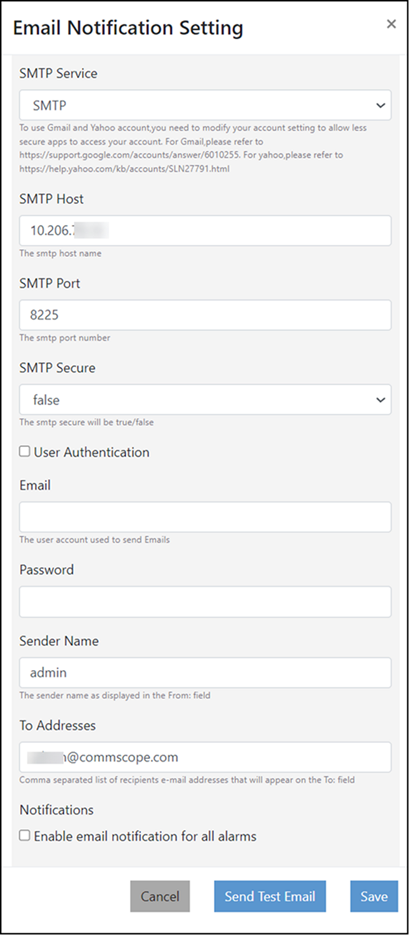
Configuring Email Notification Settings with SMTP Service
Complete the following steps to configure
email notification settings with SMTP service:
- On the menu, go to Admin >
Alarms. The Alarms & Settings window is displayed.
- In the Alarms & Settings window, select the Settings tab.
- Click Create Email Notification Setting. The Email Notification Setting dialog box is displayed.
- Complete the following
fields:
- SMTP Service: Select SMTP as the email service provider for sending notifications from the drop-down list.
- SMTP Host: Enter the full name of the server provided by your ISP or mail administrator. Typically, the SMTP host name is in the format smtp.company.com.
- SMTP Port: Enter the SMTP port number provided by your ISP or mail administrator. Often, the SMTP port number is 25 or 587. The default SMTP port is 25.
- SMTP Secure: Select SMTP secure as true or false from the list.
- User Authentication: Enable this if your SMTP server requires authentication. This will prompt you to enter a username and password for authentication.
- Username: Enter the e-mail ID from which you want to send the notification. This e-mail ID is used as an authenticated e-mail ID to send SMTP email notifications to all of the recipients listed in the To Addresses field.
- Password: Enter the password associated with the email account.
- Sender Name: Enter a name for the sender that will appear as the sender of the email notifications.
- To Addresses: Enter the email address of the recipients. You can add multiple recipient addresses separated with commas.
- Enable email notification for all alarms: If selected, an email notification is sent to recipients whenever an alarm is triggered for any of the predefined events. You can choose to enable or disable email notifications for specific alarm events by editing the alarm settings in the Alarm Setting panel.
- Click Send Test Email to test email delivery.
- Click Save to apply the email configuration settings.