Installing from an FTP Download
Before performing this task, learn about roles at Understanding User Roles and Privileges.
- Log in to the host server as root.
- Upload the *.ISO file (or patch file) to somewhere on the hard drive, such as
/tmp. - Make sure that the *.ISO file owner is
root:root: - Make a directory for the mount:
- Mount the *.ISO file:
- Change to the ISO directory:
- Execute the install script
install.sh.# ./install.sh
You are prompted to verify the system date and time:Partial Software Installation (Including Program Location, Domain Identification, and Admin Password Configuration)
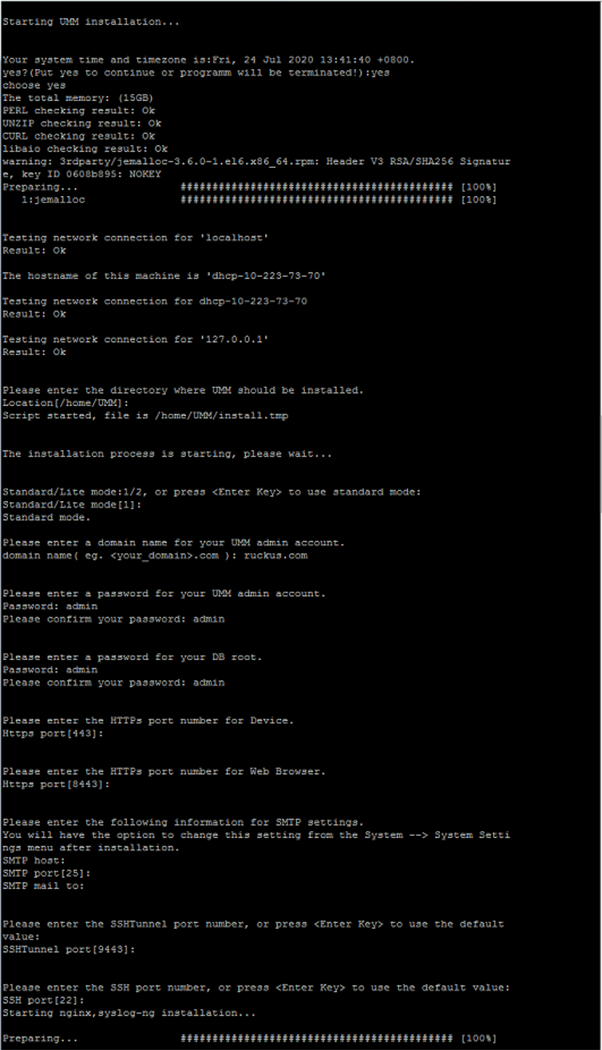
Your system time and timezone is:Fri, 20 Jul 2024 13:46:14 +0800.
yes? (Put yes to continue or program will be terminated!):yes
choose yes
The installation script performs some connection tests:Testing network connection for 'localhost' Result: Ok The hostname of this machine is 'localhost.localdomain' Testing network connection for localhost.localdomain Result: Ok Testing network connection for '127.0.0.1' Result: Ok
- Enter the location where you want to install the software. A default location is provided. Press Enter to accept the default location.
-
UMM 2.4Respond to the prompt message by entering the number associated to your choice of mode. Type 1 followed by the Enter key (or simply press the Enter key) if you want to install the Standard mode. Type 2 followed by the Enter key to install the Lite mode. Refer to Introducing Lite Mode on page 13 to learn the differences between Lite mode and Standard mode.
- Enter your organization’s domain name. By default, the domain name is appended to
the word “admin”, creating the default
Unleashed Multi-Site Manager user account:
admin@domain.com. Theadmin@domain.comuser account is a Super User in the software system and cannot be deleted. - Enter a password for the software
admin@domain.comuser account. - Enter a password for the MariaDB root account.
- Enter the HTTPs port number for
the device. Press
Enterto accept the default location. - Enter the HTTPs port number for
the Web Browser. Press
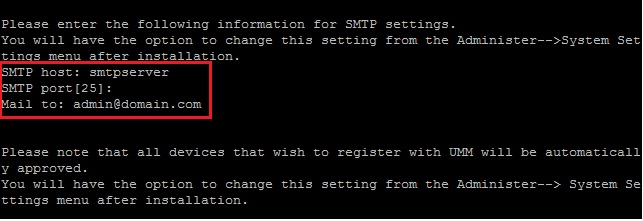
Enterto accept the default location. - Enter your SMTP server host name and port number, as well as a default email address
to which alerts for software system events are sent.
The SMTP server is the email server that Unleashed Multi-Site Manager uses to send alert notifications or system logs. You can change these settings on the page after installation.
The default SMTP port is 25. Press Enter if your SMTP server is already using port 25.
SMTP host: hostname
SMTP port[25]:
Mail to: username@domain.com
- Enter the SSH Tunnel port number
and the SSH port number. Press
Enterto accept the default locations.
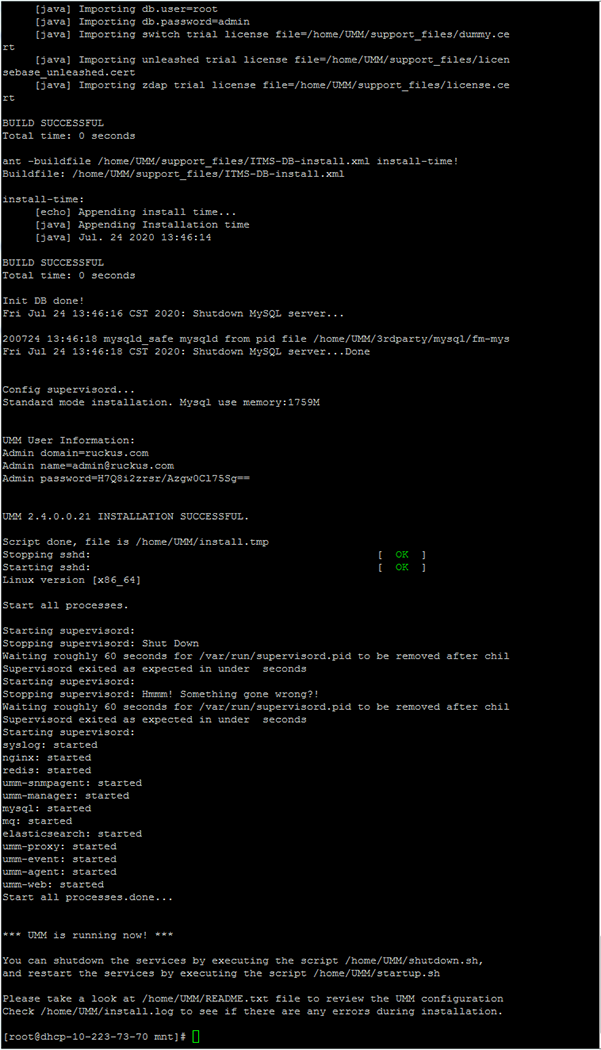
When the installation completes, a success message appears.
You have completed installing the Unleashed Multi-Site Manager software. You can now log in to the Web interface and configure the software settings. For more information, refer to Logging into FlexMaster.