Importing an SSL Certificate
- Go to .
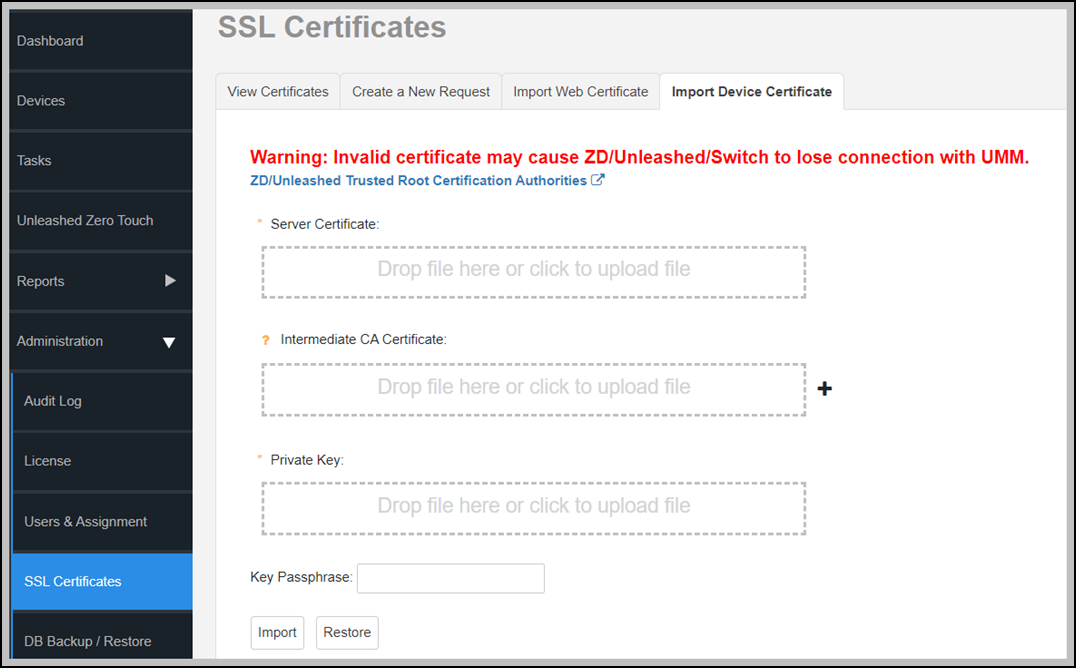
- On the SSL Certificates page, click the Import Web Certificate tab, if you want to add certificate to the UMM server. Beginning with Unleashed Multi-Site Manager 2.7, click the Import Device Certificate tab to import certificate to establish the connection between ZoneDirector/Unleashed network and Unleashed Multi-Site Manager.
- In Server Certificate, drop the file to the box provided or click the box to upload the certificate file.
- In Intermediate CA Certificate, drop the file to the box provided or click the box to upload the Intermediate CA certificate file.
- In Private Key, drop the file to the box provided or click the box to upload the private key.
- Click Import.
- Click the
View Certificates tab.
For more information, refer to Viewing Current Certificates.
Try connecting to the software Web interface using HTTPS.