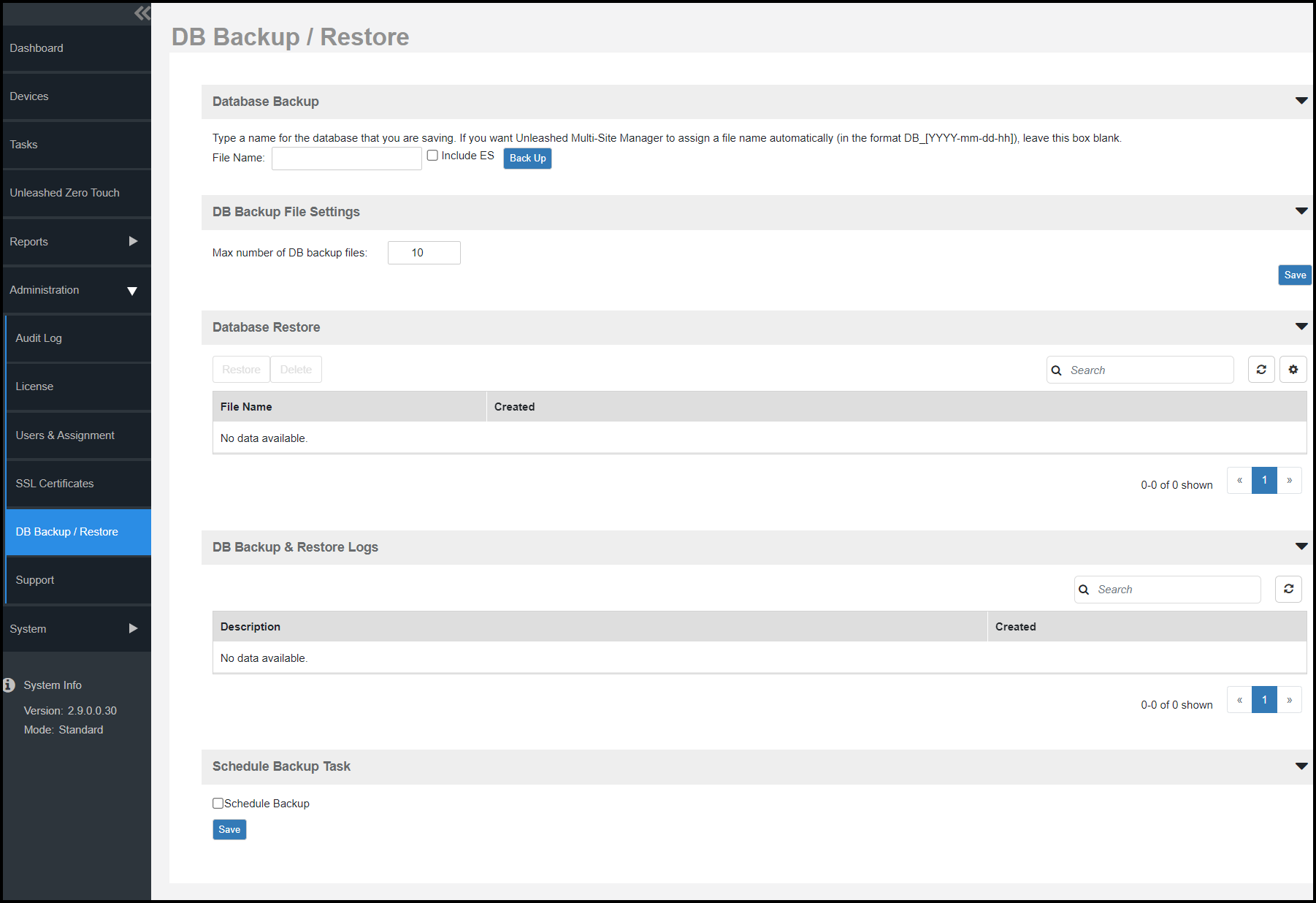
Backing Up the Database from the Web Interface
Attention: This procedure halts the software operation. Do not perform this procedure when you
need the software to be operating properly.
- Go to and record the software version number (such as 9.12.0.0.11).
- Go to .
- Look for the Database Backup section.
- In
File Name, type a name that you want to assign to the backup file, using the format
DB_[Unleashed Multi-Site Manager version number]_[YYYY-mm-dd-hh]. For example, the backup file name might beDB_9.12.0.0.11 2015-06-21-02. (Including the software version number version number can make it easier to upgrade and downgrade the software database files.)Do not allow software to automatically assign a file name (in the formatDB_[YYYY-mm-dd-hh], because the automatically assigned file name does not include the software version number.Attention: This procedure halts software operation. Do not perform this procedure when you need the software to be operating properly.Note: There are two databases running on the Unleashed Multi-Site Manager server: MariaDB and ElasticSearch. By default, the software backs up MariaDB only. Ensure you select the Include ES option to backup both MariaDB and ElasticSearch.Note: Beginning with UMM 2.7 release, the DB Backup File Settings limits the number of backup files. The maximum number of DB backup files allowed is 10 by default. - Click
Back Up. The
Backup Status Area window appears and displays the progress of the backup process.
Unleashed Multi-Site Manager backs up its database and reboots its server. Wait for this reboot to complete, and then log back into the software web interface.Attention: Do not navigate away from the DB Backup/Restore page while the backup process is in progress. Doing so cancels the backup process.