Editing the Device Properties
You can edit a device’s tag name, location, GPS coordinates and Web port mapping.
- After you to log in to the Web interface, select
Devices from the menu in the left.
The Devices page appears listing all the devices managed by the software.
- From the list of devices, select the device for which you want to edit the properties, then click Edit.
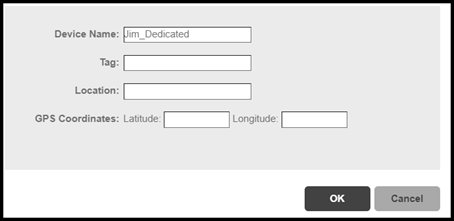
- Modify the following configuration settings:
-
UMM 2.4Device Name: Assign a name to the device.
- Tag: Type the device tag name.
- Location: Type the location of the device.
- GPS Coordinates (Latitude and Longitude): The software uses these to position the device icon on the map.
- Web Port Mapping: The port number after the IP address
indicates the protocol that you can use to gain access to the device’s
Web interface. The Default port number is 443 for HTTPS protocol.
Note: An Unleashed network running release 200.6 or later sets up tunnels between Unleashed Multi-Site Manager and ZoneDirector, so you do not have to configure the Web Port Mapping.
-
- Click
Save.
A success message is displayed after the device properties are saved.
- Click
OK.
The new configuration changes for the device are saved and refreshed in the table.