Creating a New Rule
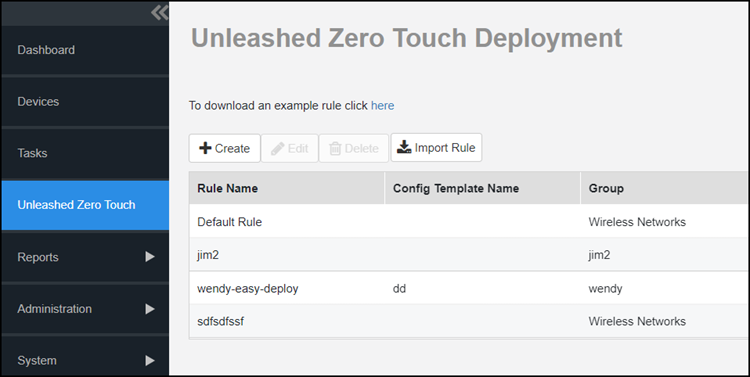
The Unleashed–Zero Touch Deployment page in the user interface allows the user to
create, edit, import, and download an example rule.
- After you log in to the Web interface, select Zero Touch Deployment from the menu in the left.
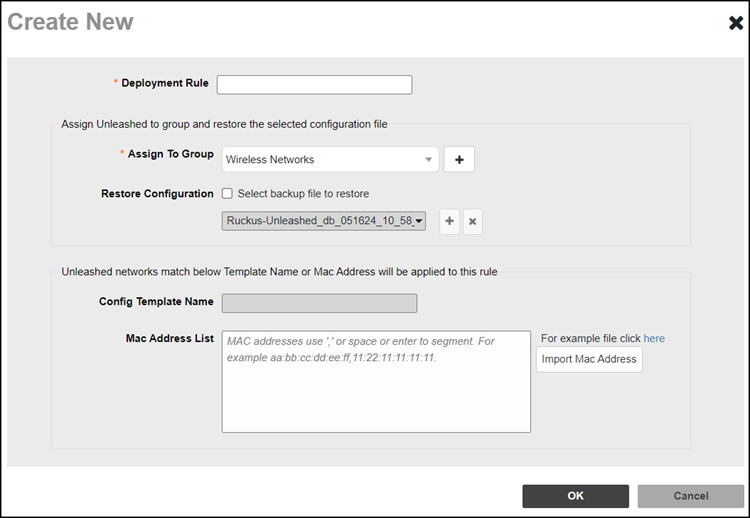
- Click Create button, the Create New page appears.
- In Deployment Rule, enter the rule name.
- In
Assign To Group, select the group name from the drop-down, when the device registers to UMM for the
first time.
UMM assigns the device to the predefined group automatically.
- In Restore Configuration, if you click the Select backup file to restore checkbox then do the following:
- In Mac Address List, enter the mac address or click Import Mac Address.
 ) and