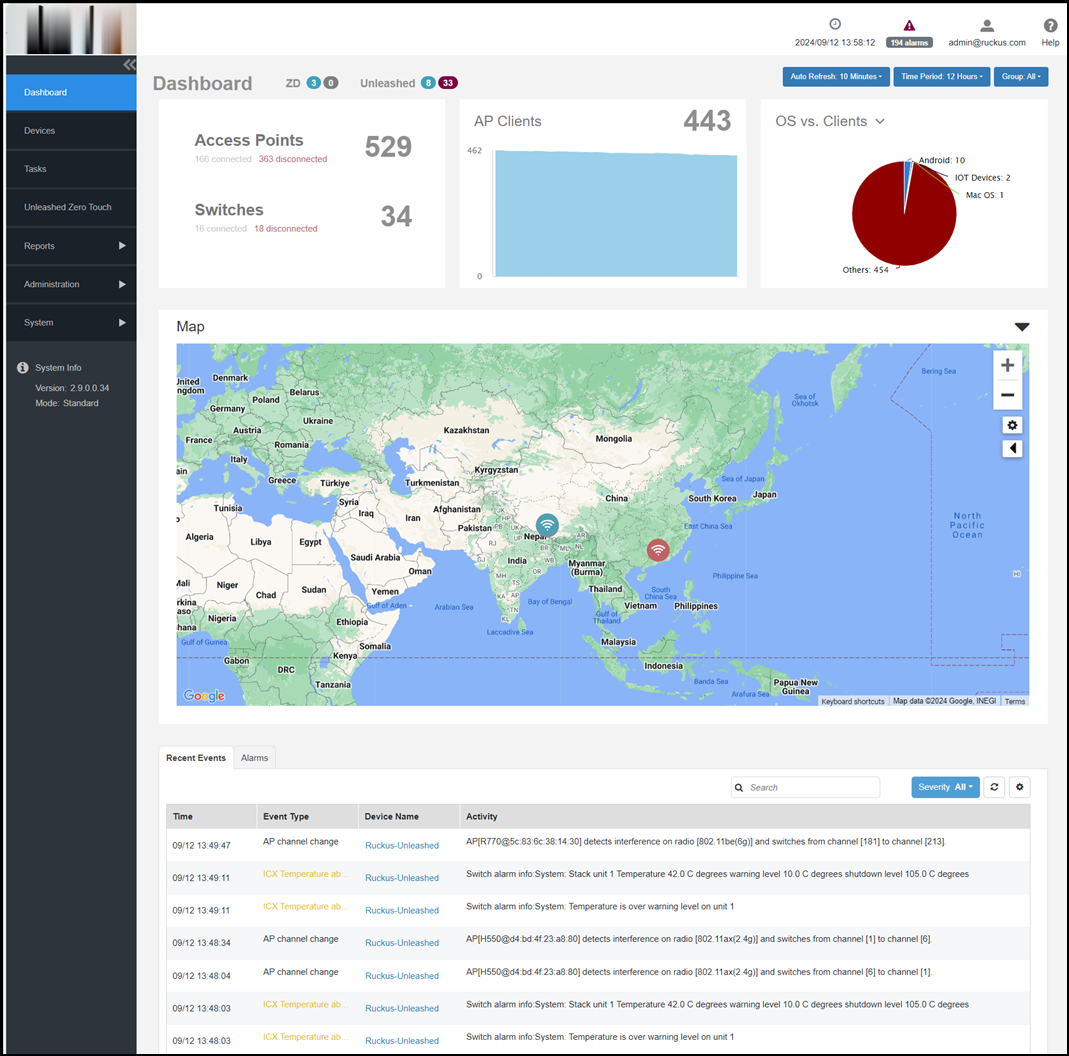
The navigation bar is intended to simplify your navigation of the
Web UI by grouping related functions into main menu options, as well
as a few sub-menu options. Clicking any navigation bar option
displays related data and functions in the content area to the
right. Main menu options include:
Dashboard
Devices
Tasks
Unleashed Zero
Touch
Reports
Administration
System
2
Header Panel
The Header panel provides the following information:
License notifications – Displays notifications regarding
insufficient or expired licenses.
Date and Time – Displays the local system date and
time.
Active Alarms –
Displays the number of alarms for the highest severity
triggered (if enabled in System > Alarm
Settings). Alarm severity is classified into the order
of Critical, Major, Minor and Warning. For example, if
Critical alarms are generated, it will show the number of
critical alarms. If there are no Critical alarms, then it
will show the number of alarms in the next severity type,
Major alarms.
User Account name –
Click the User icon to access the
Change Password and the Log Out options.
Help – Click the
Help icon to access the product
documentation.
3
Content Panel
The Content panel displays the Dashboard data, by default, when
you log in. When you click any option on the Navigation bar, the
related information (tables, lists, graphs, configuration options,
and so on) is displayed in the Content panel.