WiFi4EU Support Within the Display-a-Message Plugin
WIFI4EU is a program that allows countries
in the European Union to apply for government grants for free wifi in municipalities.
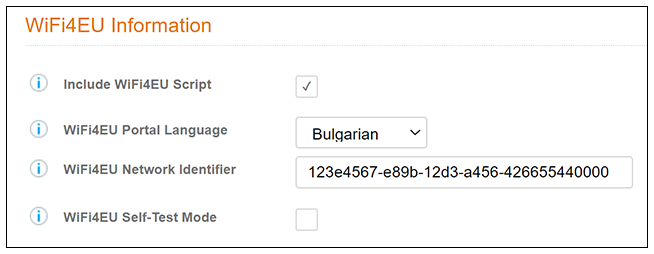
The "Display a Message" workflow step in the Cloudpath UI includes four fields that allow the message step to act as a WiFi4EU "portal."
For compliancy information if you are setting up a Wifi4EU network, refer to the WiFi4EU Policy Enforcement Component Implementation Guide, which is easily located in an Internet search.
Note: A walled garden consists of web resources accessible before a user has been
authenticated using the portal. In order for the snippet to function properly, the
following address should be whitelisted in the walled garden:
https://collection.wifi4eu.ec.europa.eu
Follow these steps to perform the Cloudpath UI configuration for Wifi4EU:
- During creation of a workflow, insert the "Display a Message" step at the desired location.
- When configuing the "Display a Message" step, use the following fields (see
descriptions following the screen):
- Include Wifi4EU Script: Checking this box invokes the fields below this field.
- Wifi4EU Portal Language: Drop-down list from which you select the country.
- WiFi4EU Network Indentifier: Enter or paste in the network identiifer that you have been provided.
- WiFi4EU Self-Test Mode: Check
this box to run the WiFi4EU-provided script in test mode. This will output
compliance with Wifi4EU portal standards to the browser developer console.
Note: Uncheck this box, save the change, then republish your workflow before you use the workflow in a production environment.
- Click Save.
- Publish your workflow.
- Click the enrollment portal URL link at the top of the main Workflows page.
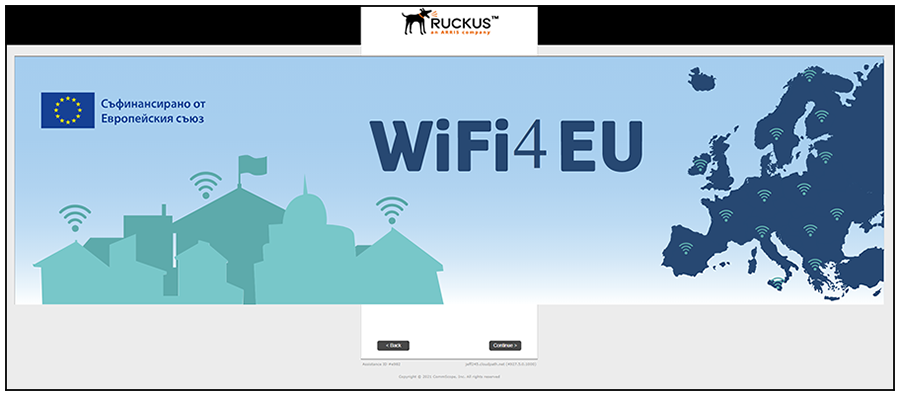
- Proceed through the enrollment workflow to be sure that you receive a screen such
as
the following:
Nick - In actual production, will the screen be this big and overlap other info?
- Be sure to uncheck the "Wifi4EU Self-Test Mode" box in Setting the Wifi4EU Fields in the Display-a-Message Workflow Step before using the workflow in your production environment.