Setting Passwords for Onboard Database Users
The following steps show you how to add an onboard database user and specify a password:
New for 5.4
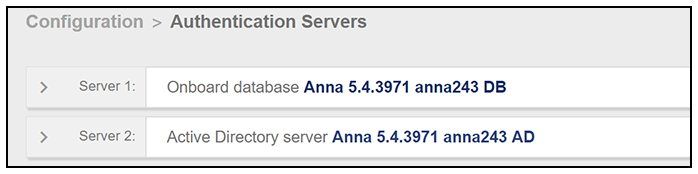
- Go to Configuration > Authentication Servers to display all the configured authentication servers; you are specifically looking for "Onboard database" servers.
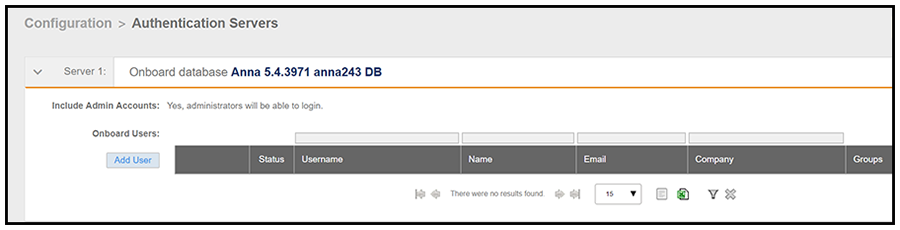
- Click the arrow to the left of the desired onboard database server to display an expanded configuration for that onboard database:
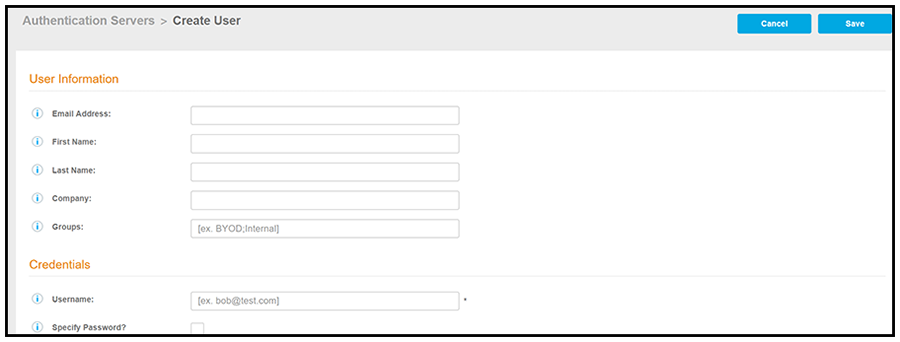
- Click Add User. The Create User screen, where you can specify the user password, is displayed:
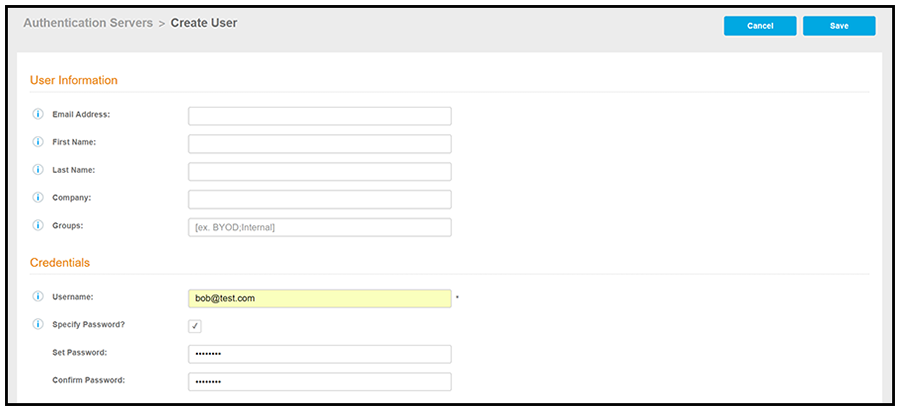
- Complete the User Information section, then, under "Credentials," check the Specify
Password box. Enter the information for the Username, the Set Password, and the Confirm
Password fields (shown below), and then click
Save to complete the configuration. You need to notify new users of their credentials
when you specify their passwords.
Note: If you do not use the Specify Password feature, the system notifies new users of their credentials.
To edit the user configuration, click the arrow to the left of the desired onboard database server to display the configured user(s):
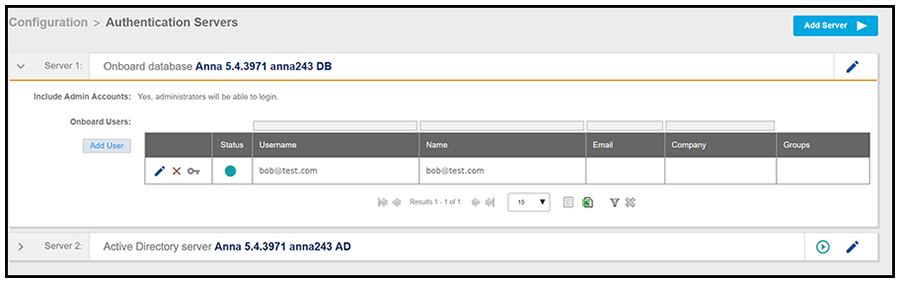
You can use the pencil, X, or key icons as follows: