Creating a Workflow From a Blank Slate

You can create a typical workflow from a blank slate. This sample workflow follows the steps provided in the workflow template.
  1. Go to Configuration > Workflows.
  2. On the right hand side of the Workflow page, click Add Workflow, then, with the "Create a new Workflow" button selected, click Next.
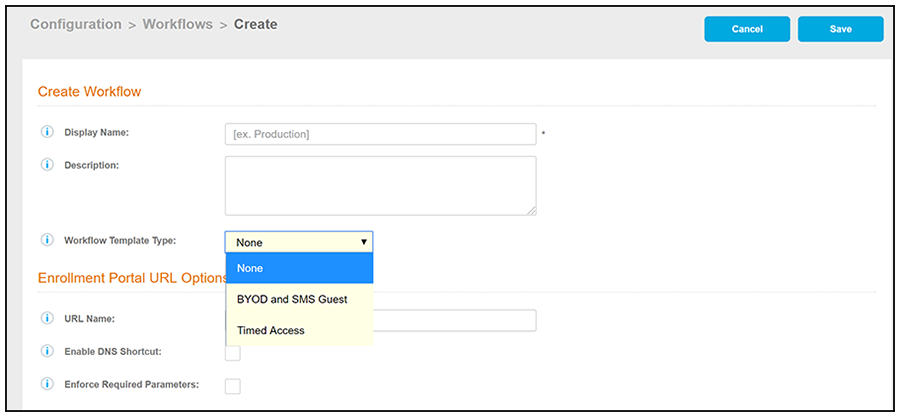
    The Create Workflow screen is displayed:
    Wording and screens updated for 5.5 due to workflow-template selection changes.

    Create Workflow Screen - Selecting "None" For Workflow Template Type

  3. On the Create Workflow screen, enter a Display Name and Description.
  4. From the Workflow Template Type drop-down list, select "None."
  5. Fill out the URL Name field.
  6. Click Save, and you are returned to a blank workflow page.
  7. On the blank workflow page, click Get Started near the bottom of the page to add your first workflow step.
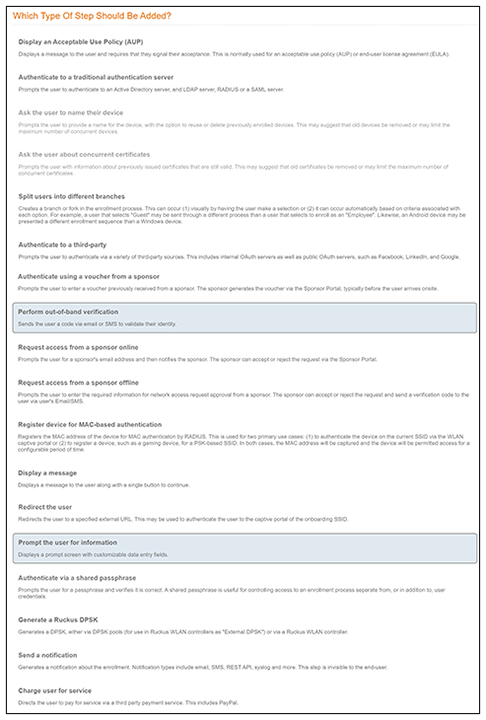
    A selection page opens that allows you to choose which type of step (workflow plug-in) to add to the enrollment workflow. Every time you add a step, the Step Selection page appears.

    Enrollment Step Selection