Truststore Overview
The Cloudpath Truststore determines which external systems are trusted/allowed for
outbound TLS connections.
The Cloudpath Trustsore must contain the root CA certificate of each external system that you plan to integrate with your Cloudpath system.
Some examples of external systems that can integrate with Cloudpath include:
- Firewalls, such as the Palo Alto firewall
- Ruckus SmartZone controllers
- SAML Identity Providers (IdPs) used as authentication servers
- Active Directory servers
Note: Before you configure any external systems, obtain the root CA of each system.
Navigating to the Cloudpath Truststore
To go to the Truststore on your Cloudpath system, click on Configuration > Truststore, as shown in the screen below. This screen shows the Truststore before any certificates have been added.
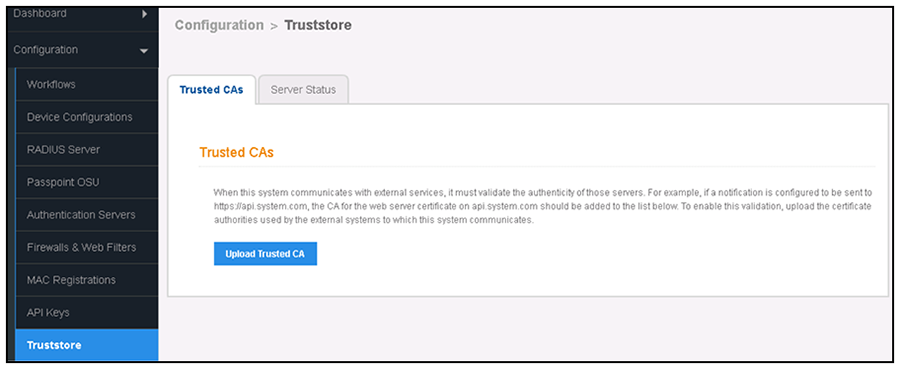
If there are already certificates in the Truststore, the certificates are listed, as in the following example:
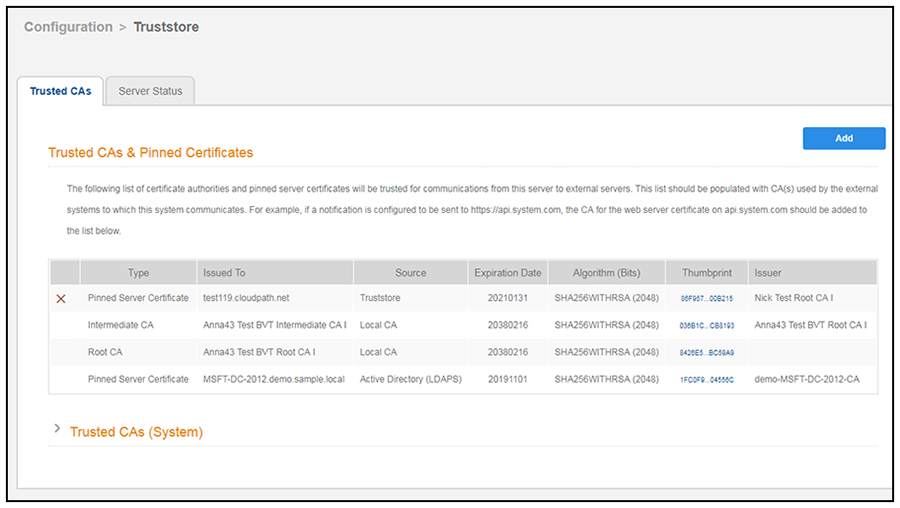
Basic Steps for Adding Certificates to the Cloudpath Truststore
Follow these steps to add your certificates to the Cloudpath Truststore:
- Use the Upload Trusted CA button (or the Add button shown in the figure above) to manually upload the certificate. To manually add a certificate to the Truststore, refer to Recommended Method for Adding Certificates to the Cloudpath Truststore.
- Continue to add certificates for all external systems with which your Cloudpath system needs to communicate.
- Complete the necessary configuration steps to allow your Cloudpath system to communicate with all external systems. For additional information about required connectivity steps, refer to Cloudpath Connectivity with External Systems.