Client Certificates
You can set up different certificate templates for different user types. An employee or staff certificate template might be valid for 120 days, and a guest template might be valid for 1 day or until the end of the week.
After you set up a device configuration for the workflow, you can configure and assign a new certificate template.
- Select A new certificate template.
- Select Use an onboard certificate authority.
- Select Use an existing CA. Choose the default Root CA that was created during the initial system setup.
- Set up the Client certificate template. This template is used to issue a certificate to the client device.
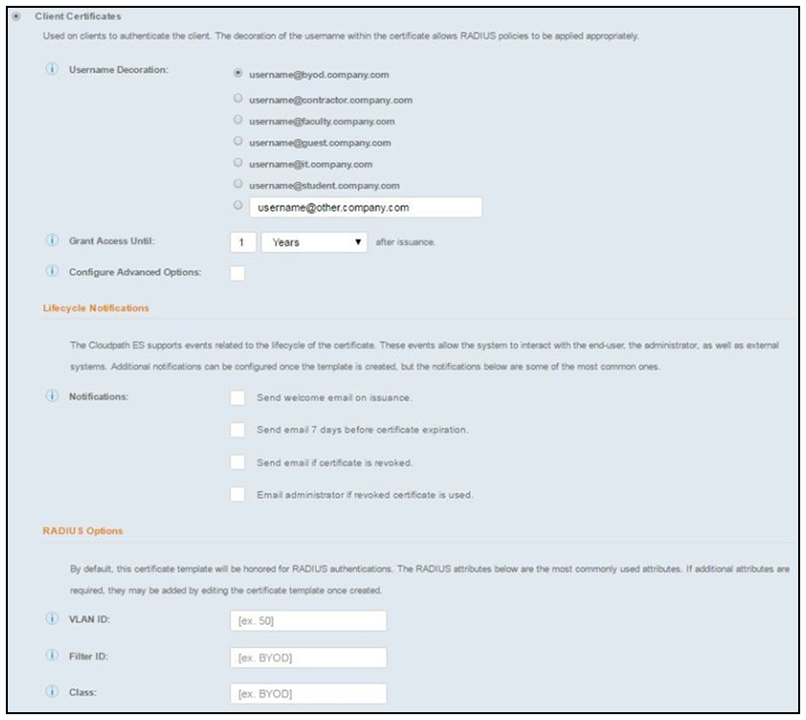
- Select or enter a Username Decoration. The decoration of the username within the certificate allows RADIUS policies to be applied appropriately.
- Grant access for the appropriate amount of time.
For example, you might have a client certificate template for a guest user that is valid for one, or a few days, another for a contractor that is valid for 6 months, and one for employees that is good for a year.
- Select any email notifications to be sent to the user related to the life-cycle of
the certificate.
Additional certificate notifications can be configured after the template is created.
- Optional. Enter RADIUS Options to assign a VLAN ID or Filter ID to certificates that use this template. These settings only applies if you are using the Cloudpath onboard RADIUS server.
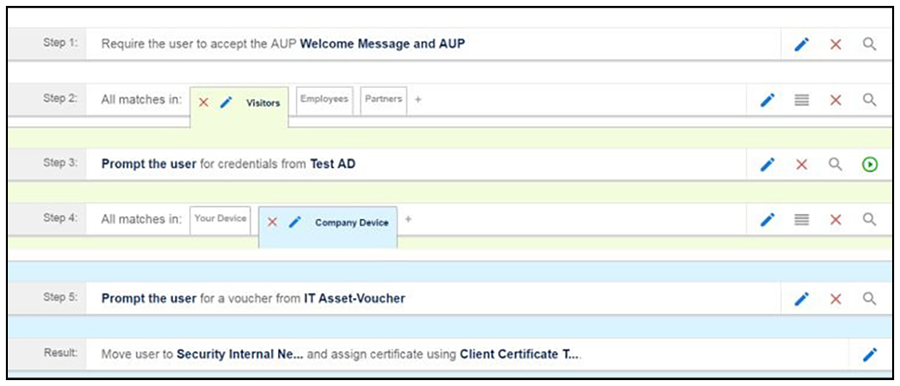
- Click Next. The completed workflow shows all enrollment paths. The last step shows the device configuration which is applied to the user device and the certificate template being used to assign a certificate to the user device.
After you have finished configuring a enrollment workflow, create and deploy a snapshot of the workflow configuration to test before deploying to users.