Prompt for Voucher
- Select the Employees tab in Step 2 and the Company Device tab in Step 4 of the workflow.
- Insert a step above the Result: step in the enrollment workflow.
- Select Authenticate using a voucher from a sponsor and Create a new Voucher list.
- On the
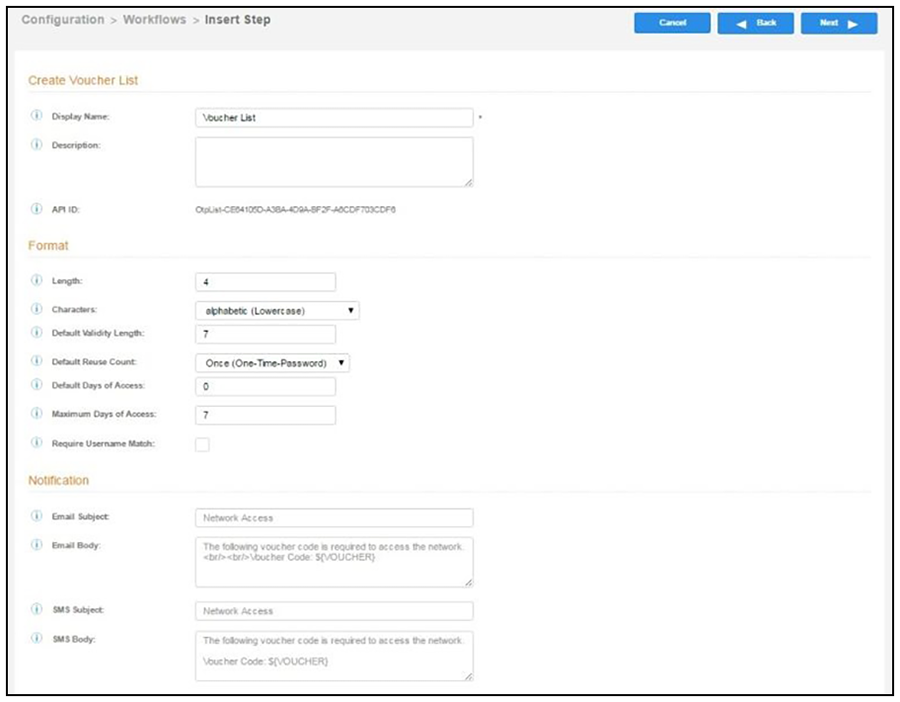
Create Voucher List page, enter the voucher specifications for the Employees with Company Devices workflow.
- Format - Describes voucher characteristics and validity.
- Notification - Set up the template for emailing the voucher or sending as an SMS message.
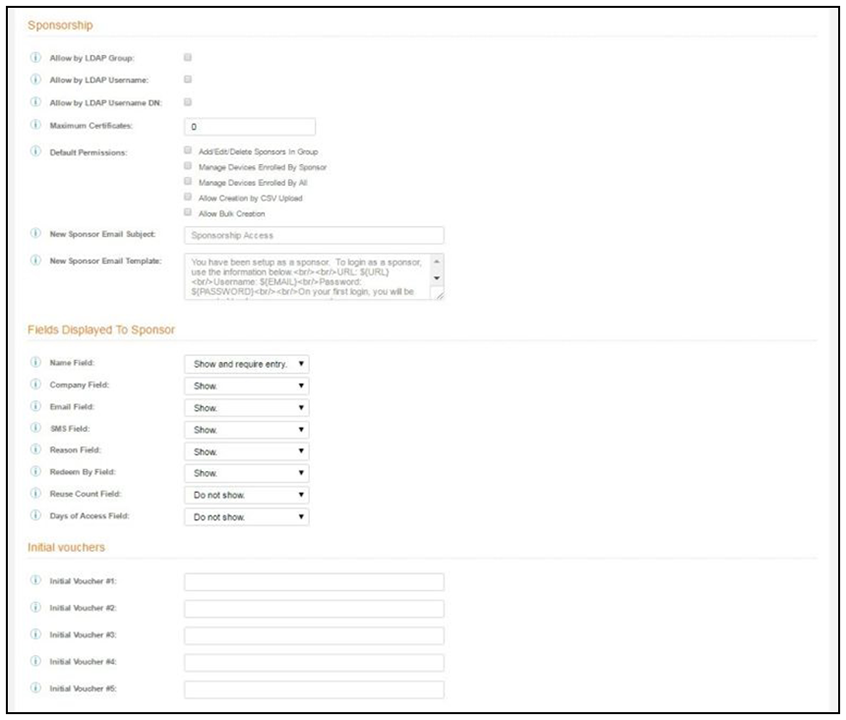
- Sponsorship - Use this section to configure the Sponsored Guest Access feature.
- Initial vouchers - Create one or more initial vouchers.
- For the voucher prompt, select Create a new webpage from a standard template.
- On the Create Voucher Prompt page, enter the data for the voucher prompt and Save.