Available Workflow Plug-Ins
Cloudpath provides the following building blocks, called workflow "plug-ins," which are used when you add a step to the enrollment workflow.
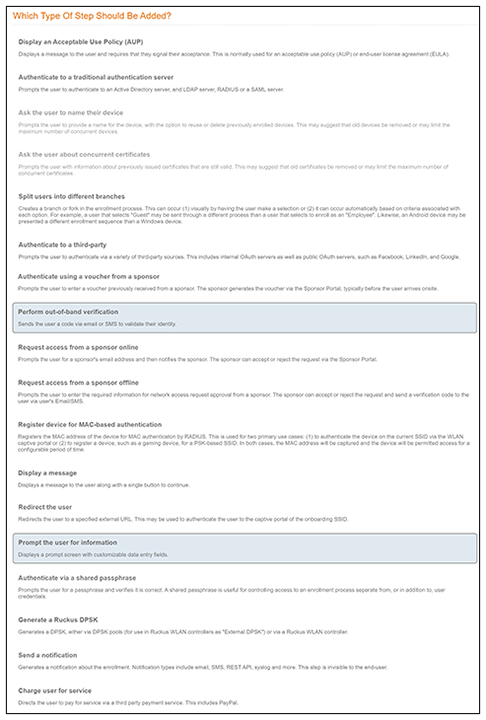
Display an Acceptable Use Policy
An acceptable use policy (AUP) prompt displays a message to the user and requires that they signal their acceptance. This is typically used for network policies or end-user license agreements (EULAs). For an example of using this plug-in in a workflow, refer to Acceptable Use Policy
Authenticate to a Traditional Authentication Server
If you authenticate users to a traditional authentication server, Cloudpath supports authentication using an Active Directory, LDAP (or LDAPS), via a RADIUS server using PAP, using Security Assertion Markup Language (SAML), or using an onboard database. For an example of using this plug-in in a workflow, refer to Authentication to a Traditional Authentication Server.
Ask the User to Name the Device
The Cleanup Devices plug-in prompts the user to provide a name for the device, with the option to reuse or delete previously enrolled devices. This may suggest that old devices be removed or may limit the maximum number of concurrent devices.
Ask the User About Concurrent Certificates
The Cleanup Certificates plug-in provides a method for allowing users to maintain the number of certificates registered to their devices. You can configure a certificate limit, and during the enrollment process, prompt the user to review information about previously distributed certificates.
Split Users Into Different Workflow Branches
Creates a branch or fork in the enrollment process. This can occur (1) visually by having the user make a selection or (2) it can occur automatically based on criteria associated with each option. For example, a user who selects Guest may be sent through a different process than a user who selects to enroll as an Employee. Likewise, an Android device may be presented a different enrollment sequence than a Windows device.
- For an example of creating a user-type split, refer to User Type Split.
- For an example of creating a device-type split with the use of filters, refer to Device Type Split.
- For an example of using variables within a split, refer to Using Variables in a Workflow Split.
Authenticate to a Third-Party
When you combine third-party authentication with traditional authorization methods, the social media provides additional identity information during the onboarding process to deliver automated, self- service access to the WPA2-Enterprise wireless network. Cloudpath supports third-party integration using Facebook, LinkedIn, Google, or you can specify a custom OAuth 2.0 server.
For more information, refer to the Cloudpath Enrollment System Third-Party Authentication Configuration Guide.
Authenticate Using a Voucher From a Sponsor
When you use a voucher for authorization, the user is provided with a one-time password (OTP) and is prompted for this password during the enrollment process. Vouchers can be used to control access separate from, or in addition to, user credentials. For example, use vouchers for self-service registration of IT assets, or for authenticating network access for partners.
For more information, refer to the Cloudpath Enrollment System Sponsored Guest Access Configuration Guide, which is devoted solely to this one type of guest plug-in.
Perform Out-of-Band Verification Using Email or SMS
Out-of-band verification allows users to enter an email address or phone number to have the verification code or one-time password sent to them. The out-of-band prompt is tied to a voucher list, which controls the characteristics of the one-time password (OTP). You can create a new voucher list specifically for out-of-band verification, or you can use an existing list.
Request Access From a Sponsor Online
Prompts the user for a sponsor's email address and then notifies the sponsor. The sponsor can accept or reject the request via the Sponsor Portal. The user's enrollment workflow stops in mid-process until the sponsor either accepts or rejects the request. For an example, see Request Access from a Sponsor Online.
Request Access From a Sponsor Offline
Register a Device for MAC-Based Authentication
Registers the MAC address of the device for MAC authentication by RADIUS. This is used for two primary use cases:
- To authenticate the device on the current SSID via the WLAN captive portal.
- To register a device, such as a gaming device, for a PSK-based SSID.
In both cases, the MAC address is captured and the device is permitted access for a configurable period of time.
For more information, refer to the Cloudpath Enrollment System MAC Registration Configuration Guide
.Display a Message To Users
The message plug-in provides information to the end-user. The message is displayed, along with a single button to Continue. Use the message plug-in to welcome partners or guest users to your network and provide links for where to get additional information.
Redirect Users to an External URL
Redirects the user to a specified external URL. This may be used to authenticate the user to the captive portal of the onboarding SSID.
Prompt User For Information
The data prompt plug-in provides a means for gathering information about a user. This user data can be used for informational purposes only, or for configuration purposes, such as personalizing certificates.
Authenticate Using a Shared PassPhrase
This authentication method prompts the user for a shared passphrase and verifies that it is correct. A shared passphrase is useful for controlling access to an enrollment process separate from, or in addition to, user credentials.
Generate a Ruckus DPSK
Selecting this plug-in invokes two choices:
- Create a new DPSK pool: This is called External DPSK because you can create the pools and manage them within the Cloudpath system; they are "external" to the controller. For more information, refer to the Cloudpath Enrollment System Ruckus External Dynamic Pre-Shared Key (eDPSK) Configuration Guide.
- Store DPSKs in a controller (Legacy): For this option, refer to the Cloudpath Enrollment System Ruckus Legacy Dynamic Pre-Shared Key (DPSK) Configuration Guide.
Create a Unit in a Property
Send a Notification
Generates a notification about the enrollment, and can be added anywhere in the workflow. Notification types include email, SMS, REST API, syslog and more. This step is invisible to the end-user. All enrollment-related data is available for use in the notification via variables.
Charge User for Service
Directs the user to pay for service via a third-party payment service. This includes PayPal. For an example of using this plug-in, refer to Charge User for Service.