Using a Serial Connection
To start and configure the SSH client:
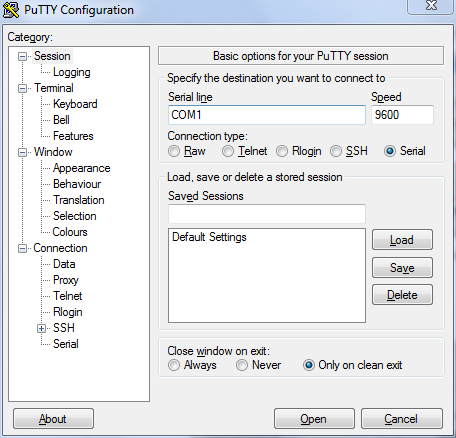
- Start PuTTY. The PuTTY Configuration dialog box appears, showing the Session screen.
- In Connection type, select Serial if you are connecting via serial cable.
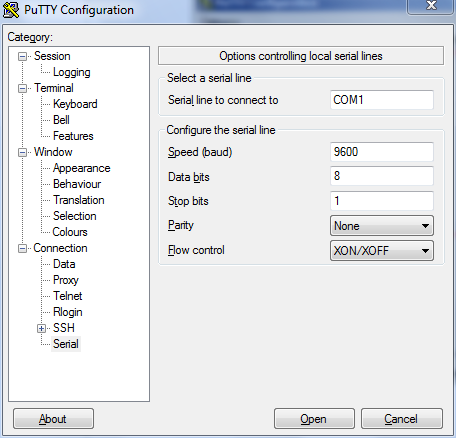
- Under Category, click Connection > Serial. The serial connection options appear on the right side of the dialog box, displaying PuTTY’s default serial connection settings.
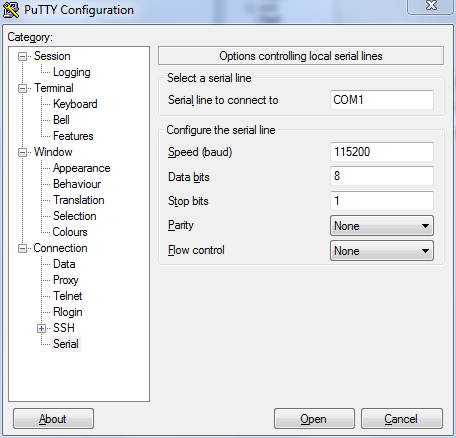
- Configure the serial connection settings as follows:
-
Serial line to connect to: Type the COM port name to which you connected the RS-232 cable.
-
Bits per second: 115200
-
Data bits: 8
-
Stop bits: 1
-
Parity: None
-
Flow control: None
-
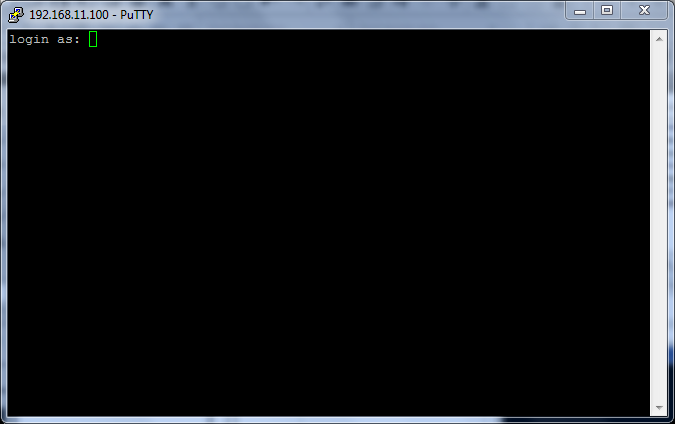
- Click Open. The PuTTY console appears and displays the login prompt.