Navigating the AV Web Management Interface
The Audio Video Manager Interface is
divided into three panes that provide various user interface elements to display device
information, perform administrative tasks, and monitor configuration status.
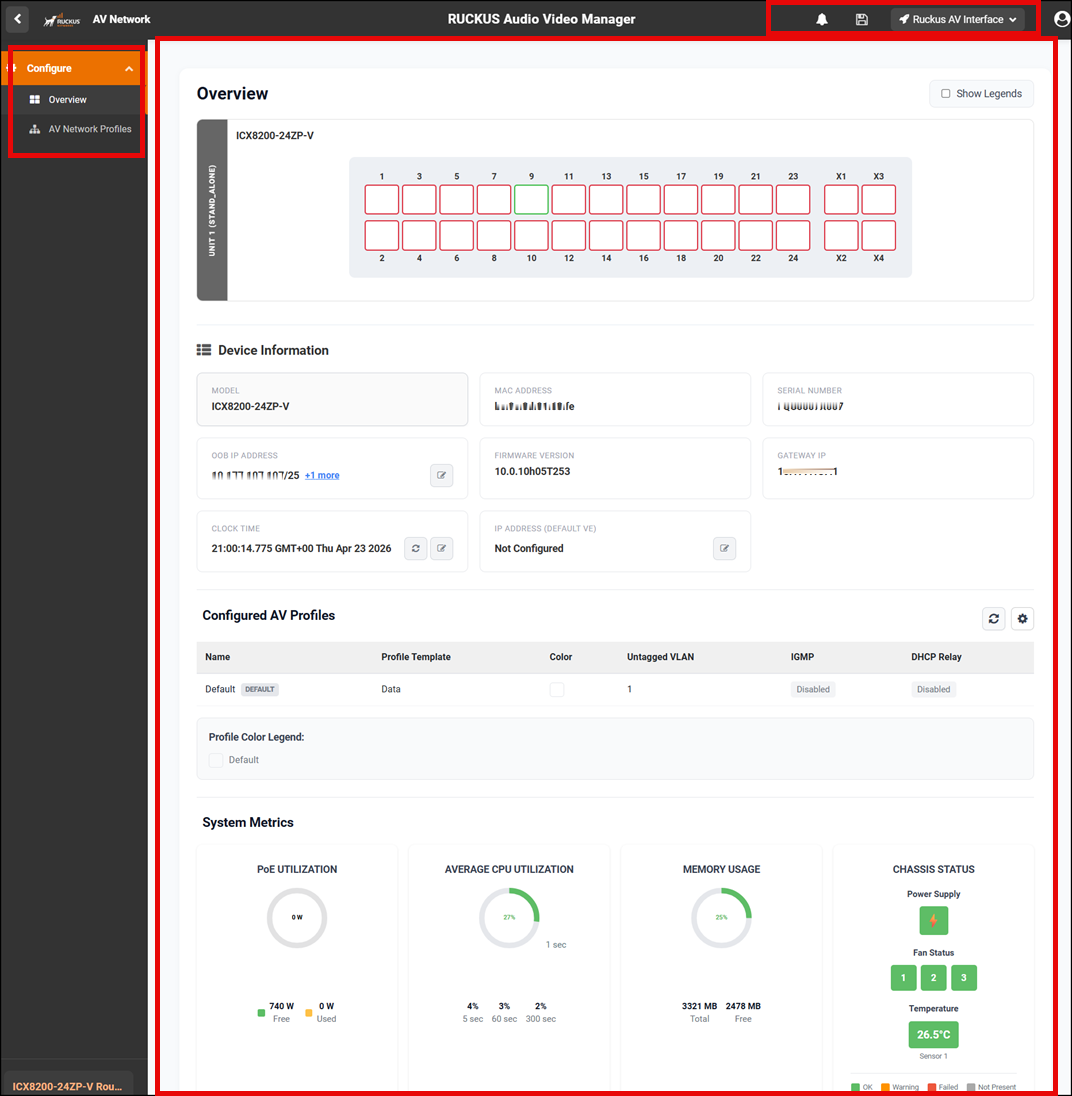
AV Manager Interface Elements
 : View the system logs.
 : Save the current
configuration.
: Save the current
configuration. : Switch between the RUCKUS Main UI
and the RUCKUS AV Interface (for AV devices only).
: Switch between the RUCKUS Main UI
and the RUCKUS AV Interface (for AV devices only).  : Access the portal logout
function.
: Access the portal logout
function.Common Action Elements in the AV Interface
The following elements are available throughout the AV interface:
 or
or  : Edit information
 : Refresh information
 : Configuration settings for tables or profiles
 : Clone the template
 : Delete the template
 : Start guided tour of the interface elements for the specific screen you
are on
: Start guided tour of the interface elements for the specific screen you
are on