Configuring IP Static Routes
Static routes are manually configured
entries in the IP routing table. You can configure a static IP route and specify
the
destination address for the route and the next-hop gateway through which the Layer
3 device
can reach the route.
Complete the following steps to configure an IP static route and add an administrative distance to the static route.
- From the main menu, select
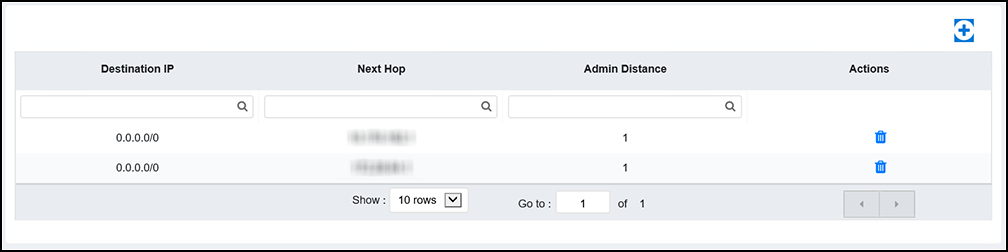
. The configured routes are listed in the main pane.You can perform the following actions:
- Click the
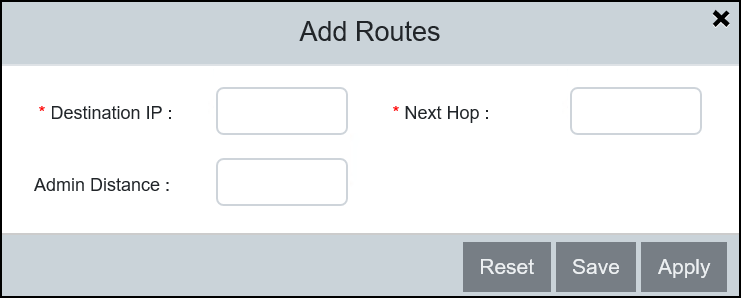
 icon to display the Add Routes dialog box.
- Complete the following
fields:
- Destination IP: Enter the destination IP address and subnet mask for the route path in CIDR notation using a prefix length (for example, 0.0.0.0/0).
- Next Hop: Enter the IP address for the next hop.
- Admin Distance: Enter the administrative distance of the route. Administrative distance is a value (1–225) used by routers to select the best path when there are multiple routes to the same destination from different routing protocols; a lower value, such as 1, indicates a more preferred route.
- Click Apply to create the IP static route.
 icon to display the