Managing Configuration Archives
You can perform various actions to manage
the configuration archives. You can list, view, apply, copy, upload, and delete
the
configuration archives.
Complete the following steps to manage configuration archives.
Viewing Archive Content
- From the main menu, select .
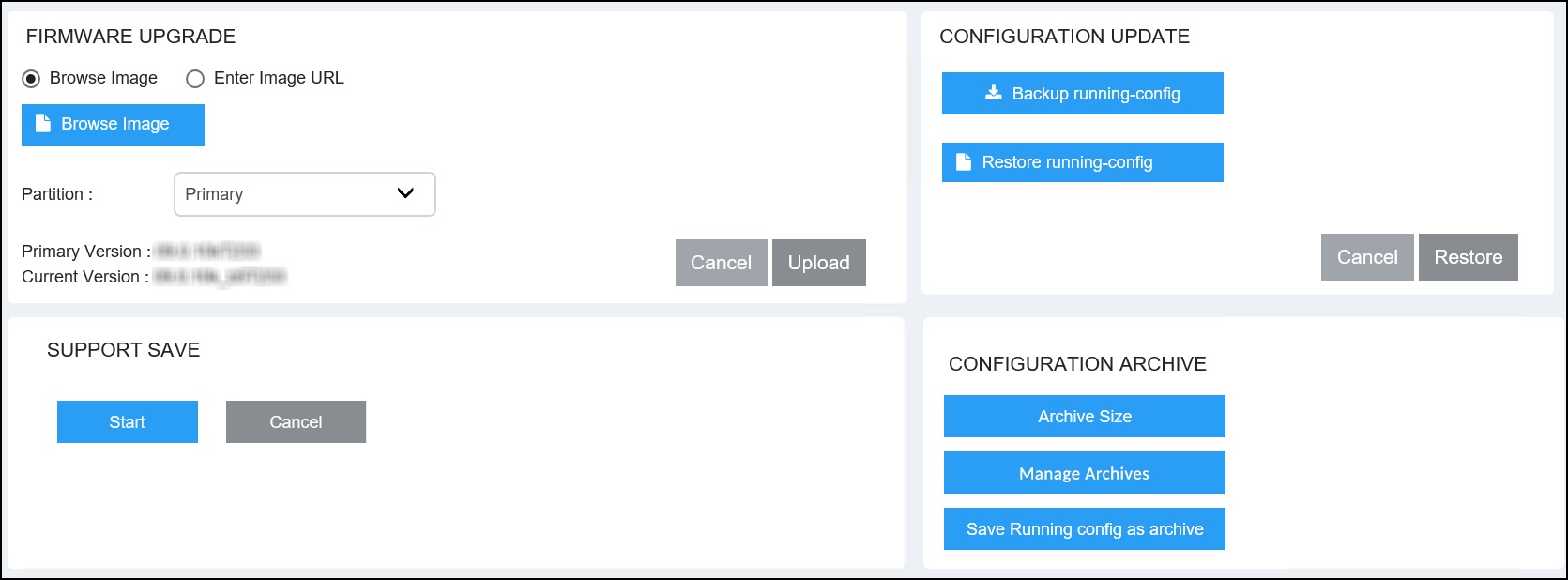
- In the CONFIGURATION ARCHIVE pane, click Manage
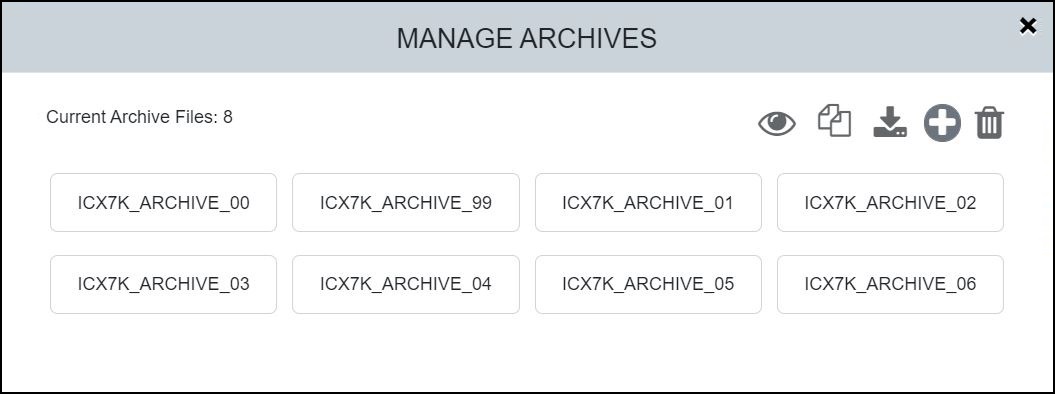
Archives.The MANAGE ARCHIVES dialog box is displayed.
- Select a configuration
archive file and click the
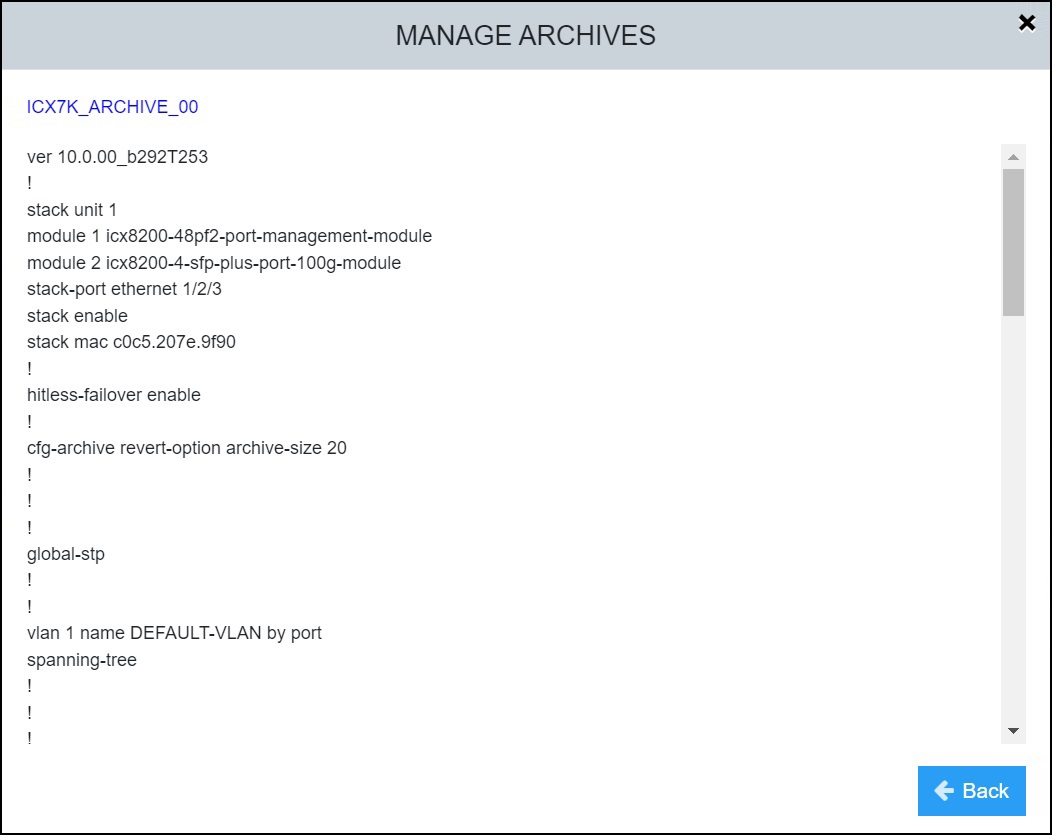
 icon to display the content of the selected configuration archive.
- Click Back to return to the MANAGE ARCHIVES dialog box.
Copying an Archive to Another Archive
- From the main menu, select .
- In the CONFIGURATION ARCHIVE pane, click Manage
Archives.The MANAGE ARCHIVES dialog box is displayed.
- Select a configuration
archive file and click the
 icon.
icon.
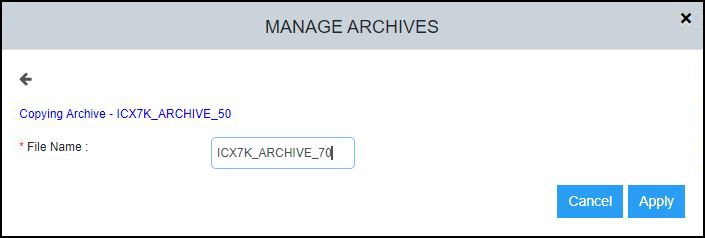
- In the File Name field, enter a name for the new archive file following the archive-naming convention (prefixed with a pre-defined string "ICX7K_ARCHIVE").
- Click Apply to copy the selected archive to the new archive file.
Applying an Archived Configuration to the System
- From the main menu, select .
- In the CONFIGURATION ARCHIVE pane, click Manage
Archives.The MANAGE ARCHIVES dialog box is displayed.
- Select a configuration
archive and click the
 icon.
icon.
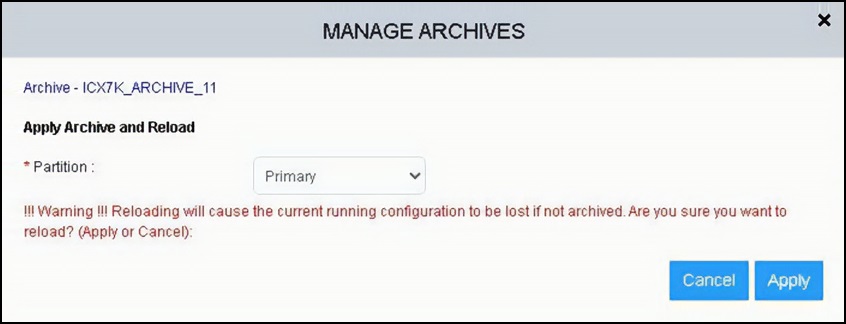
- In the Partition list, select Primary or Secondary to select the partition to which you want to apply the configuration archive.
- Click Apply to load the system with the specified configuration.
Uploading a Local Archive File to the System
- From the main menu, select .
- In the CONFIGURATION ARCHIVE pane, click
Manage
Archives.The MANAGE ARCHIVES dialog box is displayed.
- Click the
 icon to launch your local file folder, then
browse to and select a saved configuration archive file from your local
machine.If the number of archive files in the system exceeds the configured archive size with the addition of the new archive file, the oldest archive file that must be deleted is shown in the dialog box.
icon to launch your local file folder, then
browse to and select a saved configuration archive file from your local
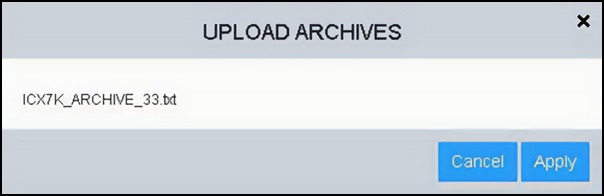
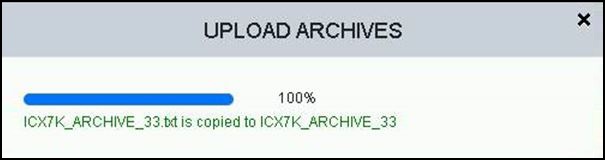
machine.If the number of archive files in the system exceeds the configured archive size with the addition of the new archive file, the oldest archive file that must be deleted is shown in the dialog box. - Click Apply to to upload the specified file to the system's configuration archive.
Deleting an Archive
- From the main menu, select .
- In the CONFIGURATION ARCHIVE pane, click Manage
Archives.The MANAGE ARCHIVES dialog box is displayed.
- Select a configuration
archive file and click the
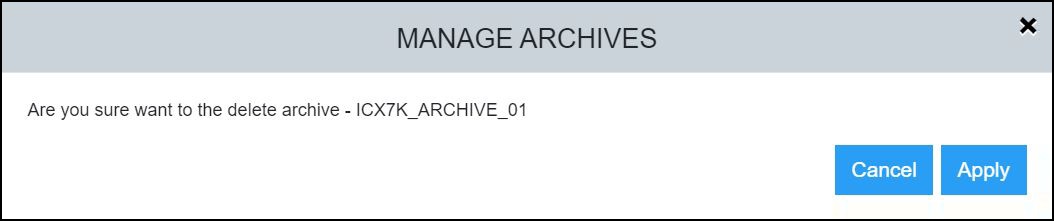
 icon to delete the selected configuration archive file. A confirmation
dialog box is displayed.
icon to delete the selected configuration archive file. A confirmation
dialog box is displayed.
- Click Apply to
delete the selected configuration archive. A message is displayed indicating that the configuration archive has been deleted successfully.
- Click Back to return to the MANAGE ARCHIVES dialog box.