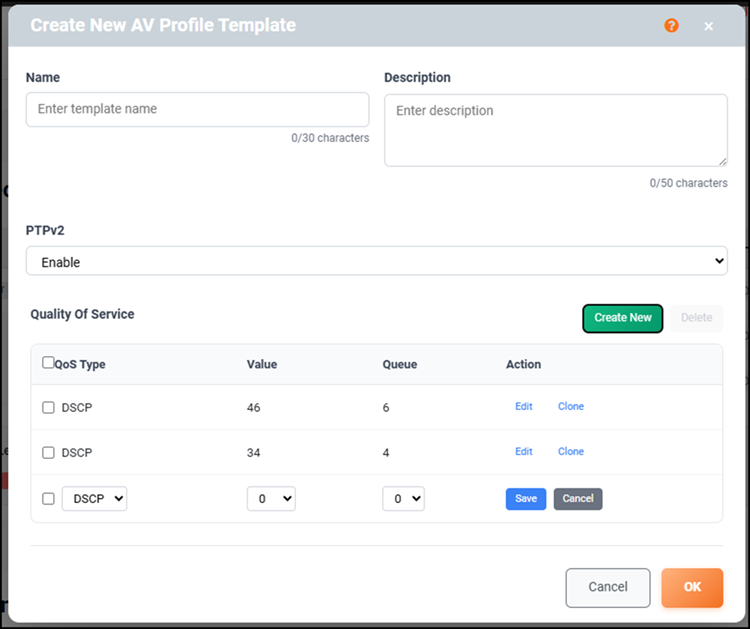
Creating a New AV Profile Template from the AV Network Profile Screen
System-defined templates cannot be
edited, but you can create custom templates using the + Create AV Template
or the  functions.
Custom-defined templates can subsequently be edited. Regardless of the method used, the system maximum of 16 profiles (including templates) remains enforced.
Choosing the method of creation depends on your needs:
- If you need to create a new
template containing only minor differences from any existing template, you
may use the function to duplicate an existing template that
meets the majority of your needs and allows you to modify the PTPv2 and QoS
settings. This effectively creates a new custom template that you can
subsequently edit (unlike the system-defined templates, which cannot be
edited).
- If you want to create a new template with no predefined settings, you may use the + Create AV Template function and define all PTPv2 and QoS settings.
Refer to the RUCKUS FastIron QoS and Traffic Management Configuration Guide for more information about the QoS functionality on the ICX devices.
Refer to the RUCKUS FastIron Management Configuration Guide for more information about the PTPv2 functionality on the ICX devices.
Perform the following steps to create a new AV profile template from the AV Network Profile screen.
- In the Profile Templates section, click + Create AV Template.
- (Optional) Click the
 icon to start the guided tour of the interface elements available on the
specific screen you are working with.
icon to start the guided tour of the interface elements available on the
specific screen you are working with. - In the Create New AV
Profile Template window, enter the template details.
- For Name, enter a name for the template.
- For Description, enter details about the template.
- For PTPv2, select Enable or Disable from the drop-down list.
- For Quality of Service, select Create New to add a QoS Type to the list.
- Select QoS Type (DSCP), Value, and Queue (0 through 63).
- Click Save.
- (Optional) To delete a DSCP, click the checkbox next to the DSCP from the list and click Delete.
- Click OK.