Configuring an ICX Device to be Managed by SmartZone
Beginning with SmartZone release 5.0,
SmartZone can be used to monitor and manage ICX switches. An ICX switch identifies
SmartZone
and initiates a connection based on the SmartZone IP addresses configured on the
switch or
discovered through DHCP Option 43. When SmartZone management is disabled, the ICX
switch
will not initiate a connection with SmartZone, even if SmartZone IP addresses are
available.
Both "active" and "backup" SmartZone IP addresses can be configured on the ICX switch.
Active IP addresses are given the highest priority; backup IP addresses are lowest
priority
and are provided for redundancy. Both IPv4 addresses and IPv6 addresses can be added.
You
can add up to three IP addresses each for active and backup IP addresses. The ICX
device
attempts to create a connection beginning with the first IP address. If the attempt
fails,
the ICX device moves to the second and then the third IP address.
Complete the following steps to configure an ICX device to be managed by SmartZone.
- From the main menu, select
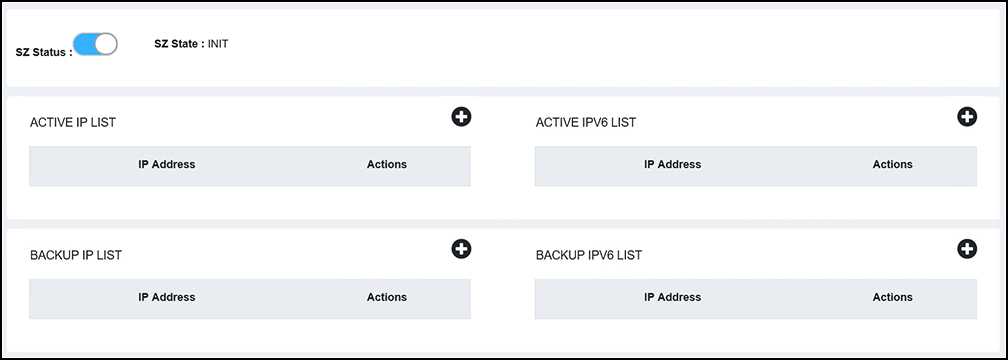
. The SmartZone connection status and the SmartZone IP addresses configured on the device display in the main pane.You can perform the following actions:
- Enable or disable SmartZone status: Toggle the SZ Status switch to enable or disable SmartZone management of the ICX device.
- Add SmartZone IP addresses: Continue to step 2 to add active and backup SmartZone IP addresses.
- Delete SmartZone IP
addresses: Click the
 icon to display the SZ IP
confirmation dialog box. Click Apply to
delete the IP address.
icon to display the SZ IP
confirmation dialog box. Click Apply to
delete the IP address.
- Perform the following actions to add active SmartZone IP addresses.
- Perform the following actions to add backup SmartZone IP addresses.
 icon to display a new field, then enter an
active SmartZone IPv4 or IPv6 address.
icon to display a new field, then enter an
active SmartZone IPv4 or IPv6 address.  icon, then click