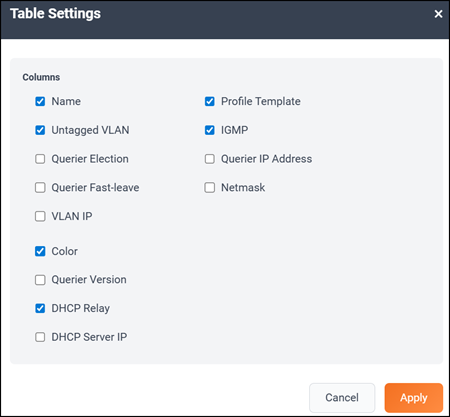
The Overview screen, which is the first page that appears after you log in to
the AV Web Management Interface, provides a snapshot of the AV device details. The
Overview screen provides a centralized monitoring pane for the
ICX device and displays the operational status and statistics.
At the top of the Overview page, the device ports panel is displayed. The Show Legends option
allows you to display or hide the color coding depicted on the ports.
Note: The figures included in this guide for illustrative purposes only. The
ports panel and port speed vary with different AV models.
Device Overview with Legend
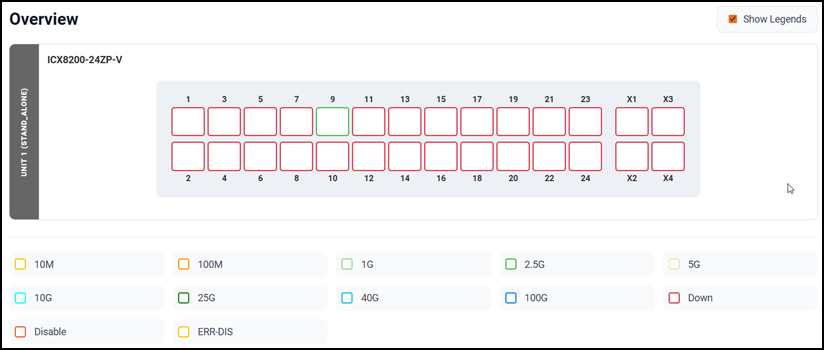
Below the device overview are the Device Information,
Configured AV
Profiles, and System Metrics sections.
Device Information, Configured AV Profiles,
and System Metrics
The following table lists the infographic
elements of the Overview page that provide the basic
device information, operational status, and statistics.
Dashboard Elements
Dashboard Element
Description
Device Information
Displays the following device information:
MODEL: Displays the ICX model
details.
MAC
ADDRESS: Displays the MAC address of the
device.
SERIAL
NUMBER: Displays the serial number of the
device.
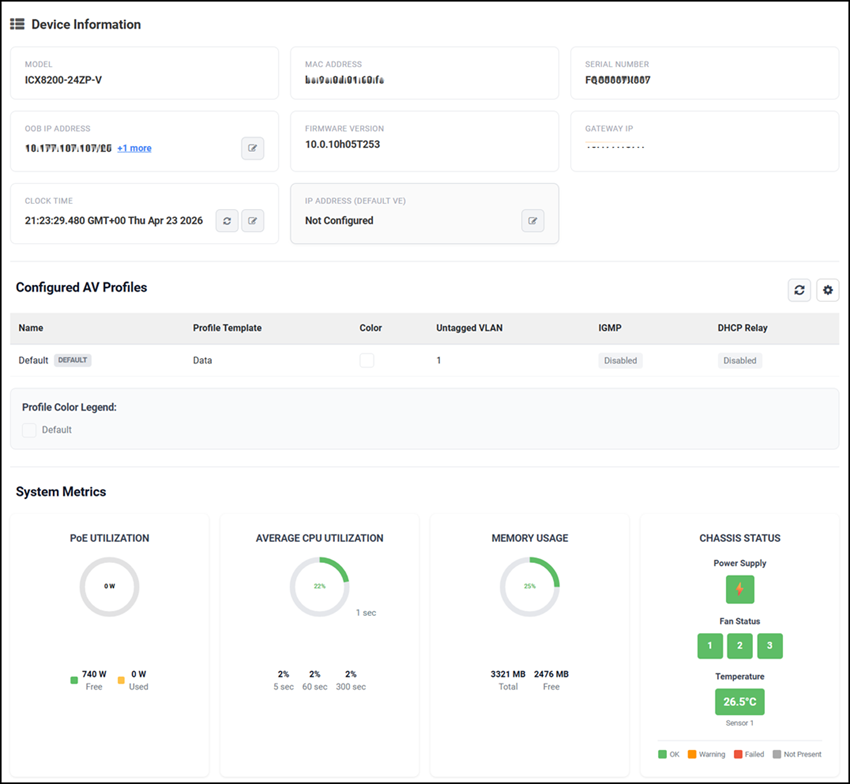
OOB IP ADDRESS:
Displays the Out-of-Band management port IP address. When
clicked, the Management Port Configuration
page is displayed. This option enables configuration of a static
IP address or initiation of the DHCP client on the management
port.
The
Management Name field displays
the default name assigned to the management port.
Click
Add
Static IP to create a new static IP
address. The following fields are available:
In the IP
address field, type the desired static
IPv4 address. Only an IPv4 address can be
configured.
In the Netmask
field, type the subnet mask.
(Optional) In the Default
Gateway field, enter the correct
gateway route to prevent loss of connection.
Click Add to save the new IP address.
(Optional) Click Cancel to discard all the
entries.
When the Start DHCP
Client option is clicked, any static IPs
configured on the interface are removed, and the DHCP
client is initiated to obtain new IP addresses.
The IP
Address/IP Subnet displays all configured
management IP addresses; the Type field indicates whether each entry is
configured as a static IP address or assigned
dynamically via DHCP. For a host-generated IPv6
Stateless Address Autoconfiguration (SLAAC) address, the
Type field displays auto. The delete
icon in the Actions field allows you to delete any of the
listed IP address.
Click Close.
FIRMWARE VERSION: Displays the
firmware version number.
GATEWAY IP: Displays the
gateway IP address.
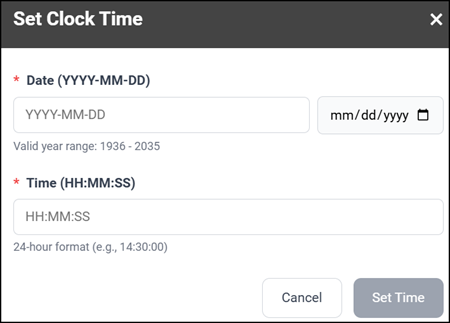
CLOCK TIME: Displays
the current time configured on the device. This widget contains
icons allowing you to refresh the clock time displayed in the
widget or set the clock time. When the latter is clicked, the
Set Clock Time page is displayed.
In the Date field, type the year, month, and day. The
valid range of year is from 1936 through 2035.
In the Time field, type the time in 24-hour
format.
Click
Set
Time.
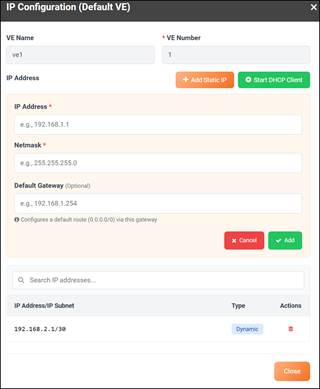
IP ADDRESS (DEFAULT
VE): Displays the IP address used to access the
device through web management. When clicked, the IP
Configuration (Default VE) page is displayed.
This option enables configuration of a static IP address or
initiation of the DHCP client on the VE IP address.
The
VE Name field displays the
default name assigned to the VE.
The
VE Number field displays the
VLAN ID. The VE number must be valid and match an
existing VLAN.
Click
Add
Static IP to create a new static IP
address. The following fields are available:
In the IP
address field, type the desired static
IP address. Only an IPv4 address can be
configured.
In the Netmask
field, type the subnet mask.
(Optional) In the Default
Gateway field, enter the correct
gateway route to prevent loss of connection.
Click Add to save the new IP address.
(Optional) Click Cancel to discard all the
entries.
When the Start DHCP Client option
is clicked, any static IPs configured on the interface
are removed, and the DHCP client is initiated to obtain
new IP addresses.
The IP
Address/IP Subnet displays all configured VE IP
addresses; the Type field indicates whether each entry is
configured as a static IP address or assigned
dynamically via DHCP. For a host-generated IPv6
Stateless Address Autoconfiguration (SLAAC) address,
the Type field displays auto. The
delete icon in the Actions field allows you to delete any of the
listed IP address.
Click Close.
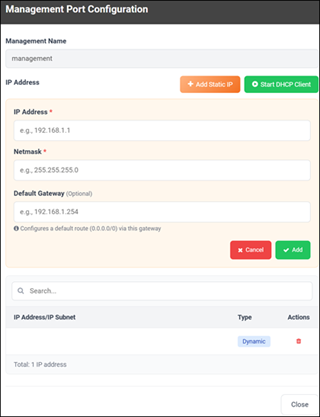
Configured AV Profiles
Displays the list of AV profiles on the ICX device. You can
customize which fields appear in the Configured AV Profiles table by
clicking the icon and selecting or deselecting the
desired column names.
The Profile Color Legend displays, for each AV profile
assigned to the ICX device, the color assigned to the profile and the
number of ports to which the profile is assigned, thereby providing a
quick visual aid regarding port configurations across the unit.
System Metrics
PoE UTILIZATION: Displays the total number of watts
available for consumption; also displays the breakdown of
consumed and free power per unit.
AVERAGE CPU
UTILIZATION: Displays the percentage of CPU being used
by the device at 5-second, 1-minute, and 300-second
intervals.
MEMORY USAGE: Displays the total number of megabytes in
dynamic memory, including the number of megabytes that are used,
and the percentage of the available memory.
CHASSIS STATUS:
Power Supply: Displays the total number of power
supply connectors and their status.
Fan Status: Displays the total number of cooling
fans and their status.
Temperature: Displays the current internal
temperature of the chassis.
Configured AV Profiles Table Properties
Field/Column
Description
Name
The name assigned to the AV profile.
Untagged VLAN
The ID of the Untagged VLAN configured on a port.
Querier Election
Displays whether IGMP querier election is enabled or disabled. Determines which device
acts as the IGMP querier in a VLAN.
Querier Fast-leave
Displays whether IGMP fast-leave is enabled or disabled. Allows quick removal of IGMP
membership when a host leaves.
VLAN IP
The IP address assigned to the VLAN’s VE interface.
Color
The color assigned to the AV profile to help visually identify the profile in the
GUI.
Querier Version
Specifies the IGMP version used by the querier (v2 or v3).
DHCP Relay
Displays whether DHCP relay is enabled or disabled. Allows the switch to forward DHCP
client requests (broadcasts) to a DHCP server located on a different IP
subnet.
DHCP Server IP
Displays the IP address of the DHCP server.
Profile Template
Displays the type of the AV profile.
IGMP
Indicates whether IGMP is enabled or disabled on the VLAN. Controls how multicast
traffic is delivered so that it is sent only to devices that have
requested it, instead of being flooded to all ports.
Querier IP Address
Displays the IP address of the device acting as IGMP querier.
 icon and selecting or deselecting the
desired column names.
icon and selecting or deselecting the
desired column names.