Setting Up a Customer Portal
MSPs with valid licenses can customize
their customers' portal for branding and support. Before adding a customer, you must
set up
the customer's portal.
- From the navigation bar, click
Portal
Settings.For MSPs that operate in North America, Europe, and other regions, the customer portal must be set for each region.
- On the
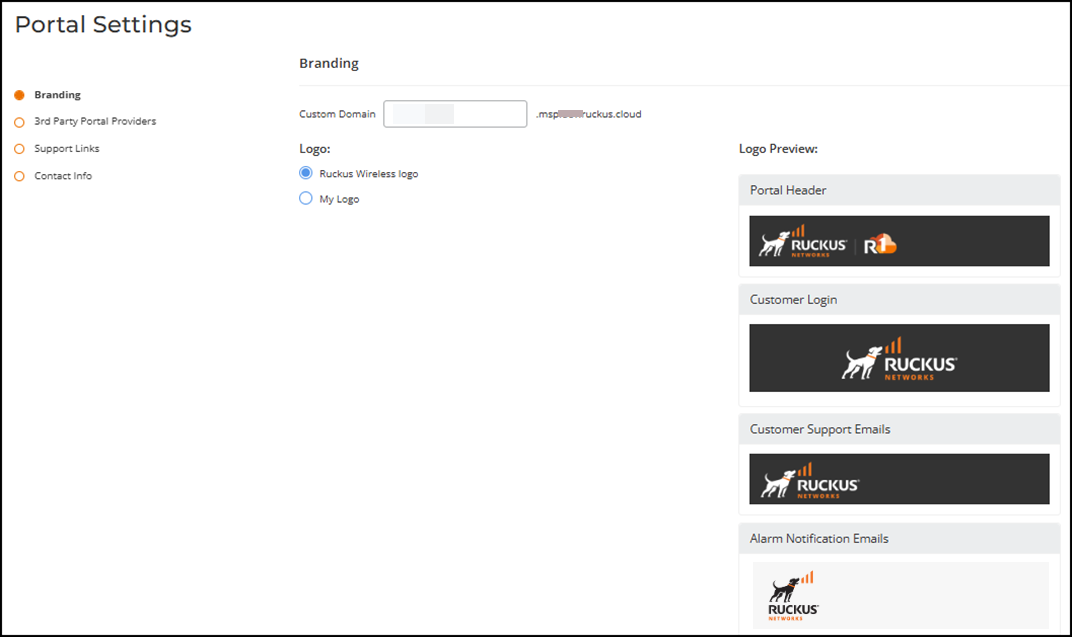
Branding page, enter a desired domain name in the
Custom
Domain field. Note: The domain name will be followed by .msp.ruckus.cloud. RFC-1035 describes the permitted syntax for the domain.
- Under Logo, select either RUCKUS Wireless logo or My Logo to customize your branding.
- In the 3rd Party Portal Providers page, select a preferred portal provider from the Select Portal Provider, and click Next.
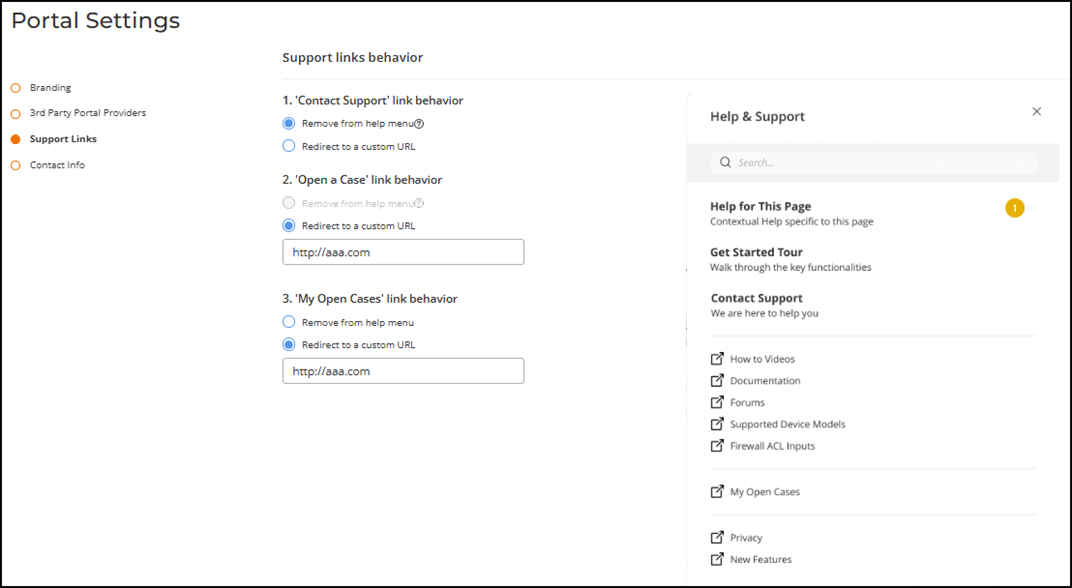
- In the Support Links page,
enter the URLs, specify their behaviors, and click
Next.If you are an MSP providing support to your customers without involving RUCKUS, you can customize support URLs for contact, open cases, and existing cases.
- For 'Contact Support' link behavior, enter a URL in the Redirect to a custom URL field or click Remove from help menu.
- For 'Open a case' link behavior, enter a URL in the Redirect to a custom URL field or click Remove from help menu.
- For 'My Open cases', enter a URL in the Redirect to a custom URL field or click Remove from help menu.
- In the Contact Info page, enter the contact number, email address, and website footer:
- Click Create.