Viewing and Assigning MSP Assigned Subscriptions
With the MSP Assigned Subscriptions feature,
RUCKUS MSP customers are no longer required to purchase REC SKUs in order to be able
to use
them for their own MSP account. RUCKUS MSP customers can and are recommended to only
purchase MSP SKUs and use them for both MSP End Customers (MSP ECs) as well as assign
any
desired quantity to their own MSP account. RUCKUS One MSPs can assign and edit subscriptions
that are assigned to themselves.
- On the RUCKUS One web interface, go to .The Subscriptions page is displayed.
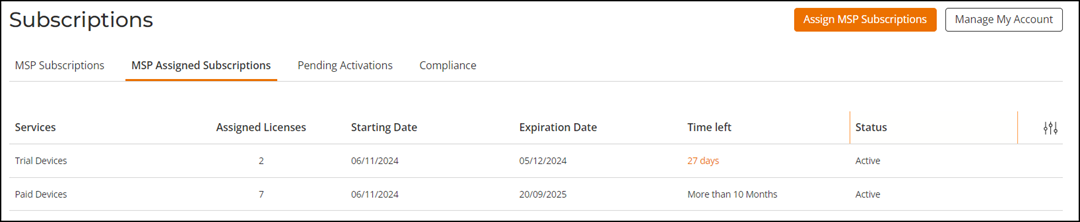
- Select the MSP Assigned Subscriptions tab.
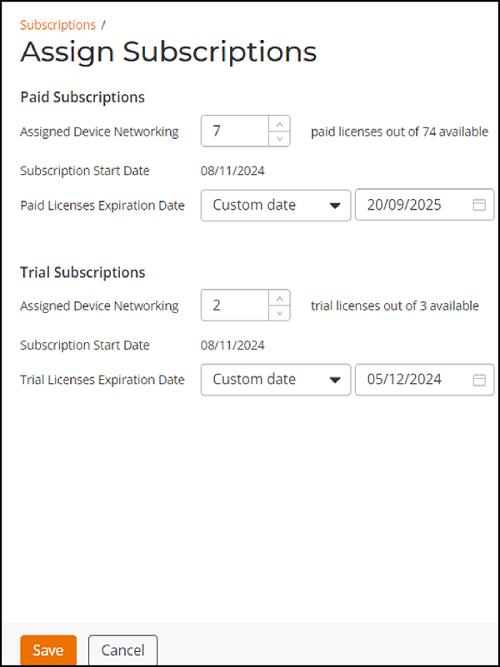
- Click Assign MSP Subscriptions.
- Under Paid
Subscriptions, the following fields are displayed:
- Assigned Device Networking: Specify the number of paid licenses (up to the total number of paid licenses available).
- Subscription Start Date: The subscription start date defaults to the current date and cannot be modified.
- Paid Licenses Expiration Date: Select the expiration date from the drop-down menu. You can choose from a range of 30 days to 5 years. The default date is one year from the subscription start date, as displayed in the adjacent date field. You can also customize the date by selecting the Custom date option and selecting the date from the calendar in the next field.
- Under Trial
Subscriptions, the following fields are displayed:
- Assigned Device Networking: Specify the number of trial licenses (up to the total number of trial licenses available).
- Subscription Start Date: The subscription start date defaults to the current date and cannot be modified.
- Trial Licenses Expiration Date: Select the expiration date from the drop-down menu. You can choose from a range of 30 days to 5 years. The default date is one year from the subscription start date, as displayed in the adjacent date field. You can also customize the date by selecting the Custom date option and selecting the date from the next field.
- Click Save.
- To review the MSP
Assigned Subscriptions page on RUCKUS One, click
Manage My Account, and then navigate to .
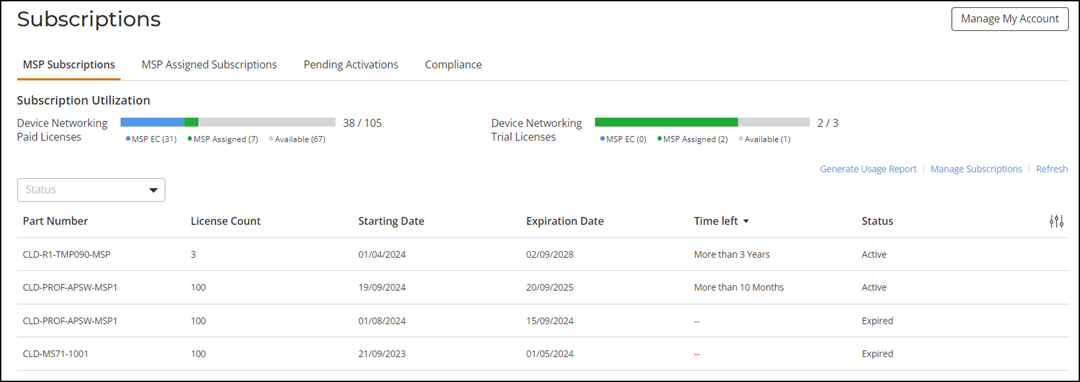
The Subscription Utilization section displays the number of subscriptions consumed and the total number of subscriptions under Paid, Trial & Assigned Licenses.
- Subscription Utilization: Displays information about subscription utilization.
- Part Number: Displays the part number of the purchased subscription.
- License Count: Displays the number of devices.
- Source: This column displays one of the following for each part number.
- Starting Date: Displays the date when the subscription was activated.
- Expiration Date: Displays the subscription expiration date.
- Time left: Displays the time left for subscription expiration.
- Status: Displays the subscription Active or Expired status.