Configuring Email Notifications
You can configure email notifications as a
Managed Service Provider (MSP) to control how notification messages related to your
networks, devices, and tenant activities are delivered. The email notification configuration
determines which event types generate email alerts and which recipients receive them.
You
can also configure incident‑based and IntentAI‑based notification categories, including
severity levels, descriptions, and AI‑driven event updates. This configuration allows
you to
customize the visibility and delivery of system notifications for all recipients associated
with the MSP account.
- Click Manage My Account to go to the tenant portal for your own account.
- On the navigation bar, select .
- Click .
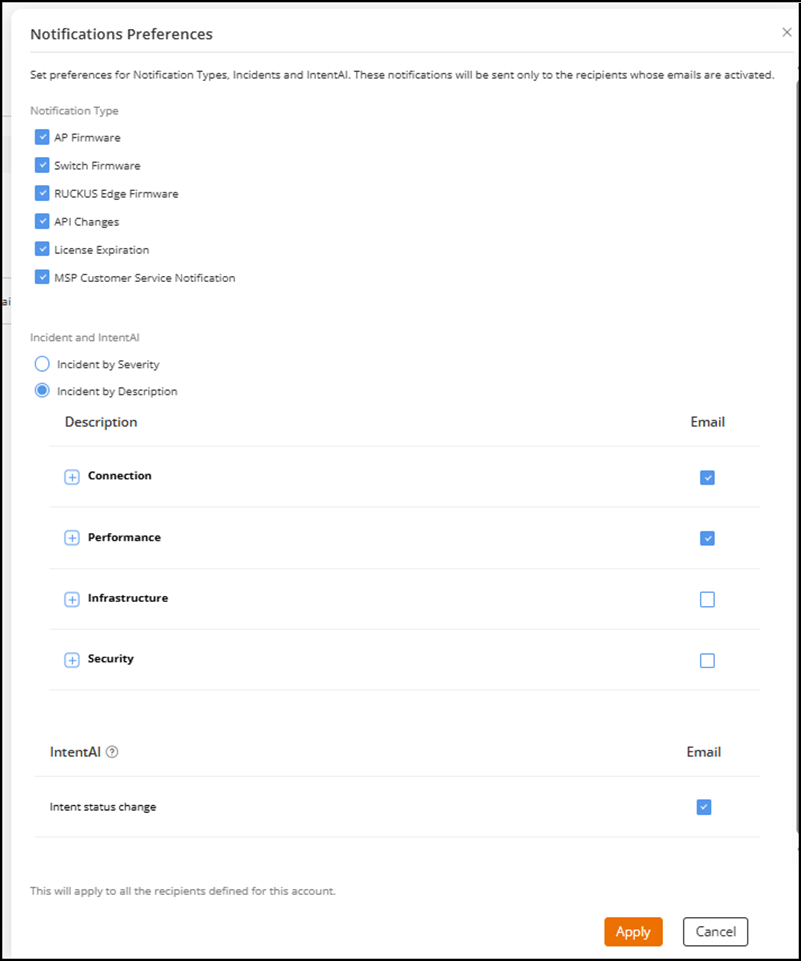
- Click Notification Preference to configure the email notification options.
- Configure the notification options as needed:Note: This configuration applies to all recipients defined for this account.
- Notification Type: Select the checkboxes for the following items to enable notifications:
- Incident and IntentAI:
- Incident by Severity: Select the required severity levels (P1, P2, P3, P4) by selecting the Email checkboxes.
- Incident by Description: Select the
required incident categories (Connection, Performance,
Infrastructure, Security) by selecting the
Email checkboxes. You can expand each
description using the
 icon to view sub-items and select
the required sub-items in each category.
icon to view sub-items and select
the required sub-items in each category. - IntentAI: Select Intent status change by selecting the Email checkbox. The AI features, including AI‑Driven RRM and all AIOps recommendations, are available under IntentAI.
- Click Apply.
- (Optional) Click Add Recipient.
- Select the checkbox next to the recipient name to display and access the following options:
- (Optional) Click Edit to modify the recipient information.
- (Optional) Click Delete to
delete a recipient's information.A confirmation dialog is displayed. Review the information and click Delete.