Managing Service Tiers for Integrator or Installer Accounts in MSP HSP Edition and MSP MDU Edition
You can assign or update the service
tier for an Integrator or Installer account. The service tier determines which advanced
features the account can access. This section focuses only on service tier selection
and
changes for MSP HSP Edition and MSP MDU Edition.
Note: This task does not apply to the MSP
Standard Edition.
- On the navigation bar, select
Tech
Partners.The Tech Partners page is displayed.
- To add a new Integrator or
Installer account, click Add Tech
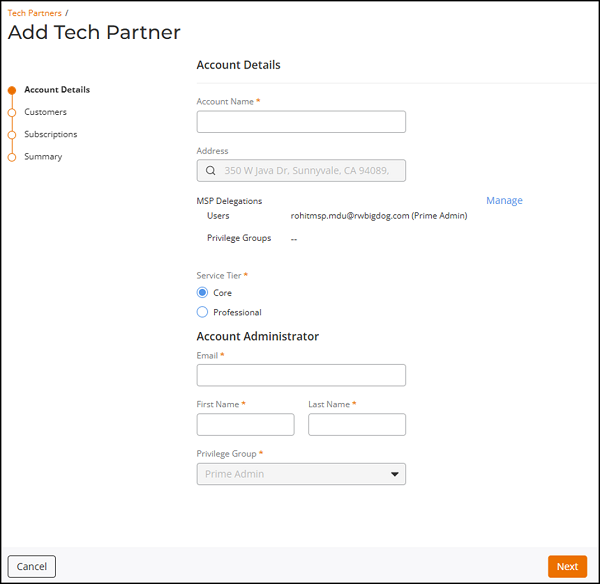
Partner.The Add Tech Partner page is displayed.
- In the Account Name field, enter the account name. The account name must be unique.
- In the Service
Tier field, select Core or Professional.
- Complete the remaining required information. Refer to Adding an Integrator or Installer Account for instructions pertaining to the remaining fields and screens.
- Click Save.
- To edit an existing tech partner, on the Tech Partners
page, select the checkbox next to the name, and then click
Edit.The Tech Partner Account page is displayed.
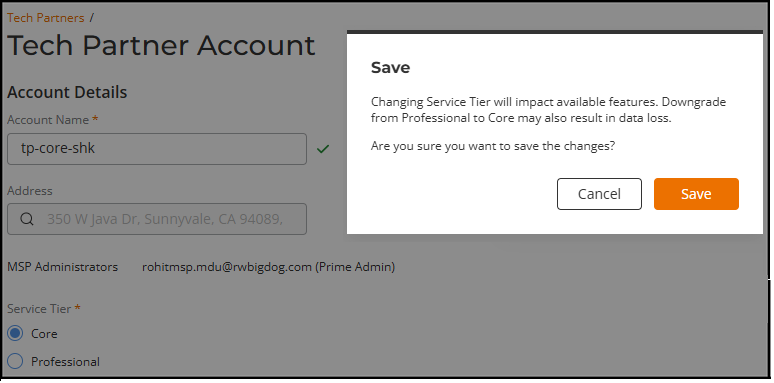
- In the Service Tier field, you may update the service tier. The options are Core and Professional. Before updating, the field displays the account's current RUCKUS One service tier.
- When you change the
service tier, a pop-up message appears to confirm the change. Review the
message and click Save.
Note: Changing the service tier affects the features available for Tech Partner account. Downgrading from Professional to Core results in loss of certain functionalities and loss of some historical alerts and events data.
- Complete any other required updates. Refer to Editing an Integrator or Installer Account for information pertaining to the remaining fields.
- Click Save.