Upgrading FastIron Software

An ICX device can be upgraded to the latest software version to take advantage of new features and ensure optimal network performance.
Note: Download the required software images for the target release to your local machine from the Software Downloads page on the RUCKUS Support website. For the list of software image files available for an ICX device, refer to the release notes for the specific release.

Complete the following steps to upgrade the software.
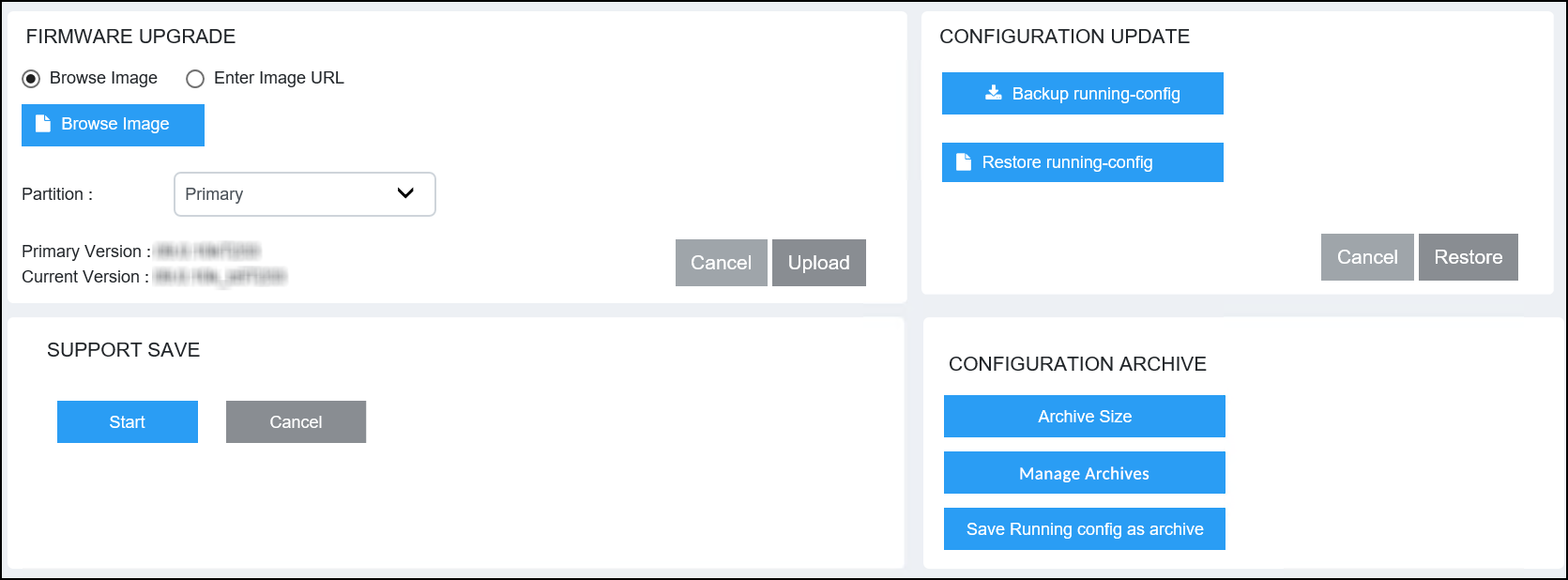
  1. Select Management > Infra.

    FastIron Firmware Upgrade

  2. In the FIRMWARE UPGRADE pane, flash the new image to the device using one of the following options:
    • Browse Image: Browse and select the file from the local machine.
    • Enter Image URL: Enter the URL where the image file is present. Only HTTPS image download is supported; for example, https://10.171.17.67/SPR09000_b201ufi.bin.
  3. In the Partition list, select one of the following flash memory modules:
    • Primary: Specifies to upload the software image to the primary flash memory.
    • Secondary: Specifies to upload the software image to the secondary flash memory.
  4. Select Upload to upload and upgrade the software.