Navigating the Web Management Interface
The Web Management Interface is divided
into three panes which provide various user interface elements to display device
information, perform administrative tasks, and monitor configuration status.
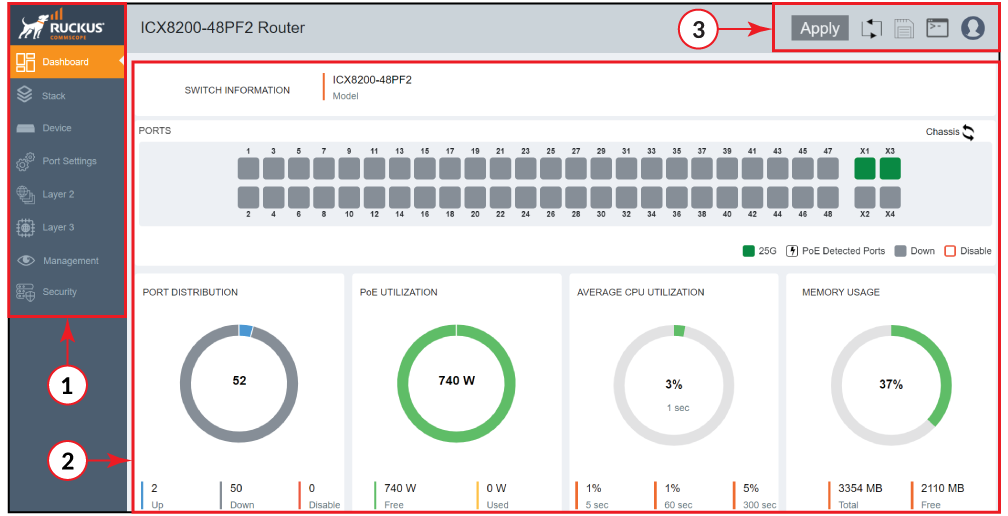
Web Management Interface Elements
| Number | Name | Description |
|---|---|---|
| 1 | Menu | Lists the menu and sub-menu items for administrative tasks. |
| 2 | Main pane |
Displays configuration details, configuration options, charts, stack units, ports, and chassis panels, tables, lists, and miscellaneous information specific to the selected menu item. |
| 3 | Header pane | Provides the following options common to the
web interface:
|
 : Allows you to reload the device.
The
: Allows you to reload the device.
The  : Allows you to save the running
configuration to the memory.
: Allows you to save the running
configuration to the memory. : Launches the remote CLI access to
the management port that provides access to the management
functions and can run all the configuration commands and show
commands. Refer to
: Launches the remote CLI access to
the management port that provides access to the management
functions and can run all the configuration commands and show
commands. Refer to  : Displays the following options:
Common Action Elements in the Interface
The following elements are available across all pages:
 : Allows you to add a new configuration instance or parameters for the
selected feature.
: Allows you to add a new configuration instance or parameters for the
selected feature.  : Allows you to edit an existing configuration.
 : Allows you to delete an existing configuration.
  : Allow you to search the existing information in an individual page.
- Save: Allows you to save the configuration changes on individual pages. You can save the configuration updates on multiple pages and choose to apply the changes to the device later. To apply all the changes together to the device, use the global Apply option available on the header pane.
- Apply: Allows you to apply the configuration changes to the device immediately.
- Reset: Allows you to reset the configuration changes on individual pages to the default value.