Configuring a Local User Account
Complete the following steps to configure the user account in a local database.
- Select .
- Select the Local
Users tab. All the configured user accounts are listed in the main pane. You can perform the following actions:
- Add a user account: Continue to step 3 to add a new user account.
- Edit a user account: Select
 to display the Edit Local User dialog box. Make the
necessary changes and select Apply to
apply the changes.
to display the Edit Local User dialog box. Make the
necessary changes and select Apply to
apply the changes. - Delete a user account: Select
 to display the Delete Local User dialog box. Select
Apply to delete the user account.
to display the Delete Local User dialog box. Select
Apply to delete the user account.
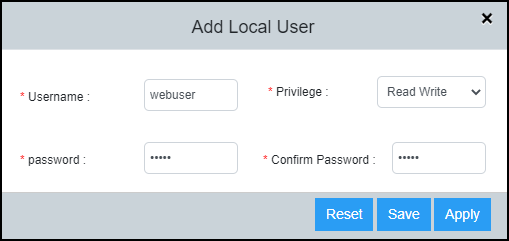
- In the Local
Users tab, select
 to
display the Add Local User dialog box.
to
display the Add Local User dialog box.
- Complete the following fields:
- Username: Enter a username for the user.
- Privilege: Select the
desired privilege level for the user from the list.
- Read Write: Specifies to provide complete read-and-write access to the system.
- Read Only: Specifies to provide limited read-only access.
- Port Config: Specifies to provide read-and-write access at the port configuration level (but not for global parameters).
- Cloud User: Specifies to provide access to cloud users.
- Password: Enter the password for the user.
- Confirm Password: Re-enter the password for confirmation.
- Select Apply to add the local user account.