Interpreting Port-Side LEDs
After you install the network cables, you can observe certain LEDs to determine if
the network connections are functioning.
The following figures and tables outline the state of each LED, the status of the hardware, and any recommended action.
Note: The illustrations are somewhat truncated to show all LEDs.
Port-Side LEDs of ICX 7550-24
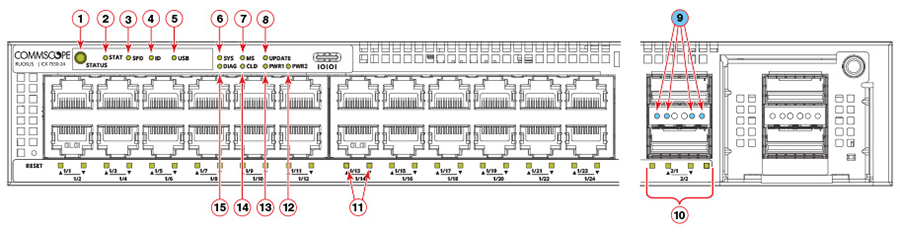
- Port status mode selection button
- Port link status mode LED
- Port speed status mode LED
- Member ID status mode LED
- USB status mode LED
- System status LED
- Master/Slave status LED
- Software update status LED
- 40 Gbps link/activity LEDs for stacking port 2/1 (blue)
- 40 Gbps link/activity LEDs for stacking port 2/2
- RJ-45 port status LEDs (odd numbers are for upper ports; even numbers are for lower ports)
- Power 2 LED
- Power 1 LED
- Cloud/On-premises-SmartZone management status LED
- Diagnostics status LED
Port-Side LEDs of ICX 7550-48
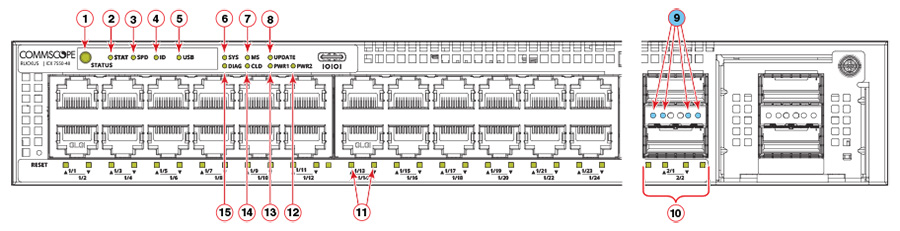
- Port status mode selection button
- Port link status mode LED
- Port speed status mode LED
- Member ID status mode LED
- USB status mode LED
- System status LED
- Master/Slave status LED
- Software update status LED
- 40 Gbps link/activity LEDs for stacking port 2/1 (blue)
- 40 Gbps link/activity LEDs for stacking port 2/2
- RJ-45 port status LEDs (odd numbers are for upper ports; even numbers are for lower ports)
- Power 2 LED
- Power 1 LED
- Cloud/On-premises-SmartZone management status LED
- Diagnostics status LED
Port-Side LEDs of ICX 7550-24P
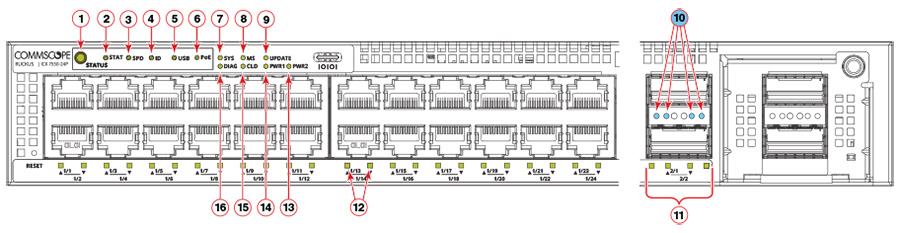
- Port status mode selection button
- Port link status mode LED
- Port speed status mode LED
- Member ID status mode LED
- USB status mode LED
- PoE LED
- System status LED
- Master/Slave status LED
- Software update status LED
- 40 Gbps link/activity LEDs for stacking port 2/1 (blue)
- 40 Gbps link/activity LEDs for stacking port 2/2
- RJ-45 port status LEDs (odd numbers are for upper ports; even numbers are for lower ports)
- Power 2 LED
- Power 1 LED
- Cloud/On-premises-SmartZone management status LED
- Diagnostics status LED
Port-Side LEDs of ICX 7550-48P
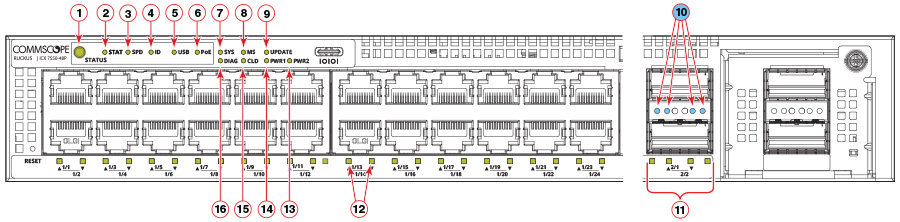
- Port status mode selection button
- Port link status mode LED
- Port speed status mode LED
- Member ID status mode LED
- USB status mode LED
- PoE LED
- System status LED
- Master/Slave status LED
- Software update status LED
- 40 Gbps link/activity LEDs for stacking port 2/1 (blue)
- 40 Gbps link/activity LEDs for stacking port 2/2
- RJ-45 port status LEDs (odd numbers are for upper ports; even numbers are for lower ports)
- Power 2 LED
- Power 1 LED
- Cloud/On-premises-SmartZone management status LED
- Diagnostics status LED
Port-Side LEDs of ICX 7550-24ZP
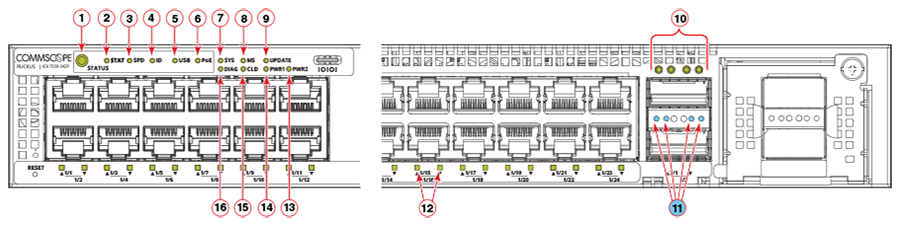
- Port status mode selection button
- Port link status mode LED
- Port speed status mode LED
- Member ID status mode LED
- USB status mode LED
- PoE LED
- System status LED
- Master/Slave status LED
- Software update status LED
- 40/100 Gbps link/activity LEDs for stacking port 2/1
- 40/100 Gbps link/activity LEDs for stacking port 2/2 (blue)
- RJ-45 port status LEDs (odd numbers are for upper ports; even numbers are for lower ports)
- Power 2 LED
- Power 1 LED
- Cloud/On-premises-SmartZone management status LED
- Diagnostics status LED
Note: In default 100G stacking mode, LEDs 1 and 3 glow (solid green) when a 100G link is
up in Module 2.
Port-Side LEDs of ICX 7550-48ZP
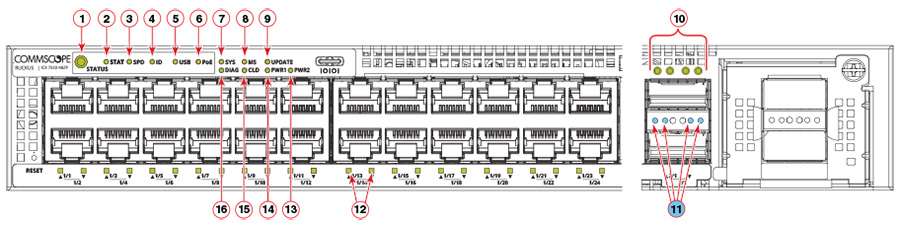
- Port status mode selection button
- Port link status mode LED
- Port speed status mode LED
- Member ID status mode LED
- USB status mode LED
- PoE LED
- System status LED
- Master/Slave status LED
- Software update status LED
- 40/100 Gbps link/activity LEDs for stacking port 2/1
- 40/100 Gbps link/activity LEDs for stacking port 2/2 (blue)
- RJ-45 port-status LEDs (odd numbers are for upper ports; even numbers are for lower ports)
- Power 2 LED
- Power 1 LED
- Cloud/On-premises-SmartZone management status LED
- Diagnostics status LED
Note: In default 100G stacking mode, LEDs 1 and 3 glow (solid green) when a 100G link is
up in Module 2.
Port-Side LEDs of ICX 7550-24F
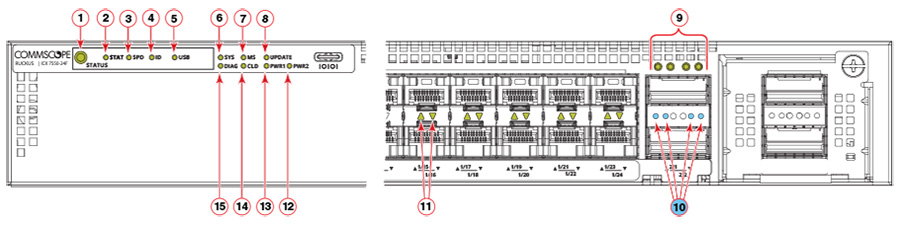
- Port status mode selection button
- Port link status mode LED
- Port speed status mode LED
- Member ID status mode LED
- USB status mode LED
- System status LED
- Master/Slave status LED
- Software update status LED
- 40/100 Gbps link/activity LEDs for stacking port 2/1
- 40/100 Gbps link/activity LEDs for stacking port 2/2 (blue)
- RJ-45 port-status LEDs (odd numbers are for upper ports; even numbers are for lower ports)
- Power 2 LED
- Power 1 LED
- Cloud/On-premises-SmartZone management status LED
- Diagnostics status LED
Note: In default 100G stacking mode, LEDs 1 and 3 glow (solid green) when a 100G link is
up in Module 2.
Port-Side LEDs of ICX 7550-48F
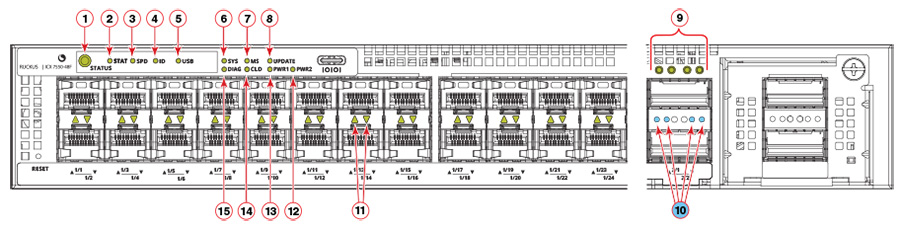
- Port status mode selection button
- Port link status mode LED
- Port speed status mode LED
- Member ID status mode LED
- USB status mode LED
- System status LED
- Master/Slave status LED
- Software update status LED
- 40/100 Gbps link/activity LEDs for stacking port 2/1
- 40/100 Gbps link/activity LEDs for stacking port 2/2 (blue)
- RJ-45 port-status LEDs (odd numbers are for upper ports; even numbers are for lower ports)
- Power 2 LED
- Power 1 LED
- Cloud/On-premises-SmartZone management status LED
- Diagnostics status LED
Note: In default 100G stacking mode, LEDs 1 and 3 glow (solid green) when a 100G link is
up in Module 2.
ICX 7550-24XZP
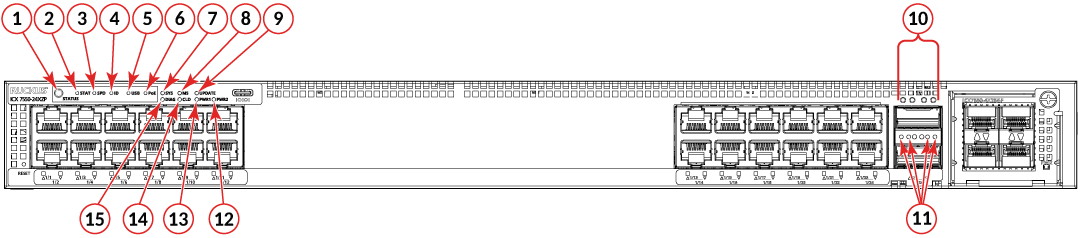
- Port status mode selection button
- Port link status mode LED
- Port speed status mode LED
- Member ID status mode LED
- USB status mode LED
- PoE status LED
- System status LED
- Master/Slave status LED
- Software update status LED
- 40/100 Gbps link/activity LEDs for stacking port 2/1
- 40/100 Gbps link/activity LEDs for stacking port 2/2
- Power 1 LED
- Power 2 LED
- Cloud/On-premises-SmartZone management status LED
- Diagnostics status LED
- RJ-45 port-status LEDs (odd numbers are for upper ports; even numbers are for lower ports)