Log onto CLI
The following describes the process for logging onto the CLI.
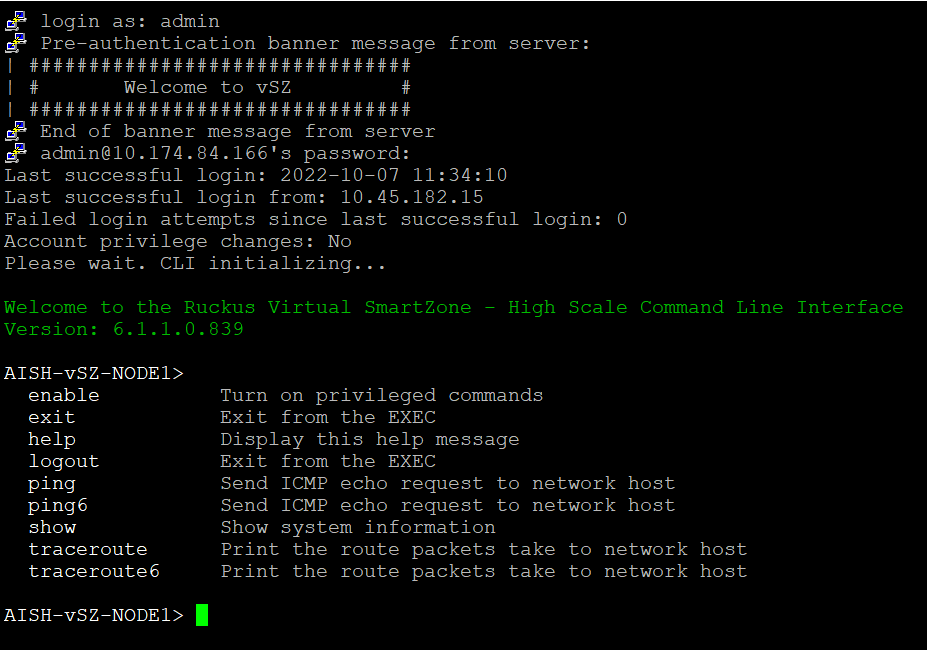
Log onto the controller using putty/Xssh (any other application) using the user credentials of login name and password as given.
Note: You cannot use 'admin' as a password, which is used during the controller installation procedure.The controller CLI welcome message appears with the CLI prompt as seen below.
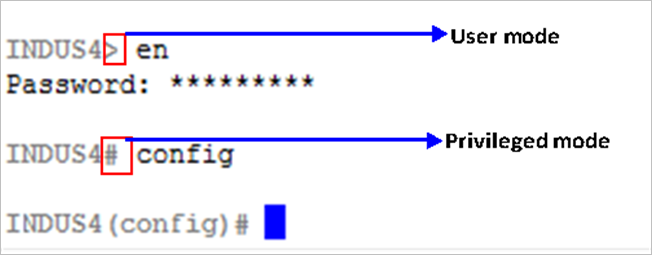
You are now logged into the controller CLI as a user with limited privileges by looking at the CLI prompt. If you are in limited mode, the prompt appears as ruckus> (with a greater than sign). To view a list of commands that are available at the root level or user mode, enter help or ? .
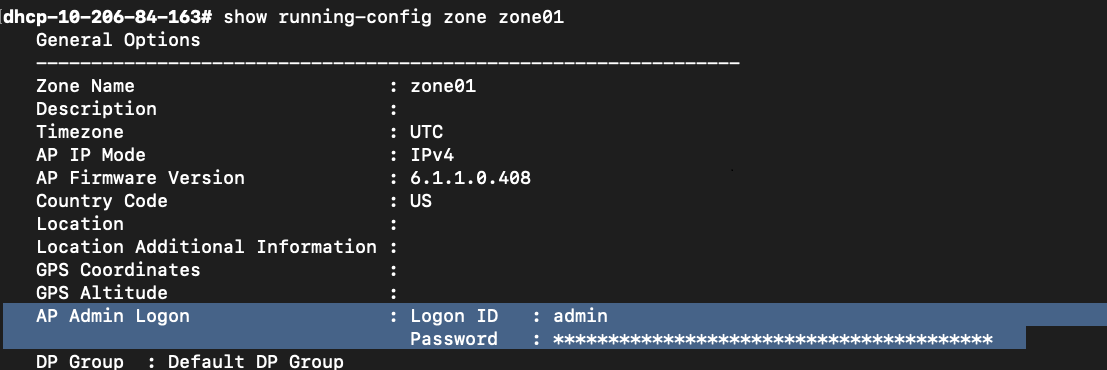
Note: To change the CLI prompt to a privileged mode, see step 5.- To view login and password details for AP SmartZone, enter
show
                     						runnning-config
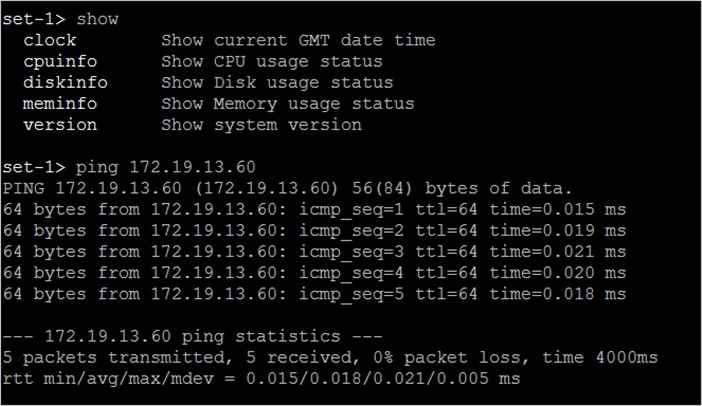
zone name. Refer the CLI details below. As a user with limited privileges, you can view a history of commands that were previously executed and ping a device as seen in Using system commands.
If you want to run more commands, you need to switch to privileged mode by entering enable and the password at the root prompt as seen in Changing to privileged mode. The prompt changes from ruckus> to ruckus# (with a pound sign) as seen in Changing to privileged mode. Refer to
enablecommand for details.