Prerequisites for ICX-Management from RUCKUS One
- Different versions of this topic are currently used in the “Add Switch: Hardware & Configuration Requirements” dialog box in RUCKUS One and RUCKUS Cloud.
- RUCKUS One dialog box location: Devices > Add Switch enter Serial Number FMP4227R00J and select Click here for more information.
- RUCKUS Cloud dialog box location: TBD
- Stakeholders: RUCKUS One/RUCKUS Cloud Engineering James Deng, RUCKUS One/RUCKUS Cloud Writer Syed, FastIron Writer: Marcia, PLM: Ravi
- For FI 10.0.10 changes, James Deng has created the following JIRA ticket for RUCKUS One, based on my recent notification: https://jira.ruckuswireless.com/browse/ACX-32034
Get the Switch Ready
- New Factory Default Switch - If the ICX switch has ‘Ruckus Cloud Ready’ mentioned on the Switch label, continue to add the switch to your RUCKUS One account.
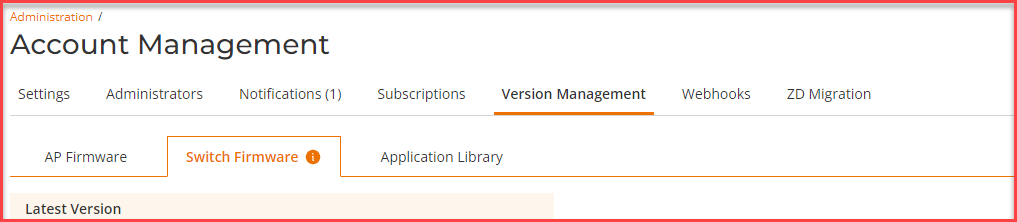
- Switch with Existing Configuration - If the switch has existing configuration, ensure that the switch is running FastIron 08.0.90d before adding them to RUCKUS One. If the switches are not running the minimum recommended version, upgrade the switch directly to the release referenced under the Switch Firmware tab on the RUCKUS One portal as shown in the following figure.1, and add them to RUCKUS One. Refer to 'Connect the Switch to RUCKUS One.'
Upgrade the Switch
For compatible ICX 7000 Series Switches that do not have a ‘cloud-ready label’ or that are running a version earlier than FastIron 08.0.90d, use one of the following methods to upgrade the switches to the software version referenced under the Switch Firmware tab.
- Download the referenced firmware Software Download (use the UFI router image).
- For a USB upgrade2, use the procedure outlined at one of the following links:
RUCKUS ICX - Boot from USB Auto USB Upgrade (video)
Image Download Using USB from the RUCKUS FastIron Software Upgrade Guide.
- For a TFTP upgrade2, follow the procedure outlined in Upgrade Process from the RUCKUS FastIron Software Upgrade Guide.
Perform these steps.
- Check the current running version
via switch CLI using the
show versioncommand. - Use a direct upgrade to UFI or a
two-step upgrade to UFI, depending on the current version.
- Switches running 08.0.80 and later can be
directly upgraded to a 10.0.10b UFI router image.
copy tftp flash <TFTP server IP address> SPR10010dufi.bin primary
- Switches running 08.0.70x or earlier
releases must go through a two-step upgrade process.
copy tftp flash <TFTP server IP address> SPR08090d.bin primary
reload
copy tftp flash <TFTP server IP address> SPR10010bufi.bin primary
- Switches running 08.0.80 and later can be
directly upgraded to a 10.0.10b UFI router image.
- After upgrade, check the version
again, and make sure the switch is running the UFI image.
SSH@ICX# show version
  Copyright (c) Ruckus Networks, Inc. All rights reserved.
    UNIT 1: compiled on Sep 31 2023 at 21:55:19 labeled as SPR10010b
      (33554432 bytes) from Primary SPR10010b.bin (UFI) <-- This should appear.
Connect the Switch to RUCKUS One
Factory-default ICX switches and ICX switches with pre-existing configuration use different methods to connect to RUCKUS One.
Factory-default Switches
There are two options to connect a factory-default RUCKUS ICX switch to RUCKUS One:
- RUCKUS recommends that the ICX switch obtain an IP address from a DHCP server for connecting to RUCKUS One. If DHCP is used to connect to RUCKUS One, the ICX switch automatically creates default VLAN 1 and router Interface VE1 with the IP addresses obtained from the DHCP server.
- In the absence of a DHCP server, use the manager network-config wizard to connect to RUCKUS One. The manager network-config wizard automatically creates router interface VE1 after the wizard completes. Refer to The Static IP Configuration Wizard for more information.
Switches with Pre-existing Configuration
For ICX 7000 Series Switches with existing
configuration, "manager registrar" should be present in the running-config. Use
the
show manager
                  					status
command to verify and update the configuration as needed.
To obtain the most recent SWR list
from the switch registrar server, use the manager
registrar-query-restart command.
If necessary, use the manager reset command
to re-establish a connection with RUCKUS One.
Upon Connection
Once the ICX switch is connected to RUCKUS One:
- The first time the ICX switch is connecting to RUCKUS One, the switch reloads after the necessary firmware is applied.
- RUCKUS One assigns a username and password to
the switch once it is managed by RUCKUS One. Even if the switch is disconnected
from RUCKUS One, the switch username and password remain the same. The password
can be obtained from the RUCKUS One GUI under the Venue’s switch settings.
Note: The credentials are applicable for factory-default switches only. For switches with pre-exisiting configuration, you can continue using the existing authentication credentials configured on the switches.
CLI Configuration Changes
RUCKUS One allows you to make configuration changes via the CLI, even when the switch is connected.