Adding an SD-LAN Service
You can add an SD-LAN service to
manage how end-user traffic is tunneled in a Wi-Fi network that includes RUCKUS Edge
devices.
- On the RUCKUS One navigation bar, hover over Network Control and click My Services or Service Catalog.
- Click the Add button in the
SD-LAN
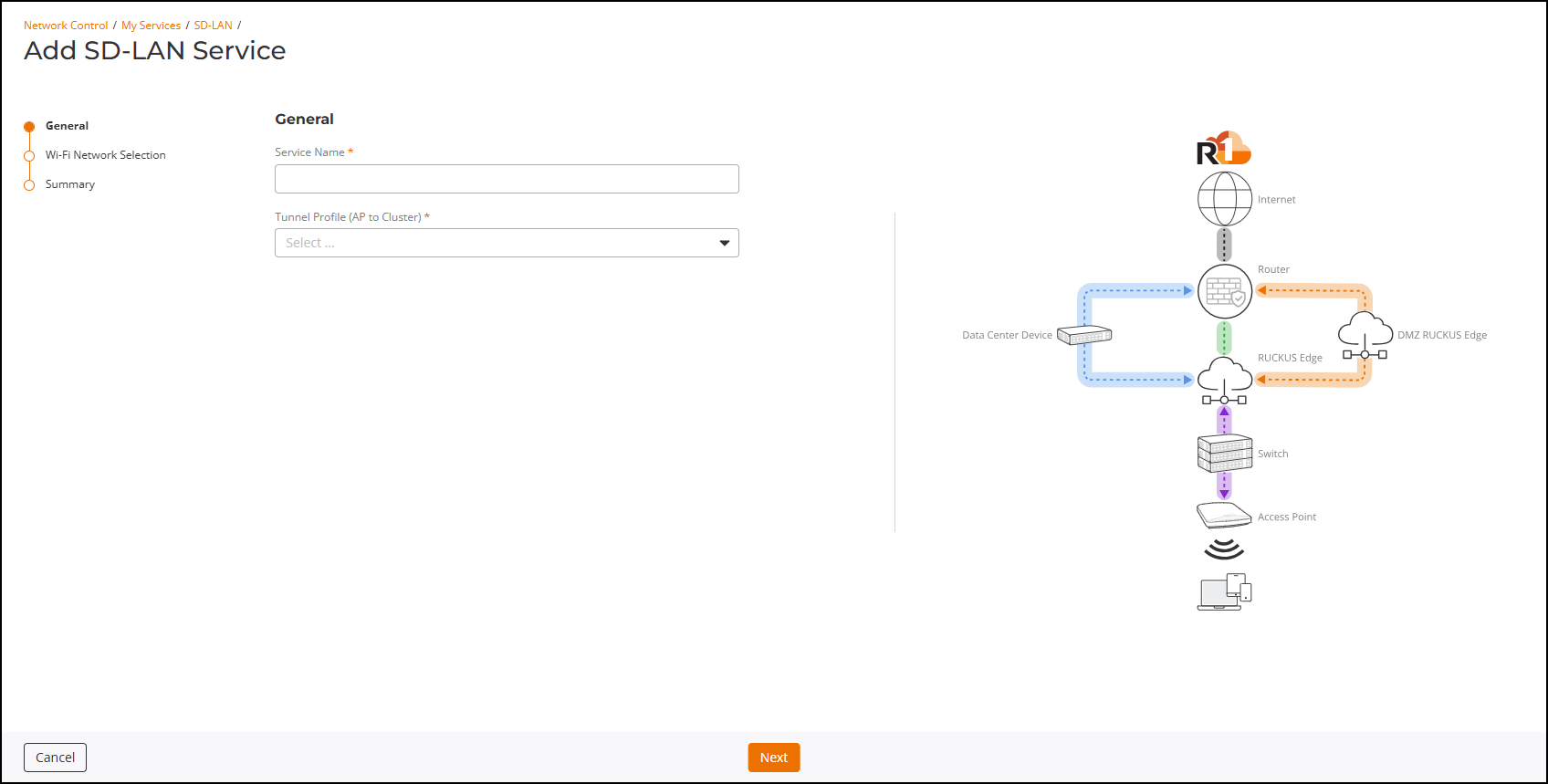
tile. This displays the Add SD-LAN Service page.
- In the Add SD-LAN
Service page, configure the following:
- General: In this section, enter the following details:
- Click Next.
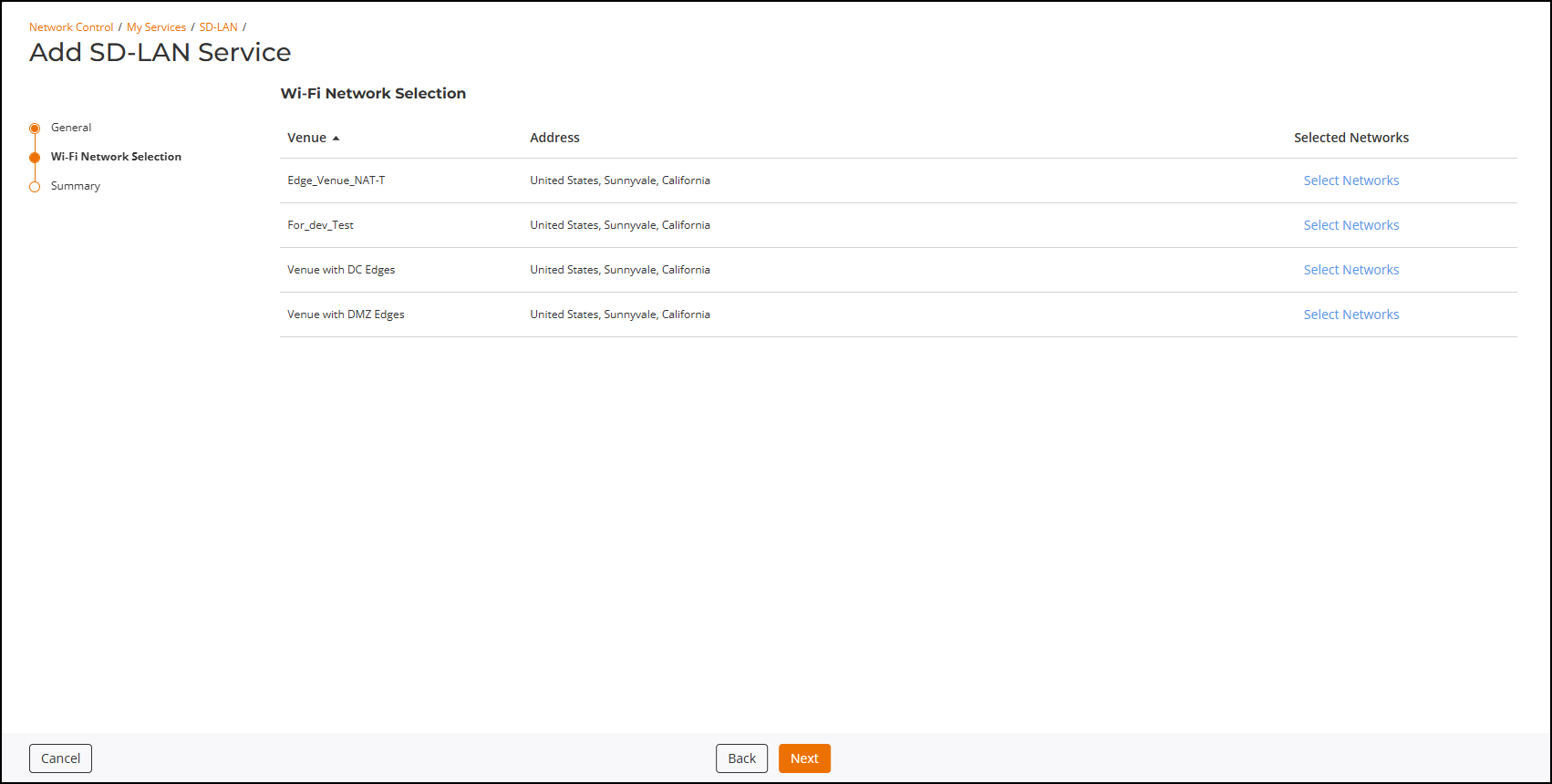
- Click Select Networks for the respective venue.
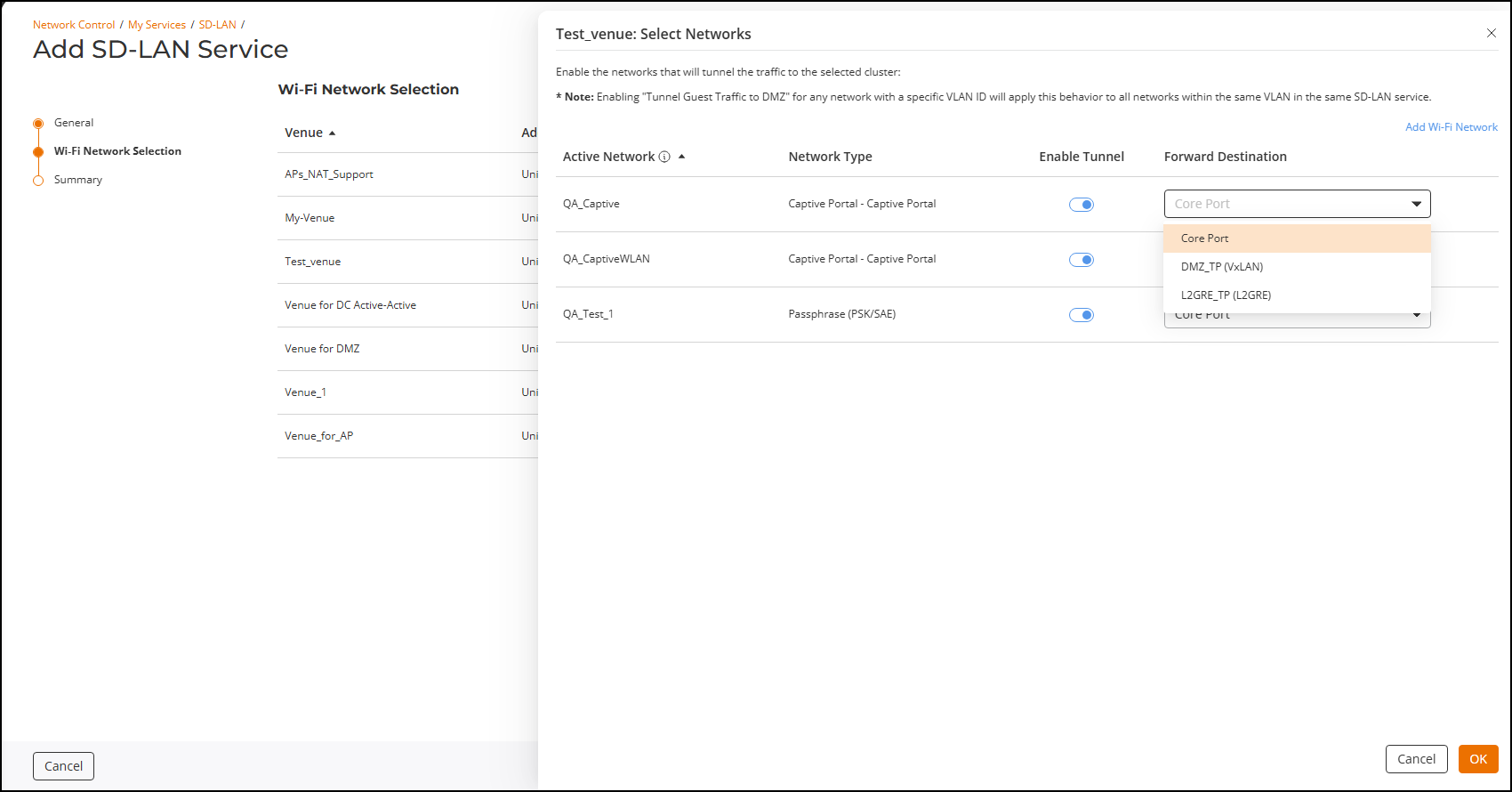
- Toggle the Enable Tunnel option and select the Forward Destination option for the Active Network.
- Click OK.
- Click Next. The Summary page is displayed.
- Review the settings and
click Add.The SD-LAN service is configured with an AP to Cluster tunnel profile and the service is applied to the selected Wi-Fi network.