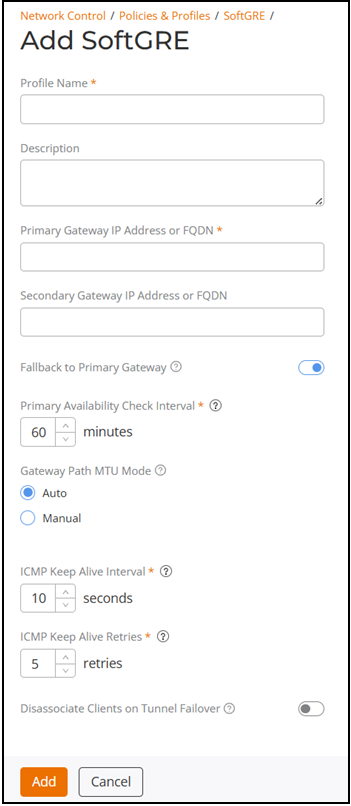
Creating a SoftGRE Profile
You can configure a SoftGRE tunnel profile
that, when applied at the network level for a venue, directs all encapsulated data
traffic
to a third-party, centralized gateway.
Topic reused in SZ
and R1 prj.
-
R1On the RUCKUS One web interface, navigate to .The Service Catalog page is displayed.
-
R1Select SoftGRE.
-
R1Click Add.
-
R1Profile Name: Enter a name for the profile ranging from 2 through 32 characters. Each SoftGRE profile name must be unique.
-
R1Description: (Optional) Enter a description for the SoftGRE profile.
-
R1Primary Gateway IP Address or FQDN: Enter the IP address or fully qualified domain name (FQDN) of the primary gateway server.
-
R1Secondary Gateway IP Address or FQDN: (Optional) Enter the IP address or fully qualified domain name (FQDN) of the secondary gateway server. Both the Primary and Secondary Gateway addresses must be different within a single SoftGRE profile.
- Fallback to Primary Gateway: (Optional) Toggle this
setting to on to allow APs to automatically switch back from the secondary to
the primary gateway when it becomes reachable. By default, this setting is
disabled.
R1 (SoftGRE fallback to primary gateway
-
R1Gateway Path MTU: Set the maximum transmission unit (MTU) for the gateway path.
-
R1ICMP Keep Alive Interval: Enter the time interval in seconds. The time interval refers to how often APs send a keep-alive message to the active third-party WLAN gateway. The range is 1 to 180 seconds, and the default value of 10 seconds.
-
R1ICMP Keep Alive Retries: Enter the number of keep-alive attempts. Keep-alive attempts refer to the number of times APs wait for a response from the active third-party WLAN gateway before failing over to the standby gateway. The range is 2 to 10 attempts, and the default is 5 attempts.
-
R1Disassociate Clients on Tunnel Failover: Enable this option to disassociate the client when the AP fails over to another tunnel.
-
R1Click Add.